After invoices have been created, a SEPA file for the bank can be generated here.
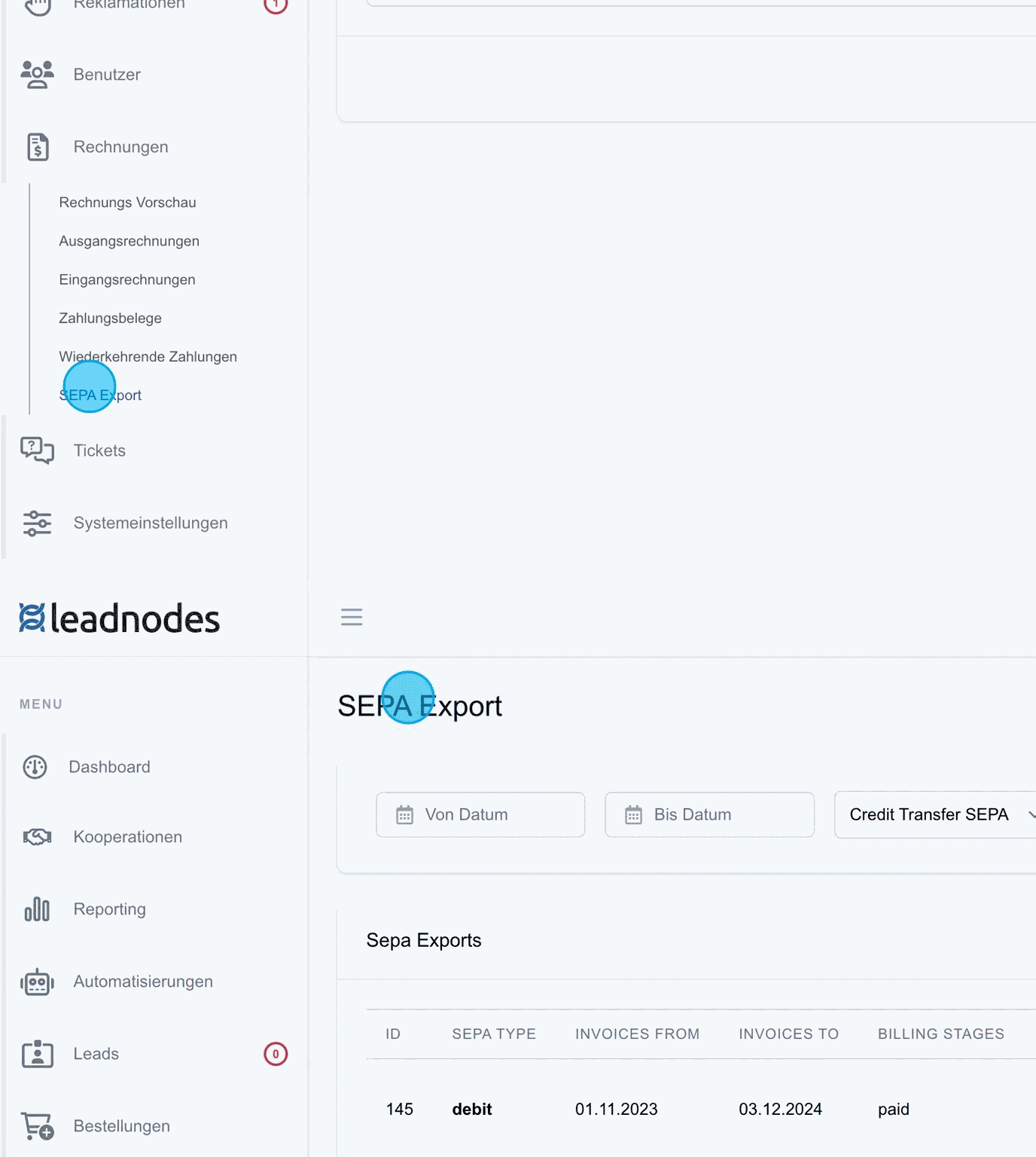
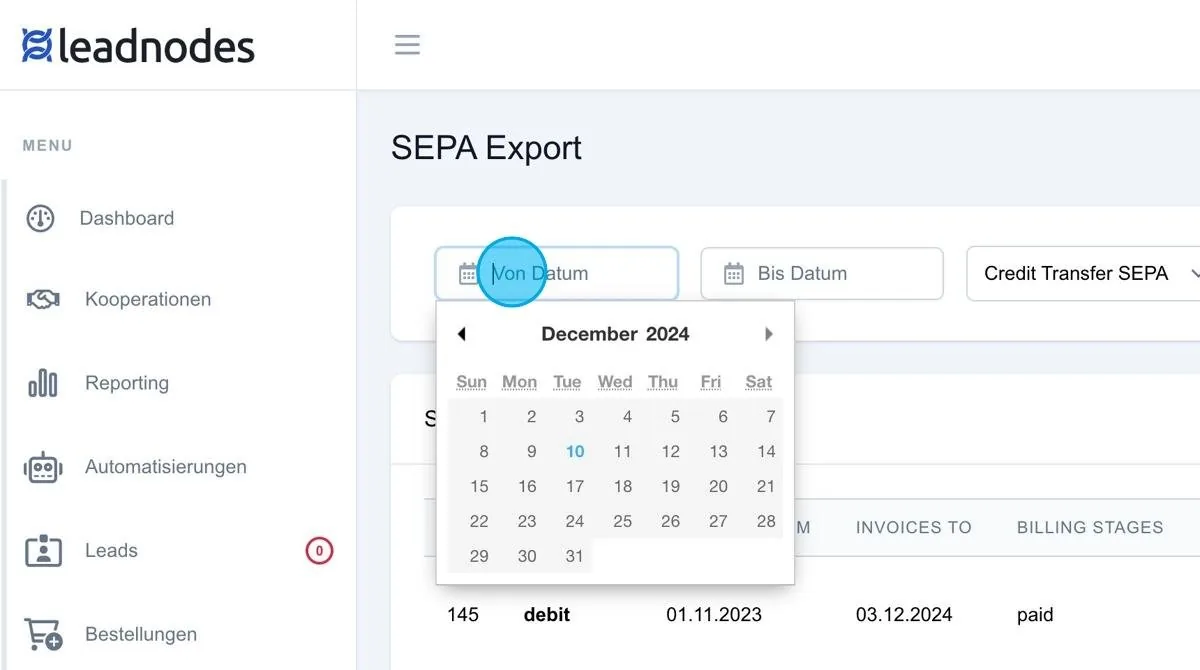
SEPA export with filter options
The SEPA export function creates a file that can be used for Credit Transfer (bank transfers) or Debit Transfer (direct debit collections). In the case of Debit Transfer, the export enables direct debits to be processed directly in order to collect the amounts due. This makes the automated handling of payments via the banking system easier.
With the SEPA export function, invoices can be filtered by status and date, e.g. “paid”, “unpaid” or “reminded”. This lets you select exactly those invoices from a specific period that are to be exported. For example, all paid invoices can be marked for a SEPA export so that the bank can collect them.
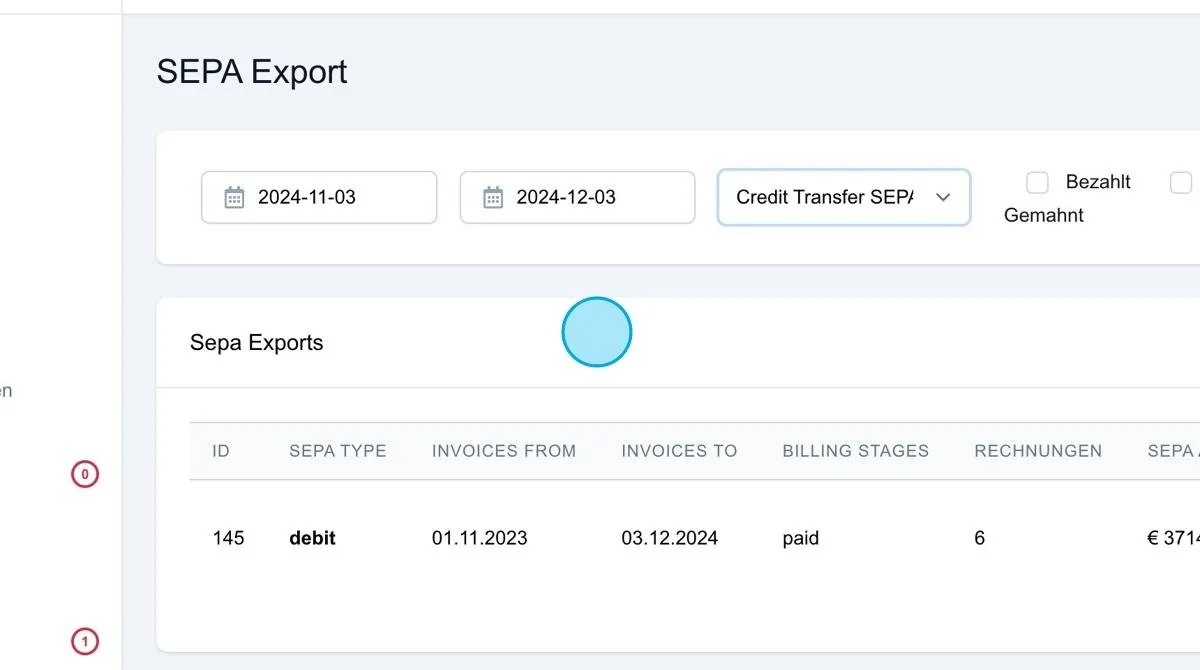
Create SEPA Export
After clicking “Export”, a SEPA file is generated that can be downloaded, provided the stored bank details are correct. If there are errors in the bank details, such as a missing creditor ID, an incorrect account number or other problems, the user receives a corresponding message. It shows which data needs to be corrected before the file can be created and submitted.
Once the SEPA file is error-free and has been submitted to the bank, it is treated as a batch direct debit. The bank splits the submitted amounts across the corresponding invoices and collects them from the respective customer accounts, provided the authorisation for such transactions has been set up.
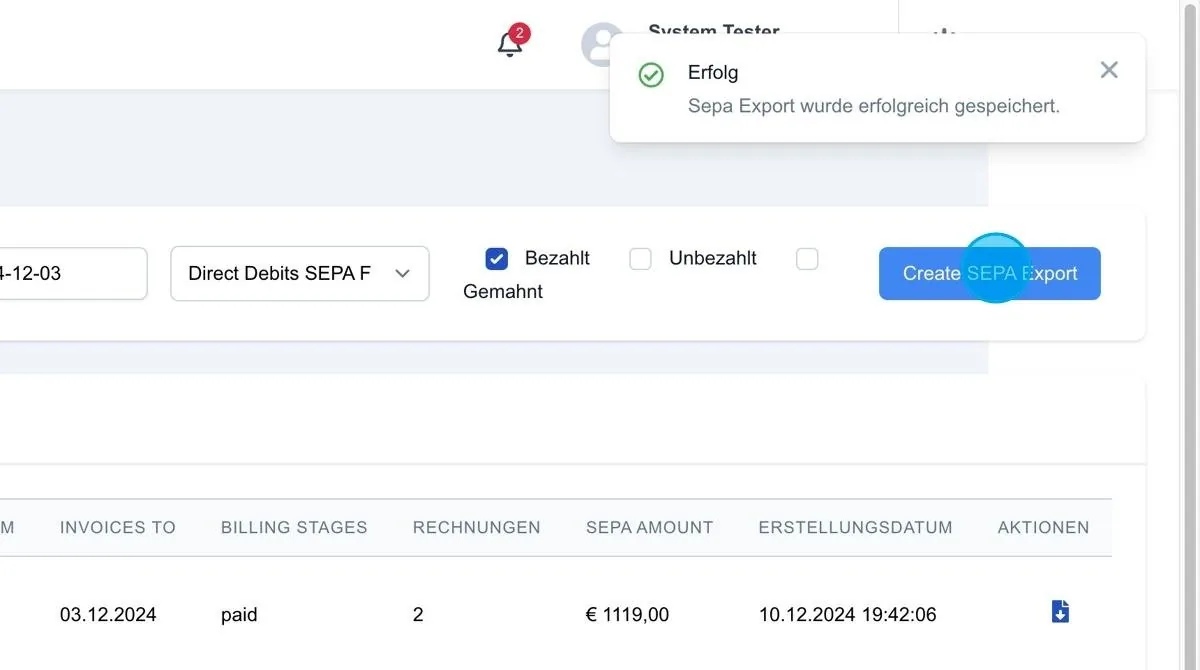
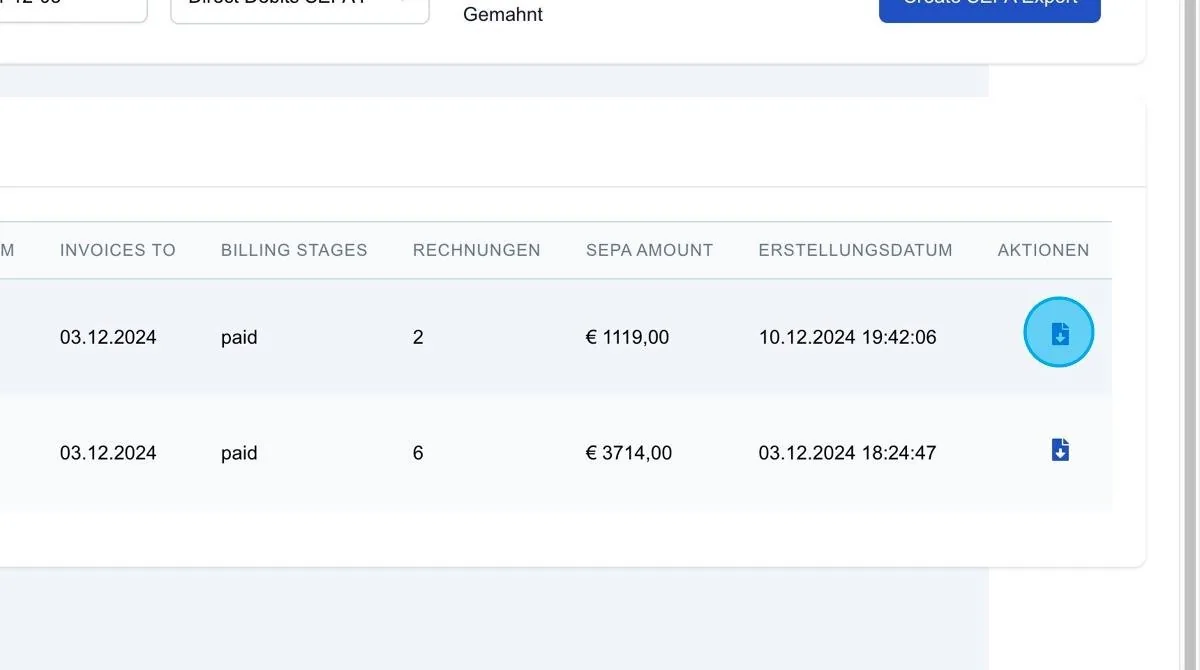
Download SEPA file
After the SEPA export has been created, the file can be downloaded via the download button. This file is ready for submission to the bank and contains all selected invoices for direct debit or credit transfer processing.