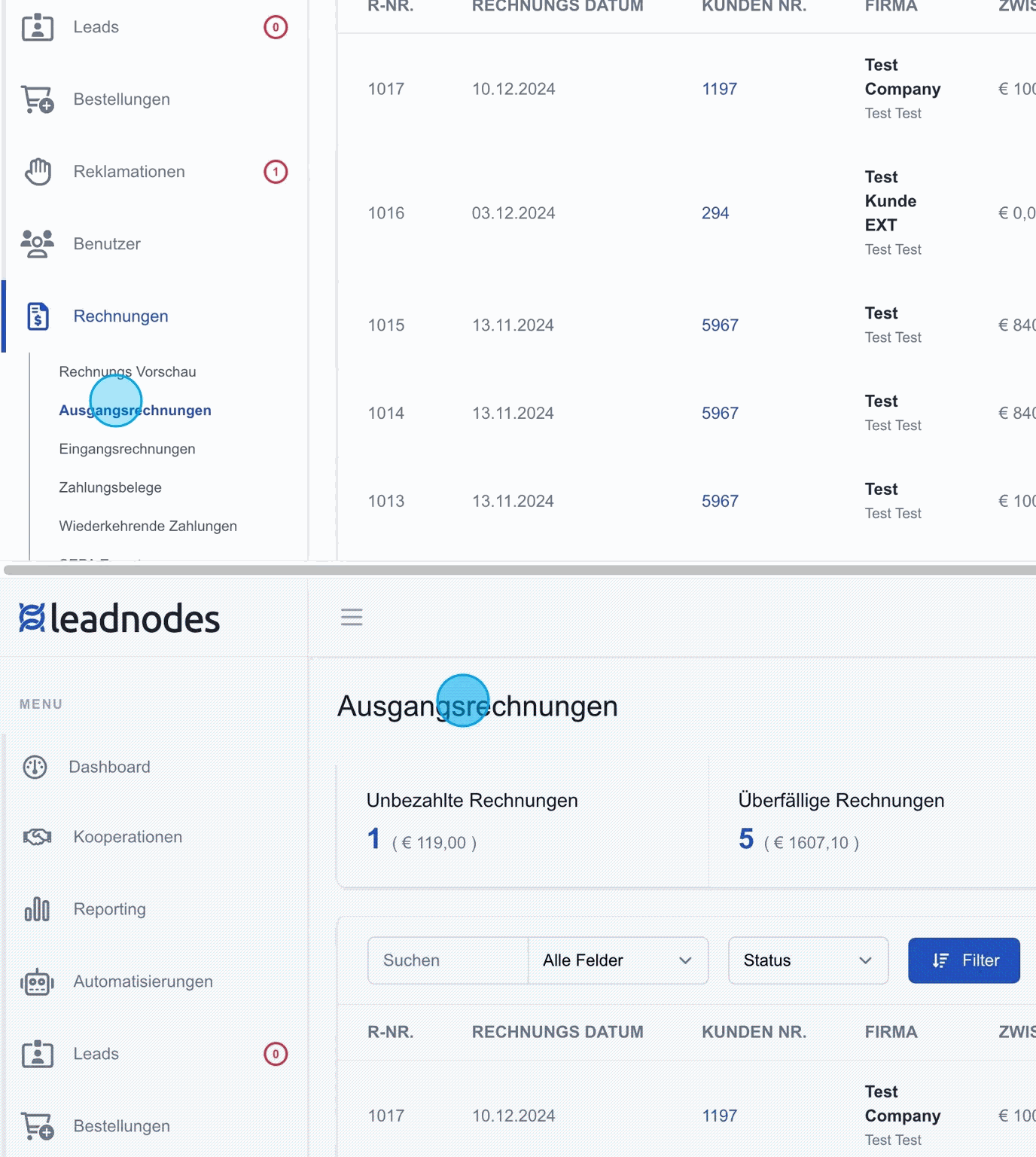
This section provides an overview of all invoices created. Invoices are categorised by status, such as "unpaid", "overdue", "reminded" or "handed over to debt collection". The overview also lets you view and manage open amounts, so you can keep track of the payment status of your invoices at all times.
Type
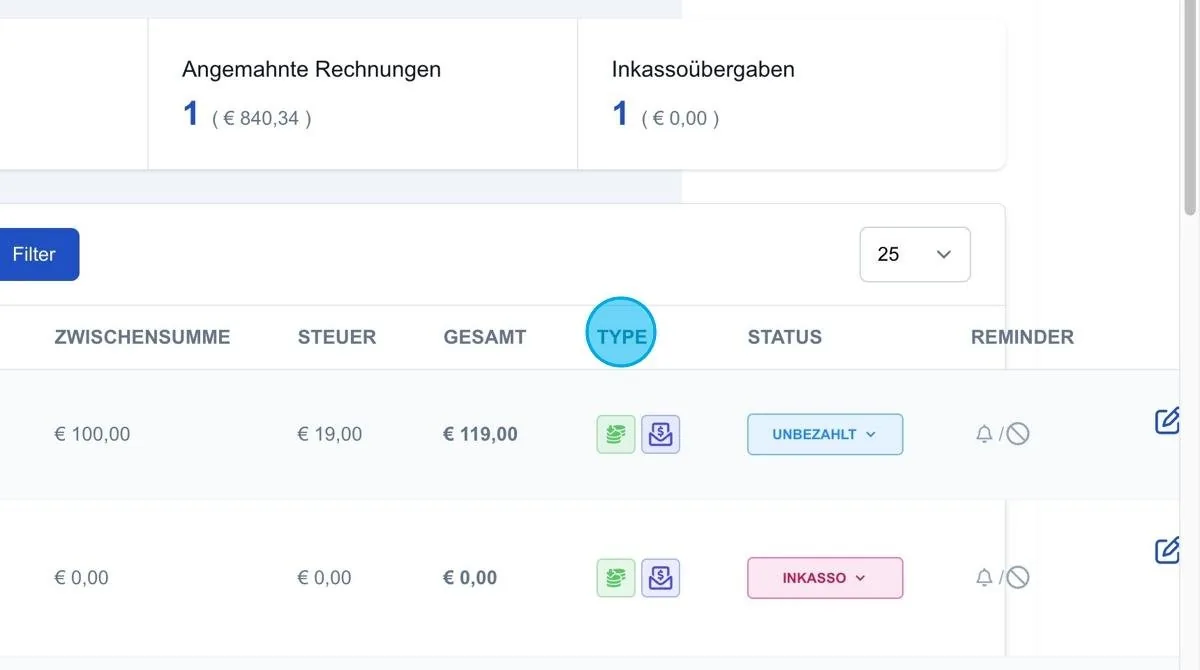
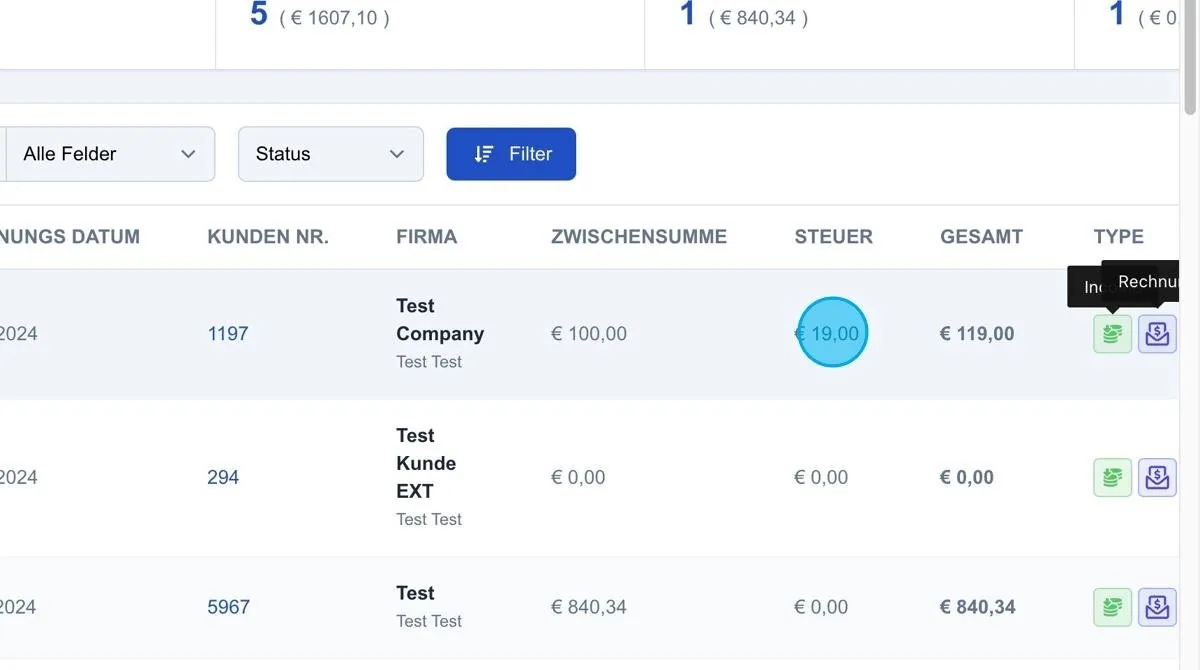
In addition to the status, the overview also shows the type of invoice. Possible invoice types include "Invoice", "Prepaid", "Offset" and "Bank transfer". Depending on the type, a specific icon is displayed in the overview to indicate the billing method.
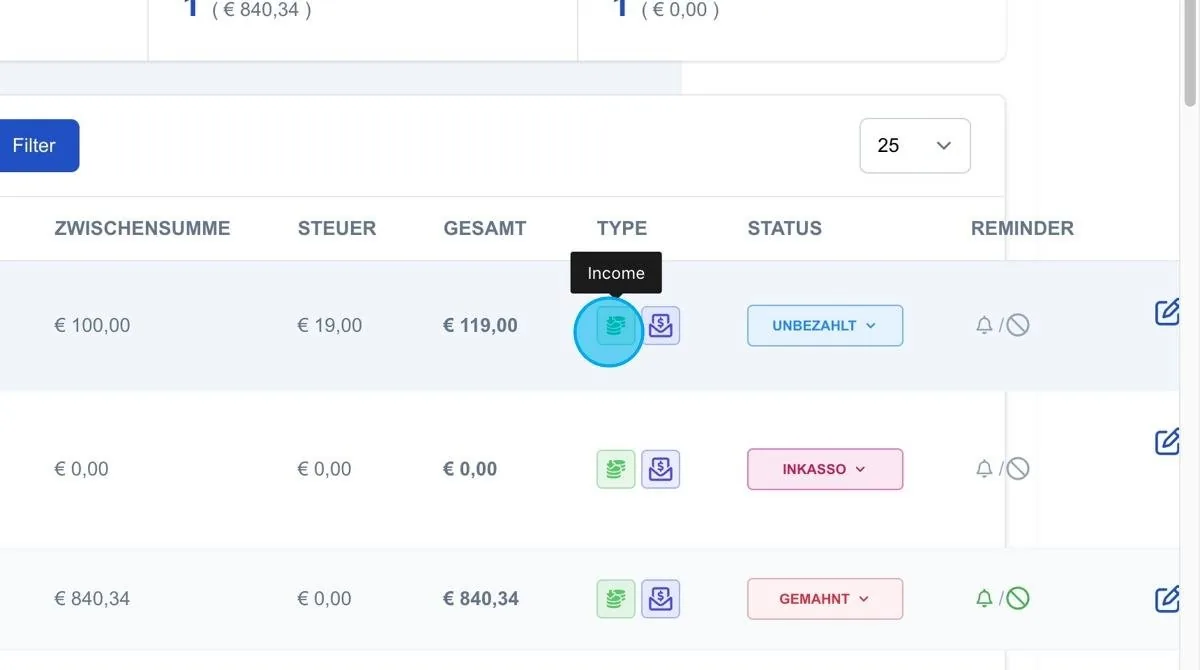
In the Type overview, an additional icon visualises the cash flow. A green icon labelled “Income” indicates that an incoming payment is expected. For negative invoices or credit notes, the icon is shown in red to indicate that a repayment or refund is outstanding.
Invoice status
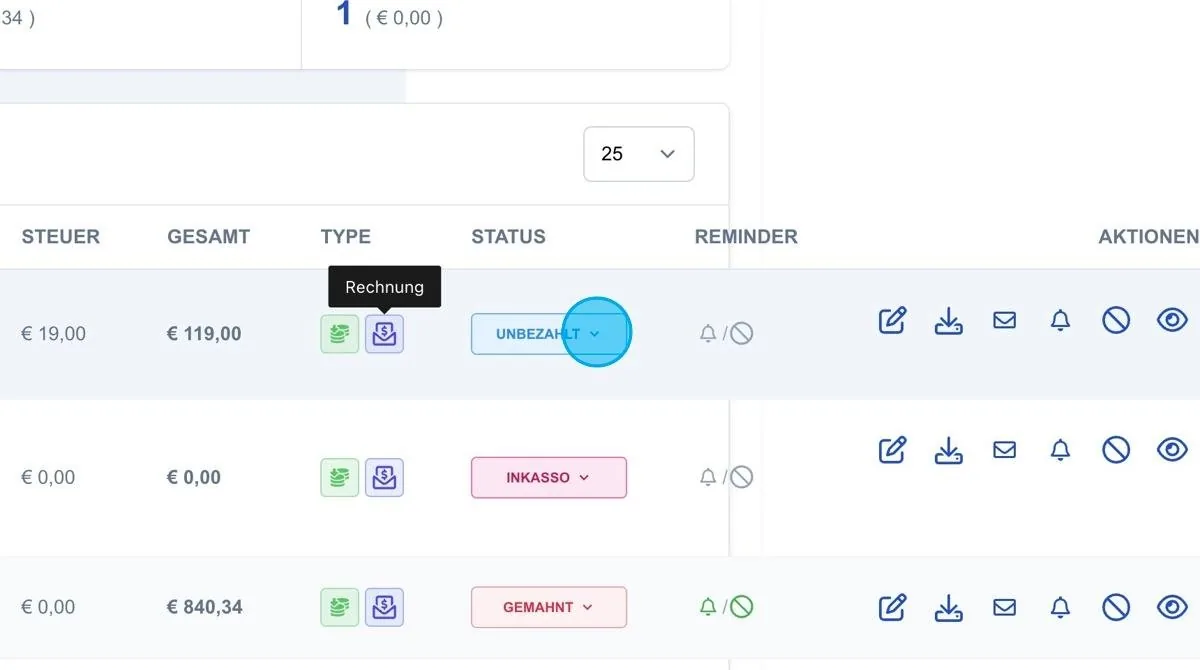
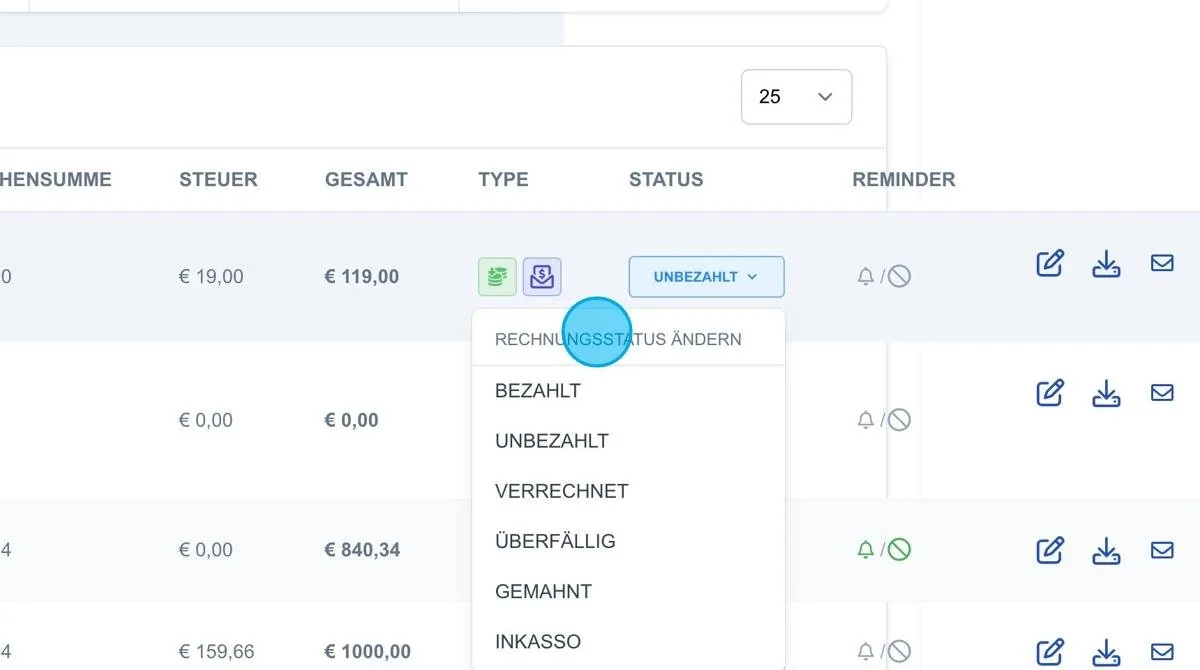
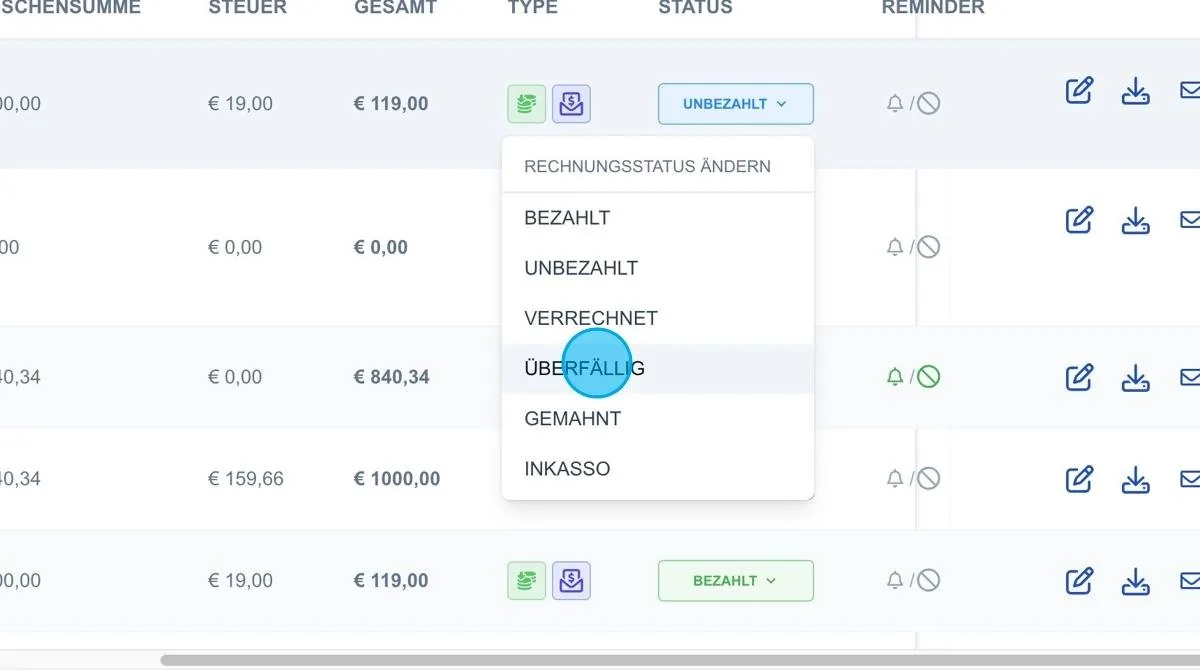
The invoice status can be set manually to “paid”, “unpaid”, “offset”, “overdue”, “reminded” or "debt collection". The statuses “overdue” and “reminded” can also be triggered automatically by the system.
To do this, the relevant periods must be defined in the system settings. For example, an invoice is automatically marked as “overdue” if it is still unpaid after a defined period, such as seven days, has elapsed. As soon as the status is set to “overdue”, the system sends a reminder to the customer in the background that the invoice is overdue.
Overdue
As soon as an invoice is marked as “overdue”, the system automatically sends a reminder to the customer to draw attention to the outstanding payment.
There is also the status “debt collection”. However, this has no automated function and is only used for labelling within the system.
Reminded
If a second reminder level is defined in the system settings, the invoice is automatically set to “reminded” once the defined period has elapsed. With this status, a further email is sent to the customer, worded more firmly and requesting prompt payment. It also points out that the account may be suspended if payment is not received.
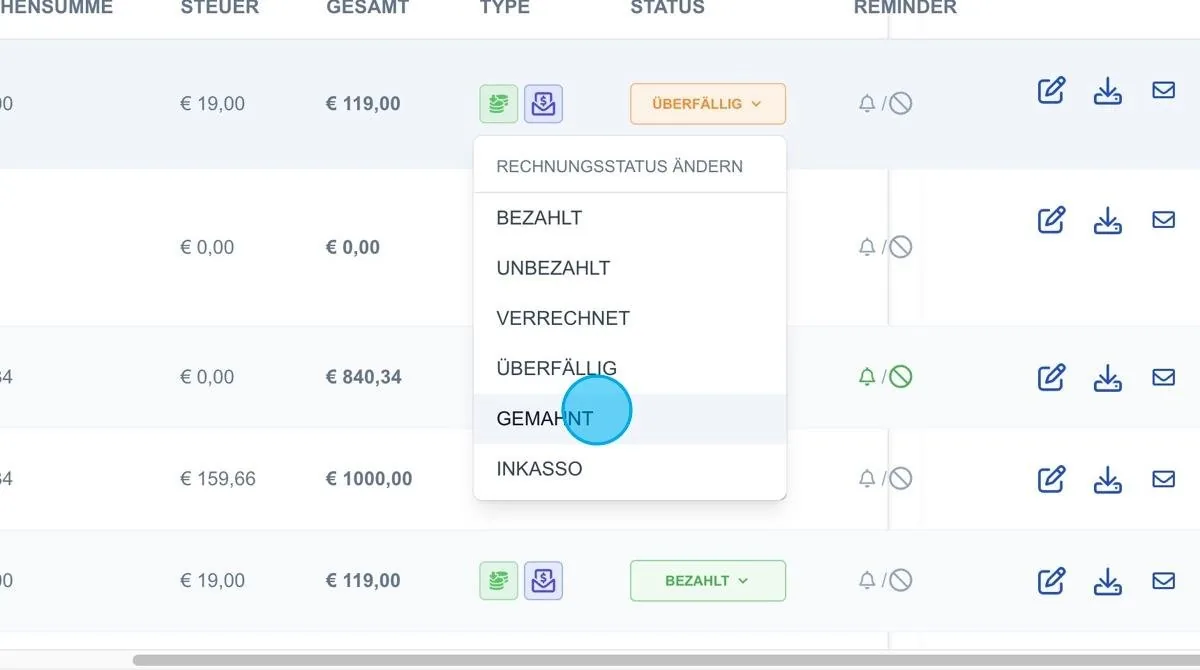
Debt collection
There is also the status “debt collection”. However, this has no automated function and is only used for labelling within the system.
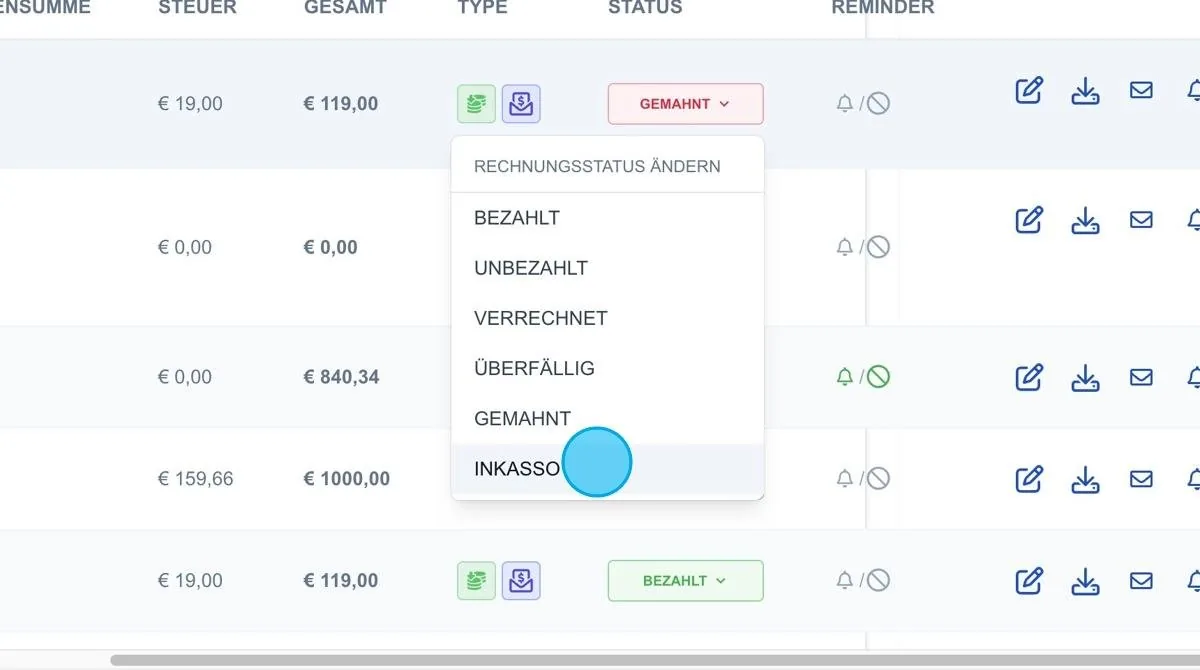
Pencil icon
Invoices can be edited using the pencil icon. This function allows adjustments directly within the invoice, for example changes to line items or details before final processing.
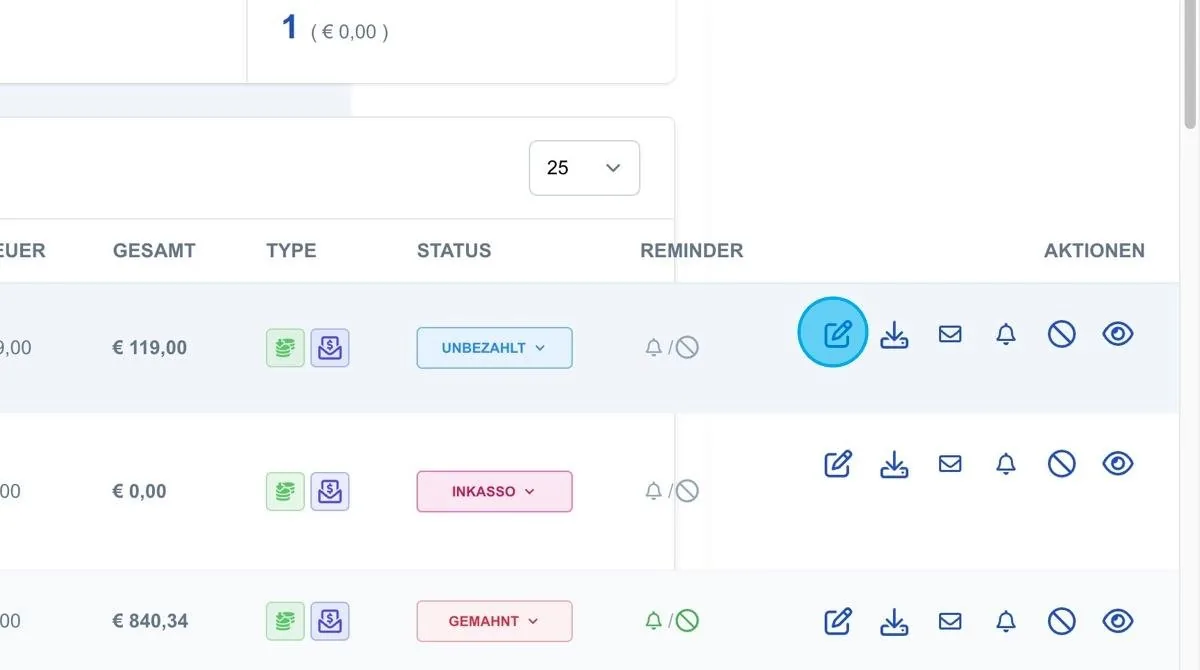
Edit Invoice
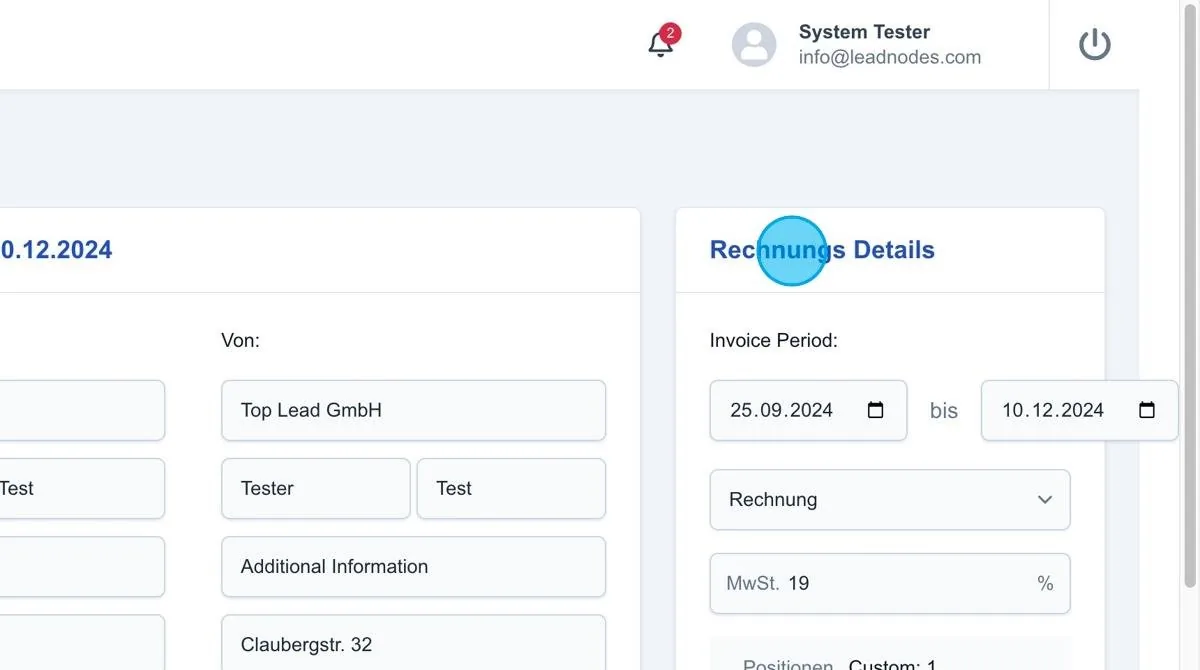
Here you can adjust both the sender and the recipient of the invoice.
Other data such as invoice periods, VAT etc. can also be changed.
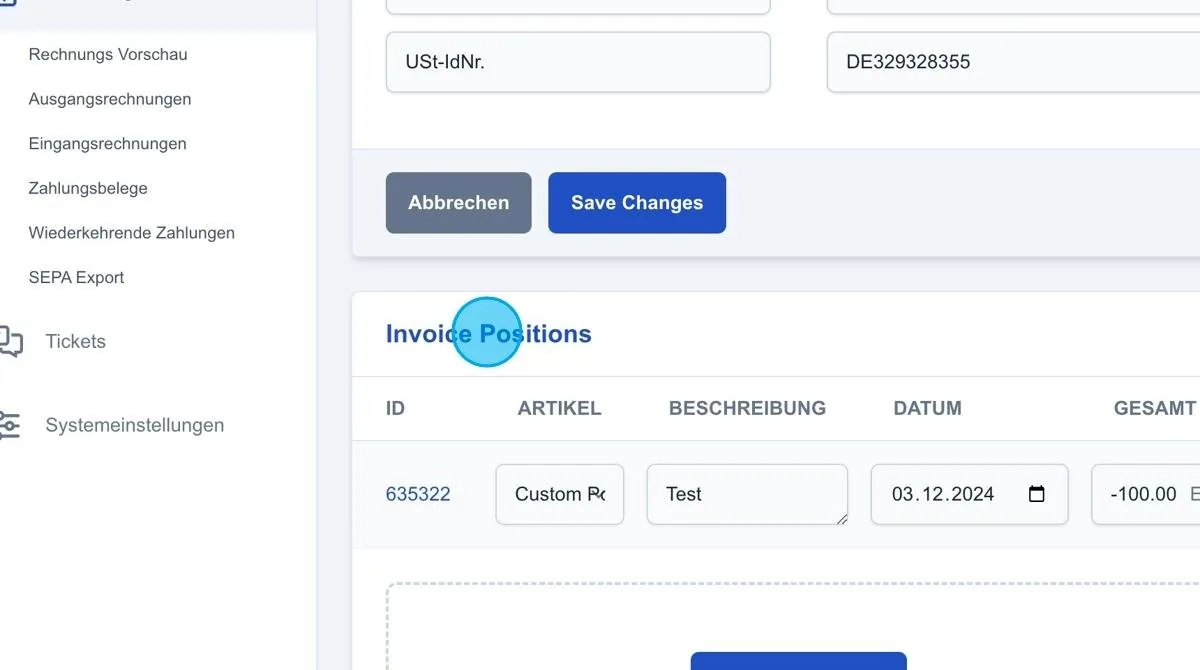
Invoice Positions: Or additional payment items can be added.
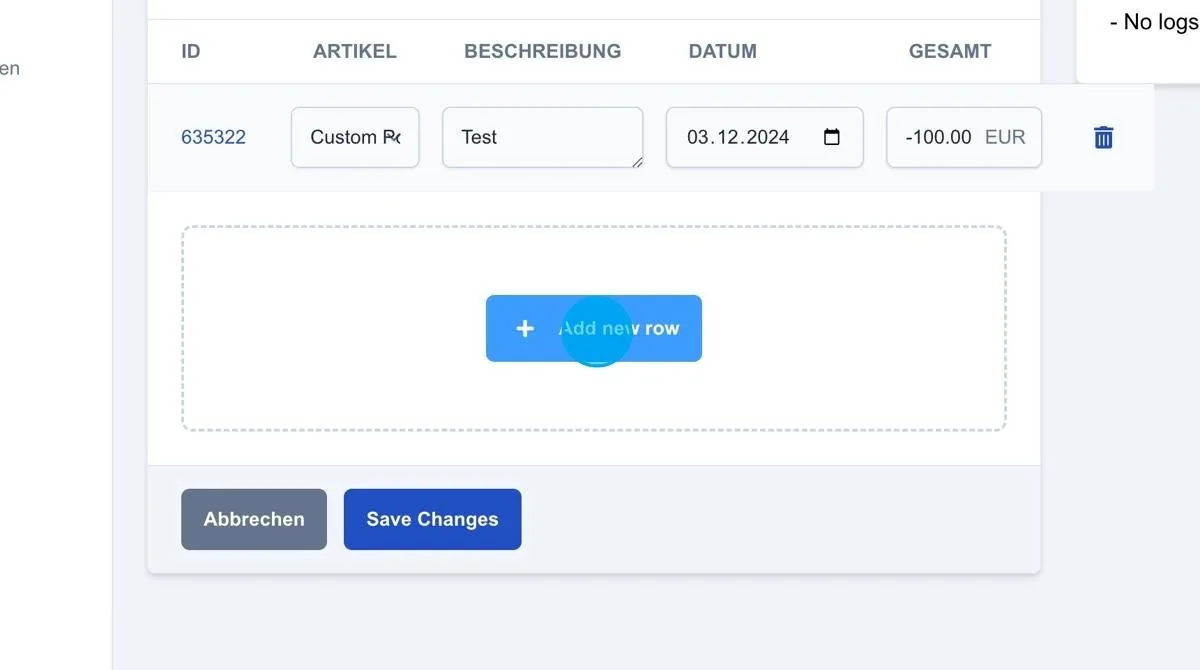
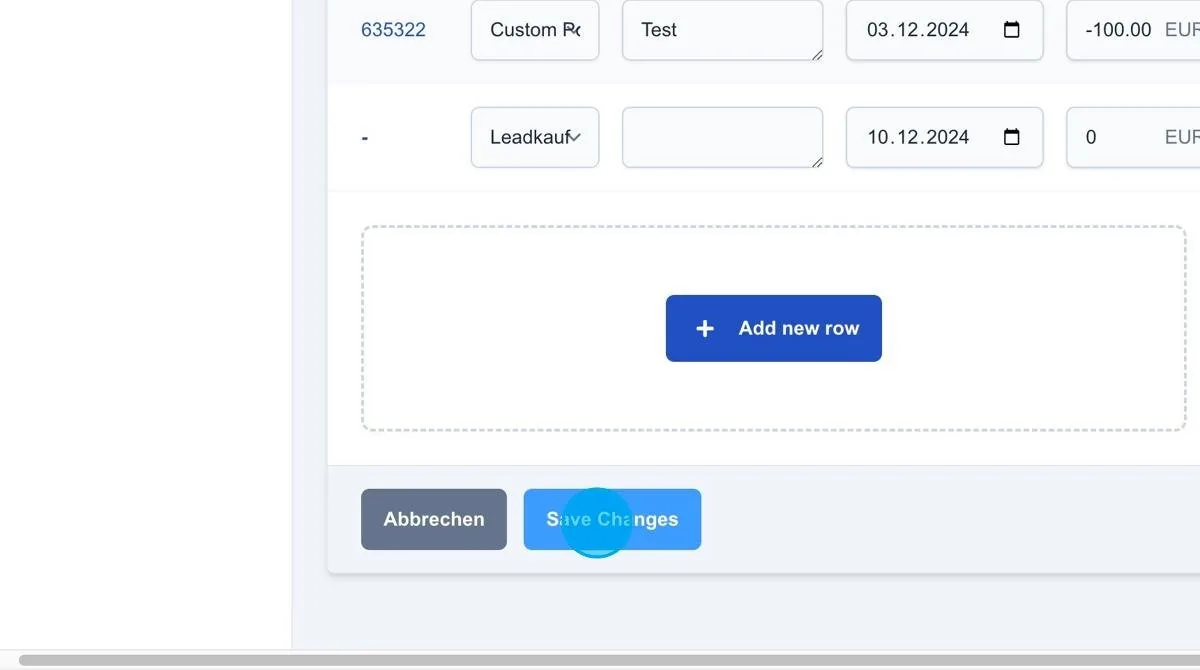
Save Changes: After editing an invoice, the changes must be saved by clicking “Save Changes”. Only once saved are the adjustments applied in the system and shown on the invoice.
Download button
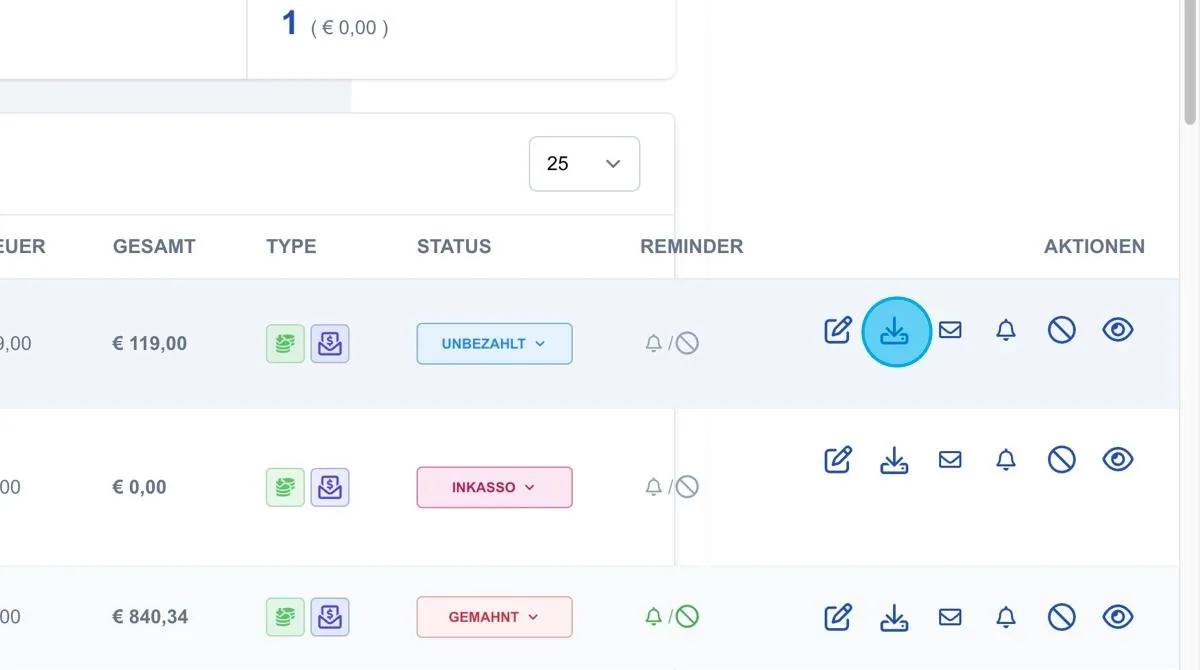
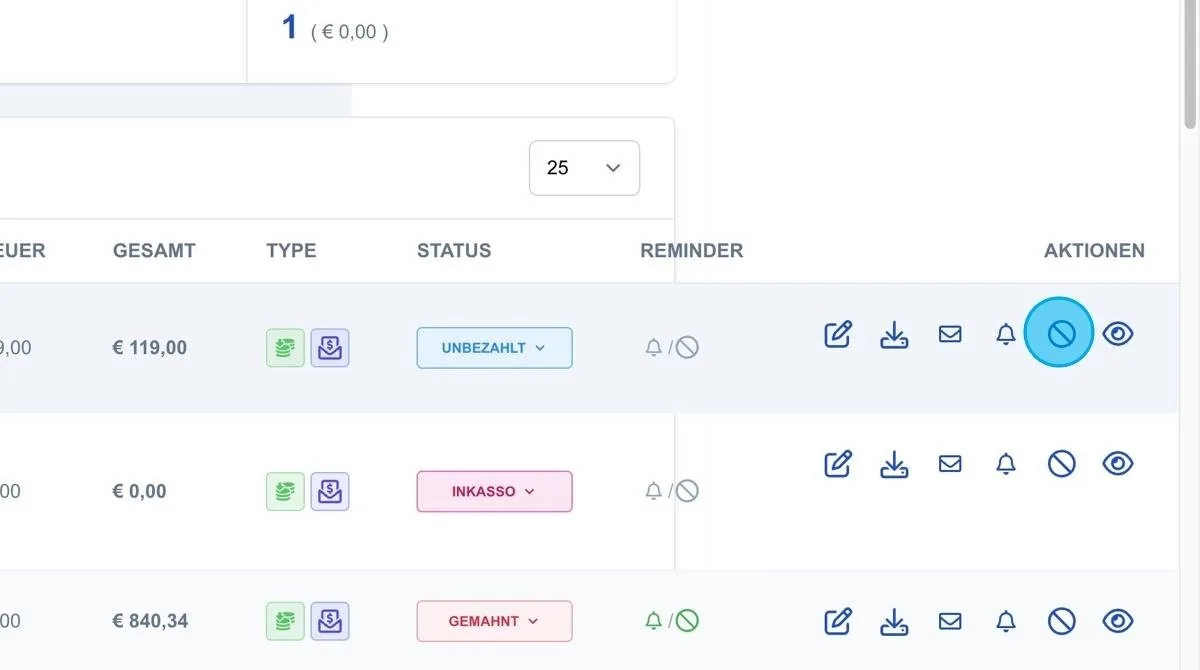
The outgoing invoices overview also has a download button. It lets you download invoices as a file and save them locally.
Letter icon
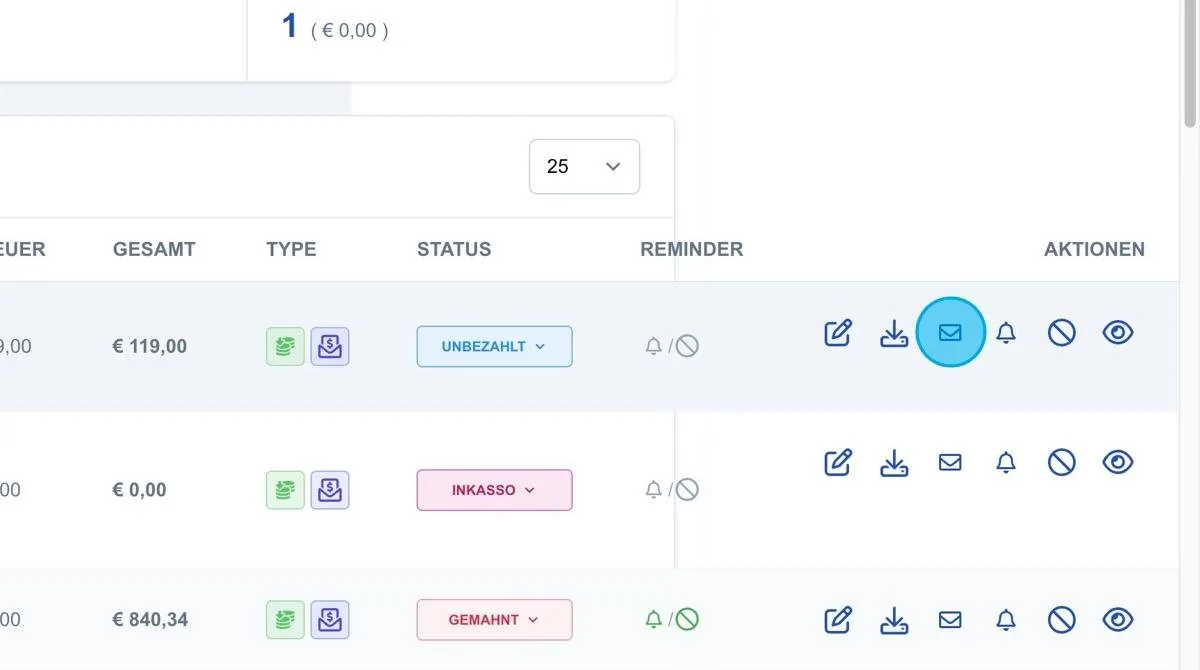
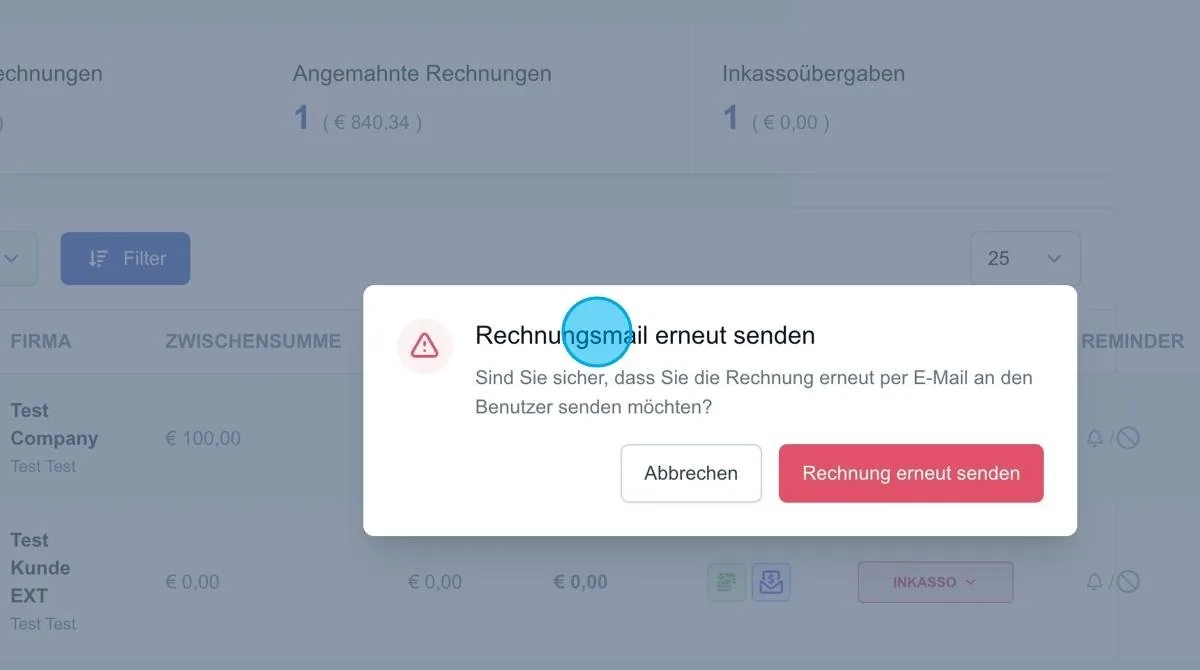
The button with the letter icon lets you resend the invoice email to the customer. When you click the button, a confirmation message appears first, after which the invoice email is sent to the customer again.
Bell icon
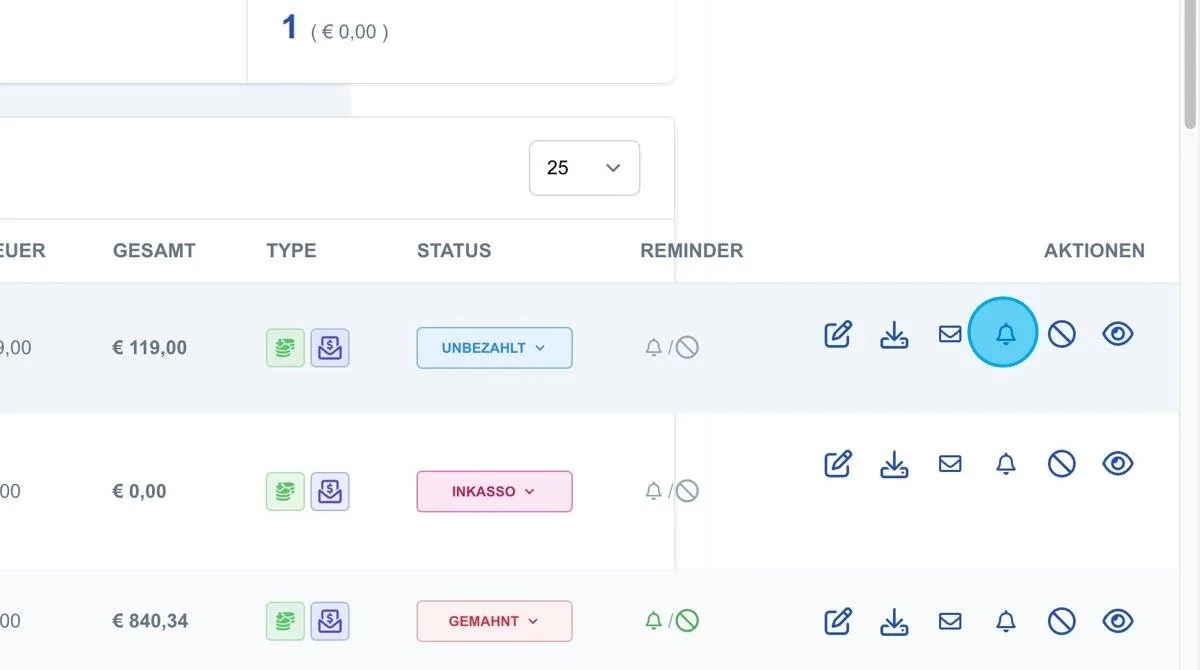
The bell icon lets you send a payment reminder to the customer. This function allows you to draw the customer's attention to the open invoice again, encouraging prompt settlement.
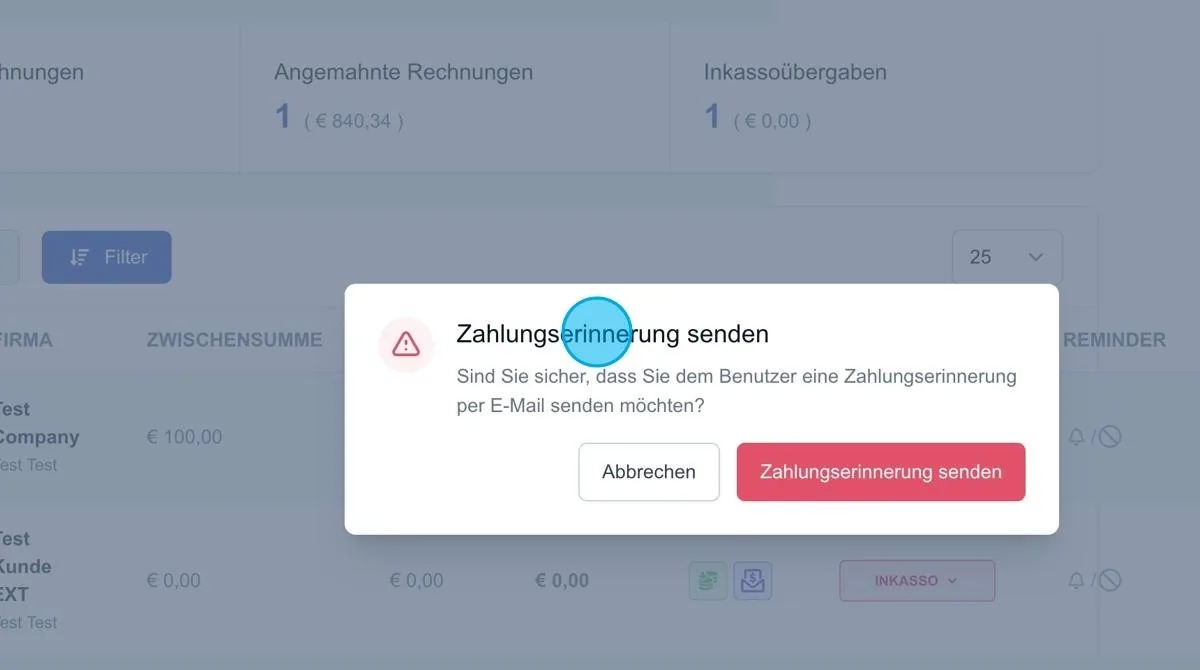
Stop icon
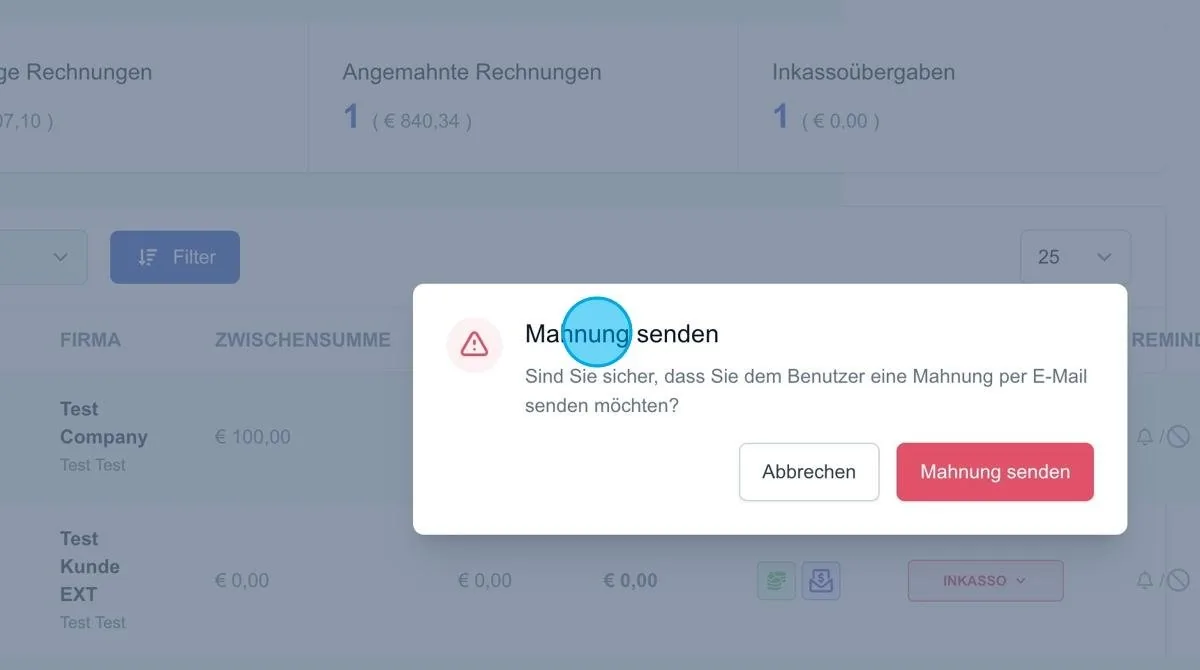
The stop icon lets you send a dunning notice to the customer manually. This function serves to clearly point out the overdue invoice to the customer and request payment.
Eye icon
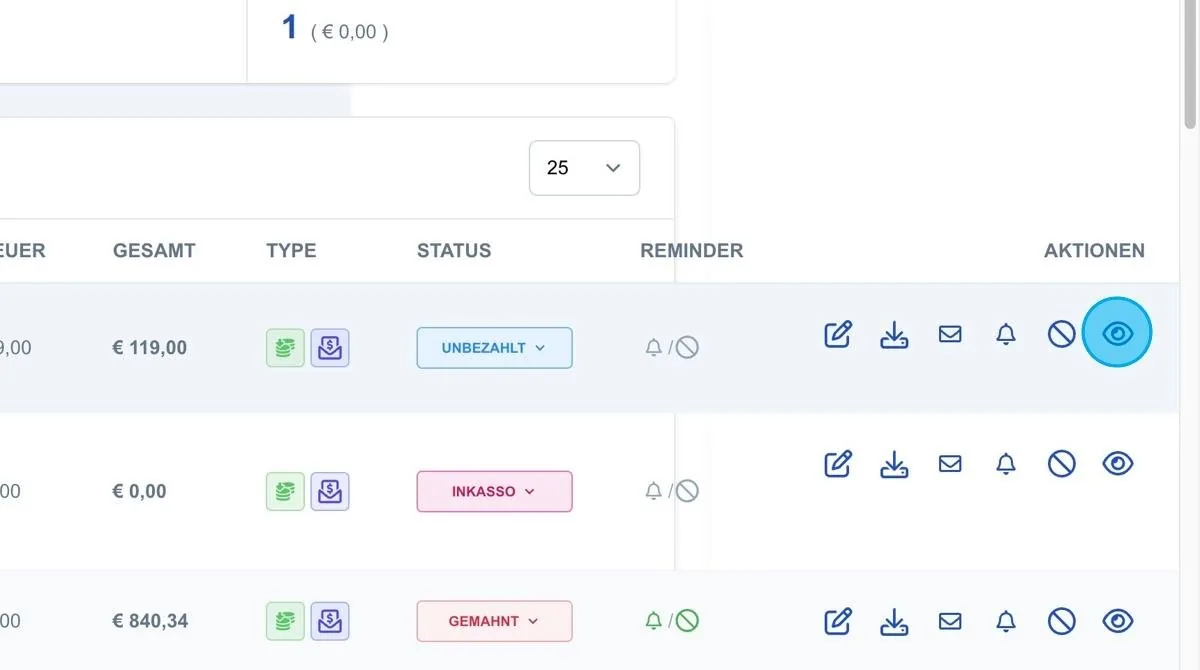
The eye icon lets you view the invoice in detail. This view shows all line items and details of the invoice without allowing any changes.
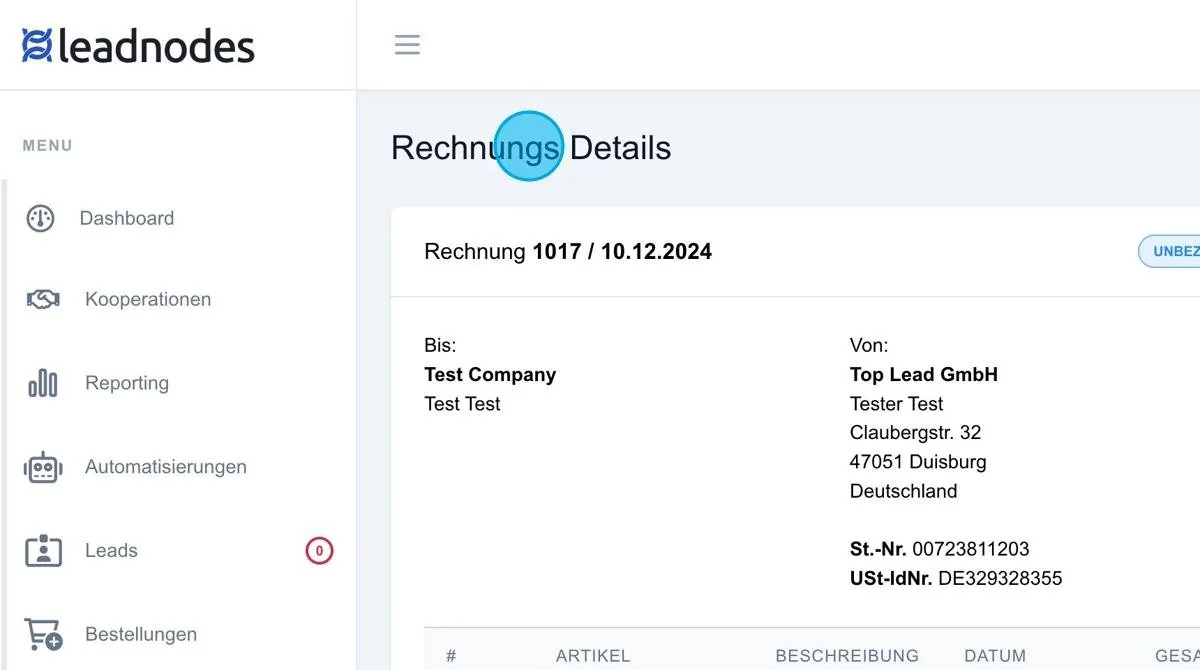
Invoice detail view
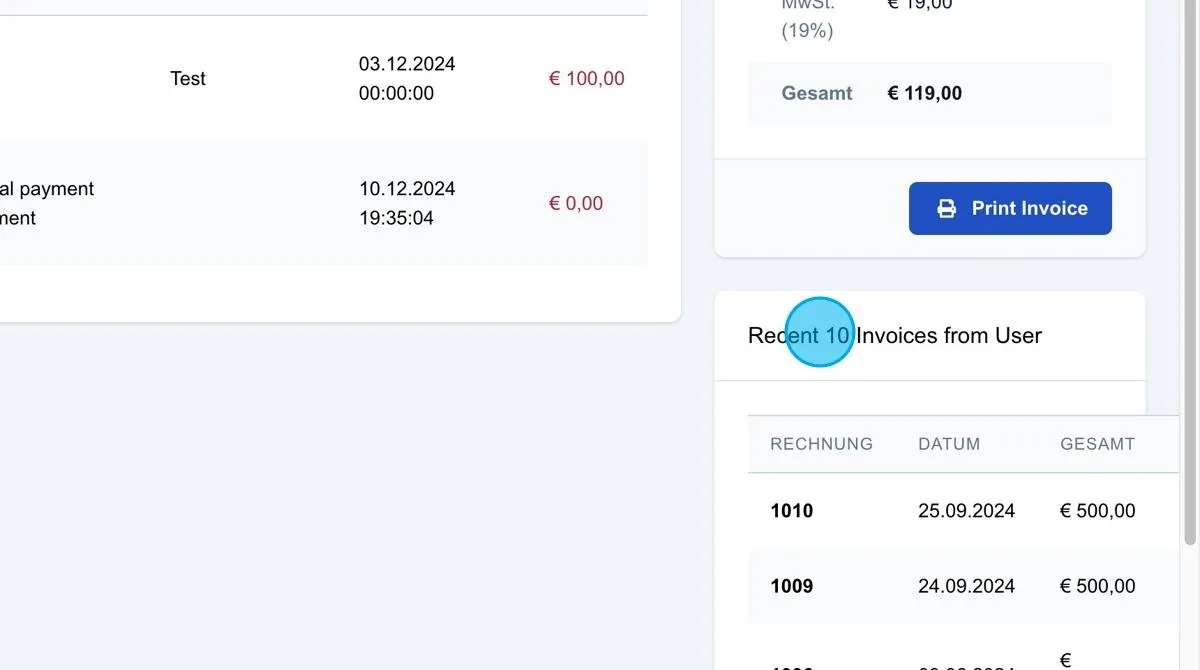
The invoice detail view also shows whether the customer has further invoices. These can be viewed accordingly.