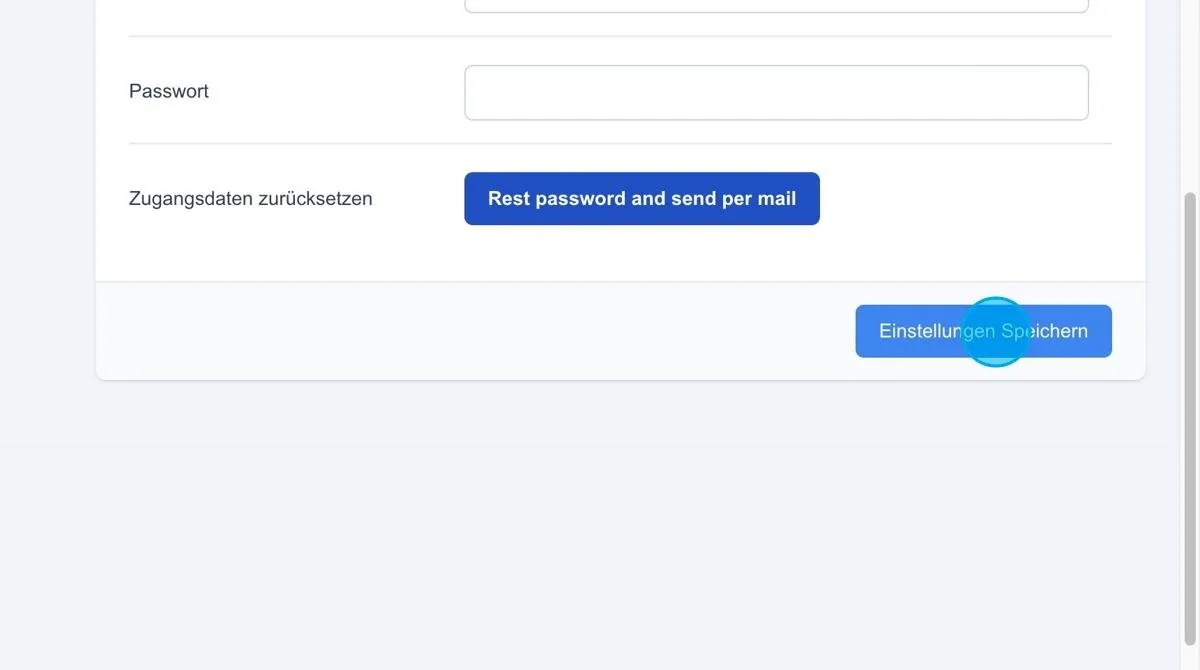
The user settings begin with the User Profile
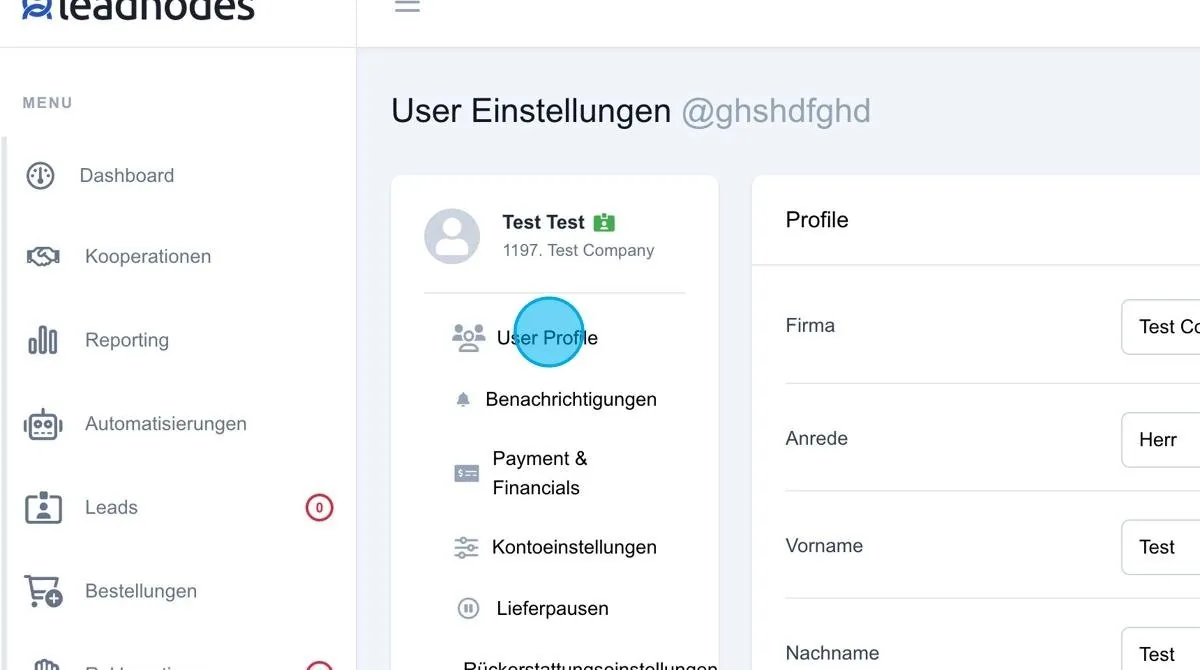
Profile
All user data that also appears on the invoice is recorded here.
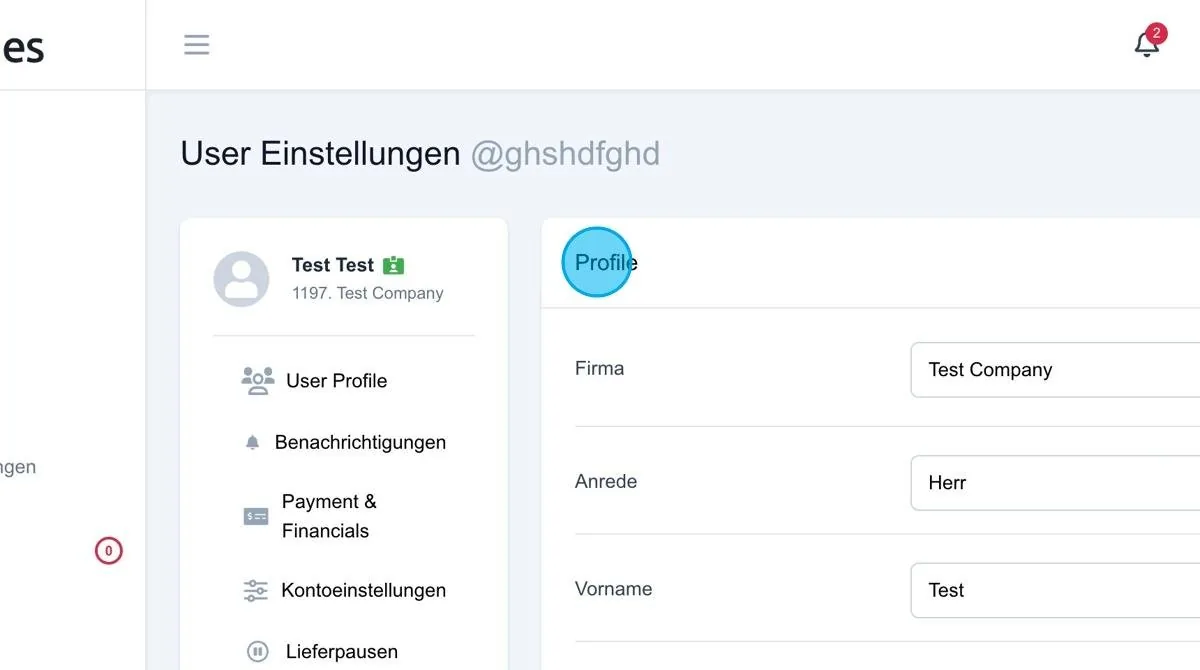
Save settings
Save the user data so that it remains permanently stored in the system.
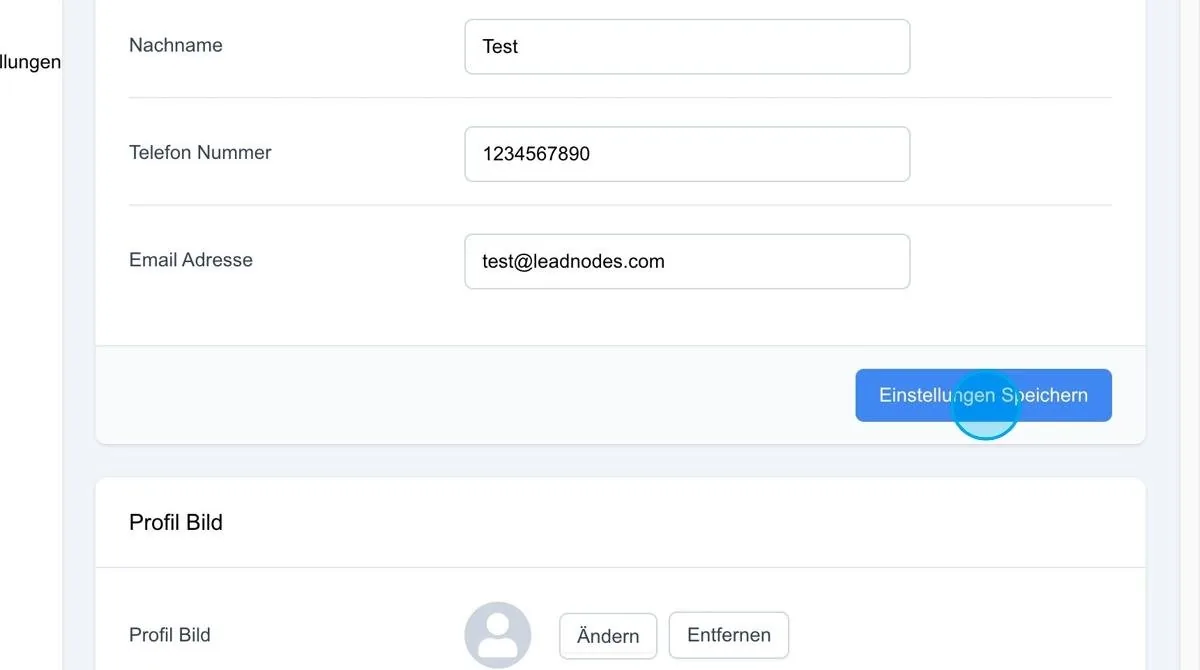
Profile picture
In this area, a profile picture can be stored for the user.
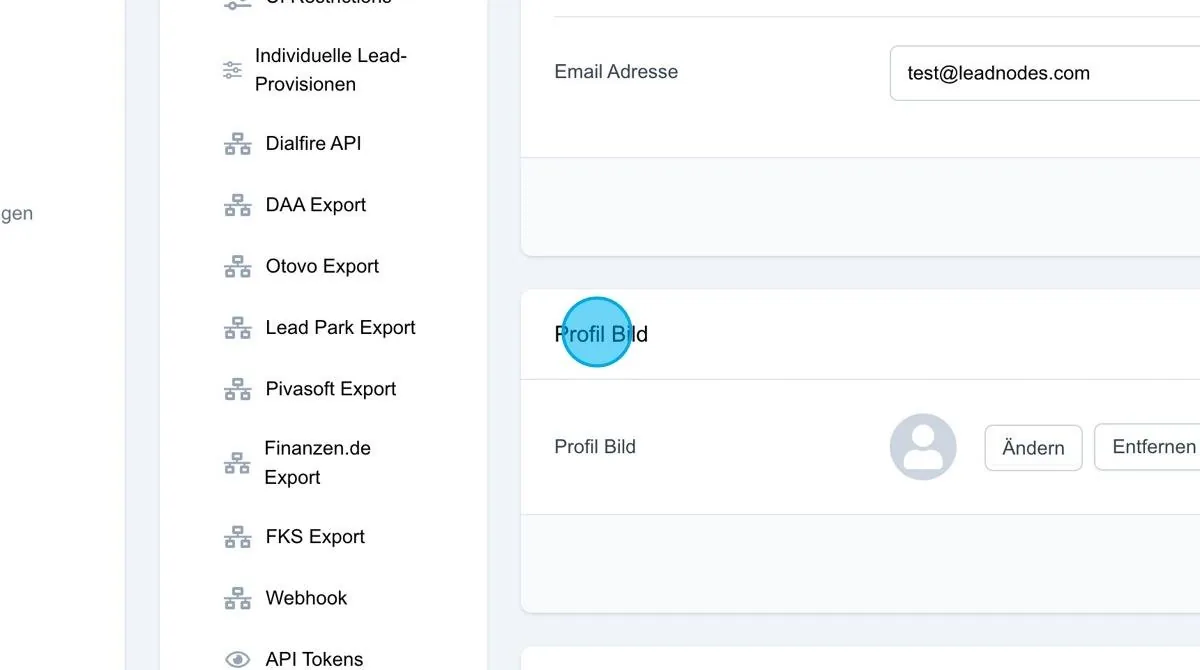
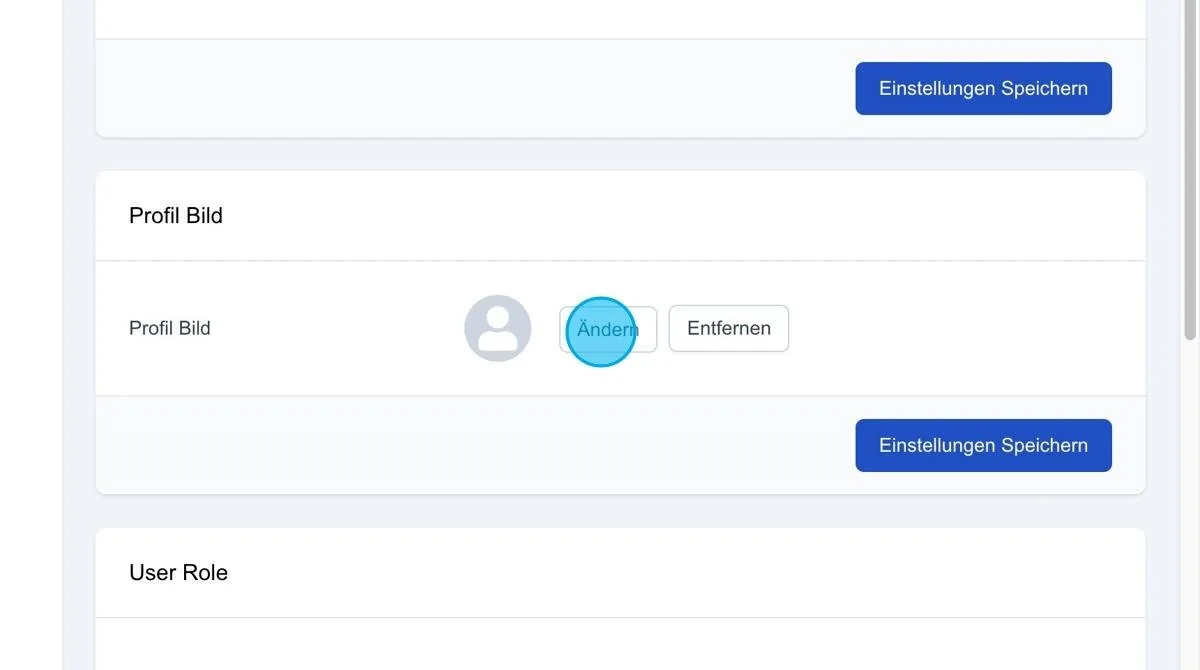
Change
The “Change” button lets you select and store a profile picture from your own files for a user. The picture can be deleted again via “Remove”.
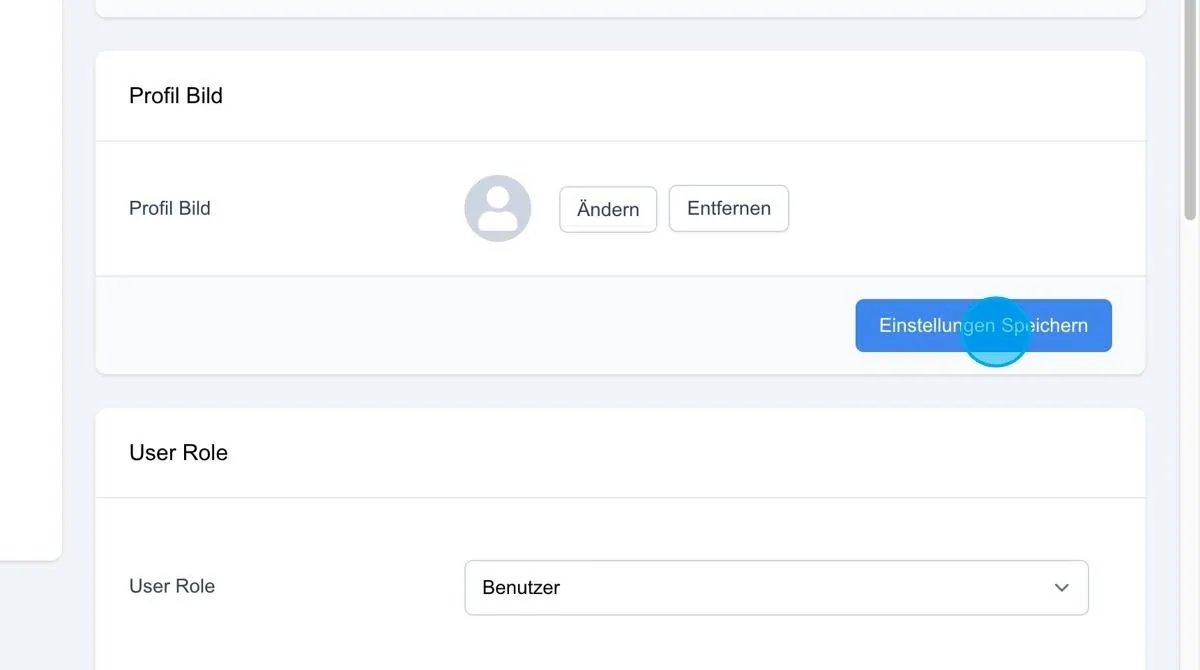
Save settings: After changing or removing the profile picture, please click the “Save settings” button so that the selected picture is applied.
User Role
Here the desired role for the user can be added or changed.
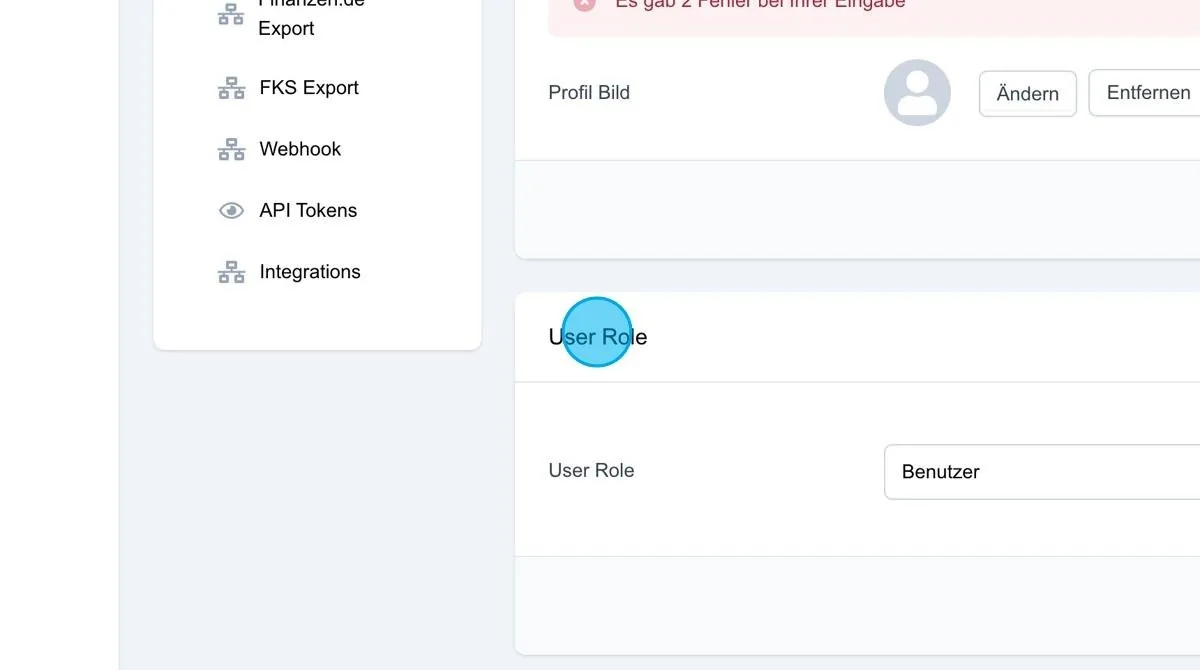
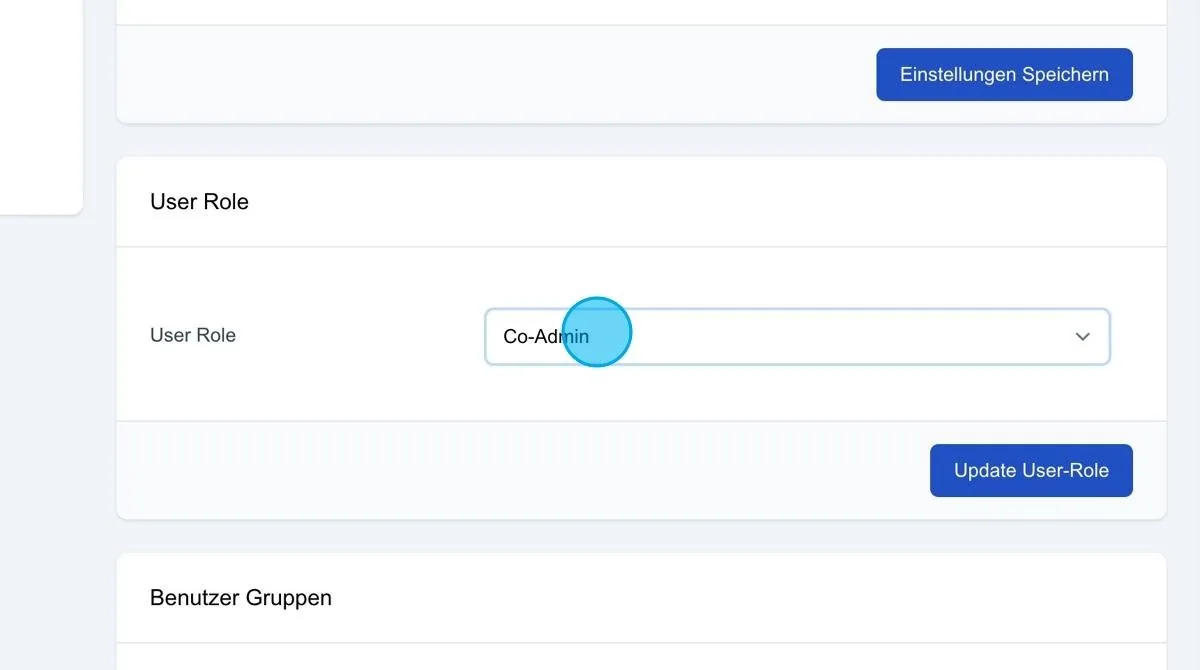
User Role
By default, the User role is assigned. However, two further roles are available that can be assigned to a user. Additional roles can be selected via the dropdown arrow: the Co-Admin, similar to an Admin, has full access to the entire system, can create/edit new users and change settings. The Call centre role only receives the access required for working in a call centre.
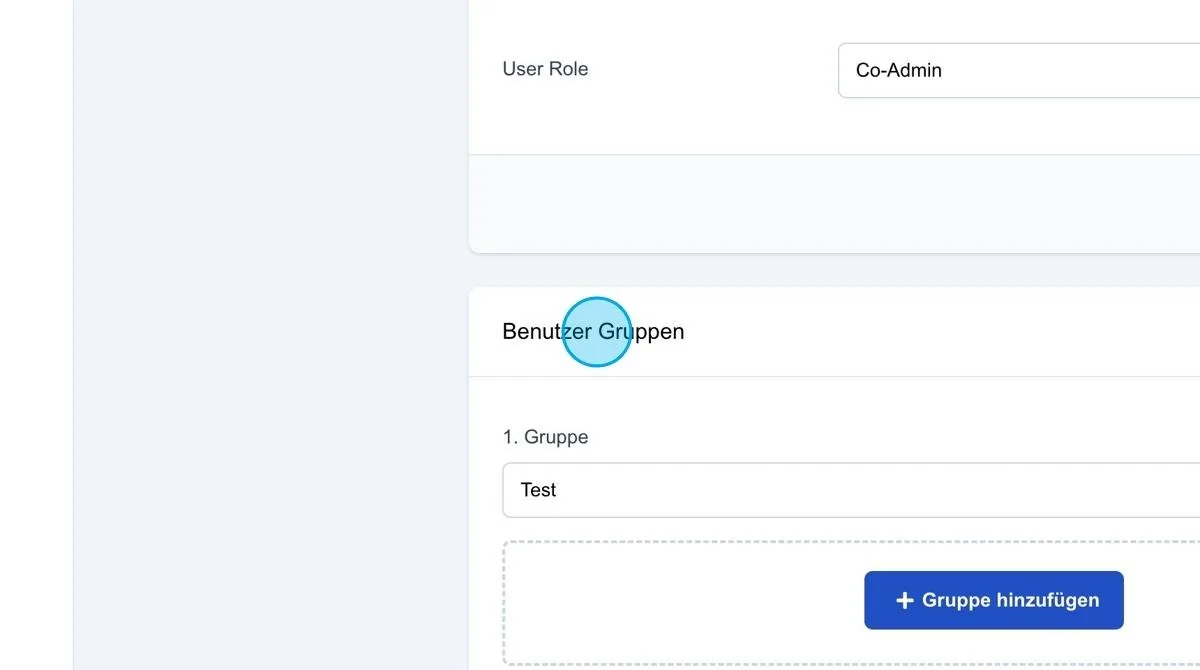
User groups
In this area, several users can be assigned to a specific group.
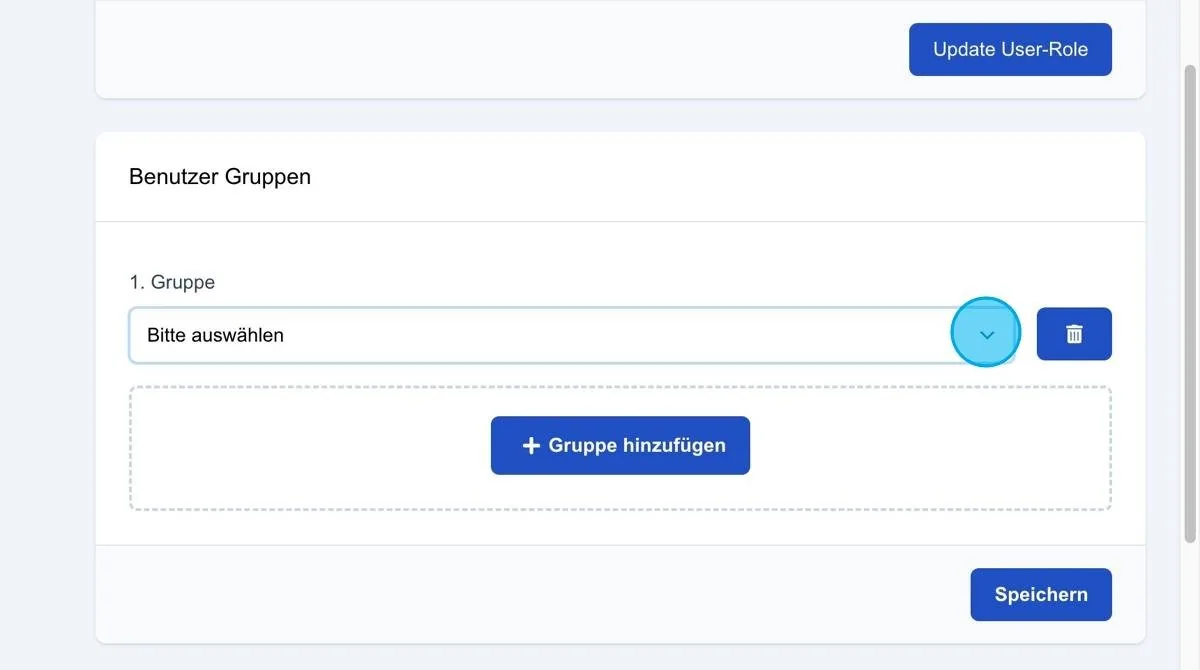
Group
Here, for example, groups such as buyers and suppliers can be created and users assigned to these groups. Once the groups have been set up, they can also be filtered by federal state. It is then possible to search specifically for these groups in the list.
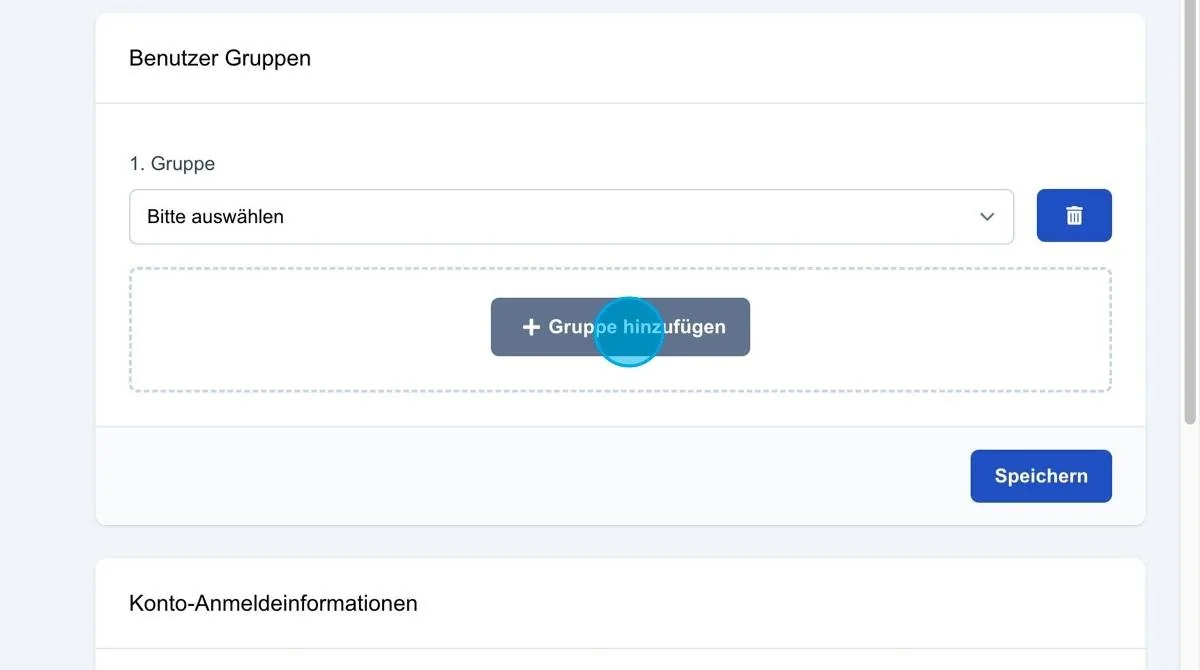
Add group
This button can be used to add another group if the user should appear in several groups.
Save: Once the user has been added to one or more groups, the changes can be saved by clicking Save.
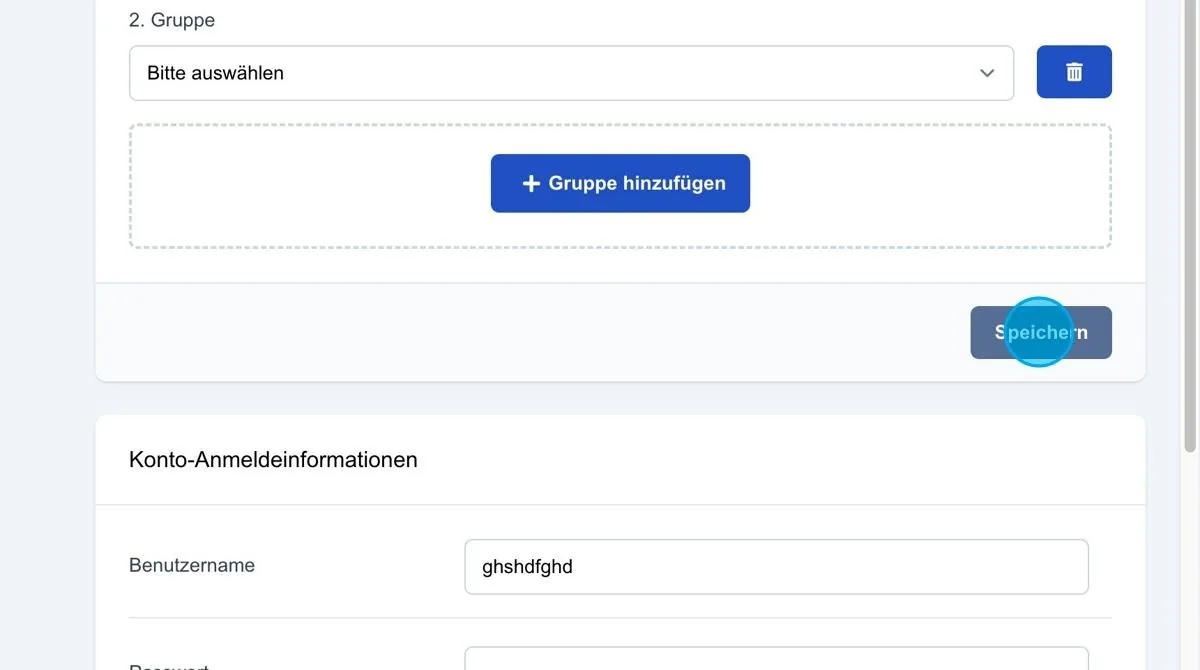
Account credentials
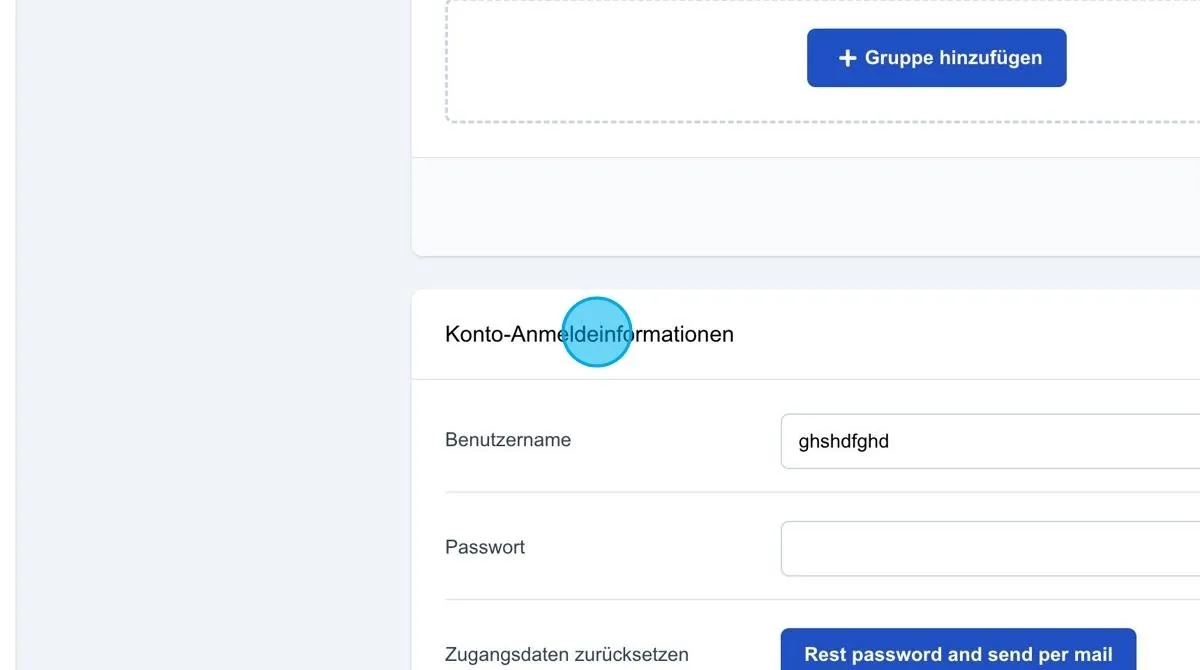
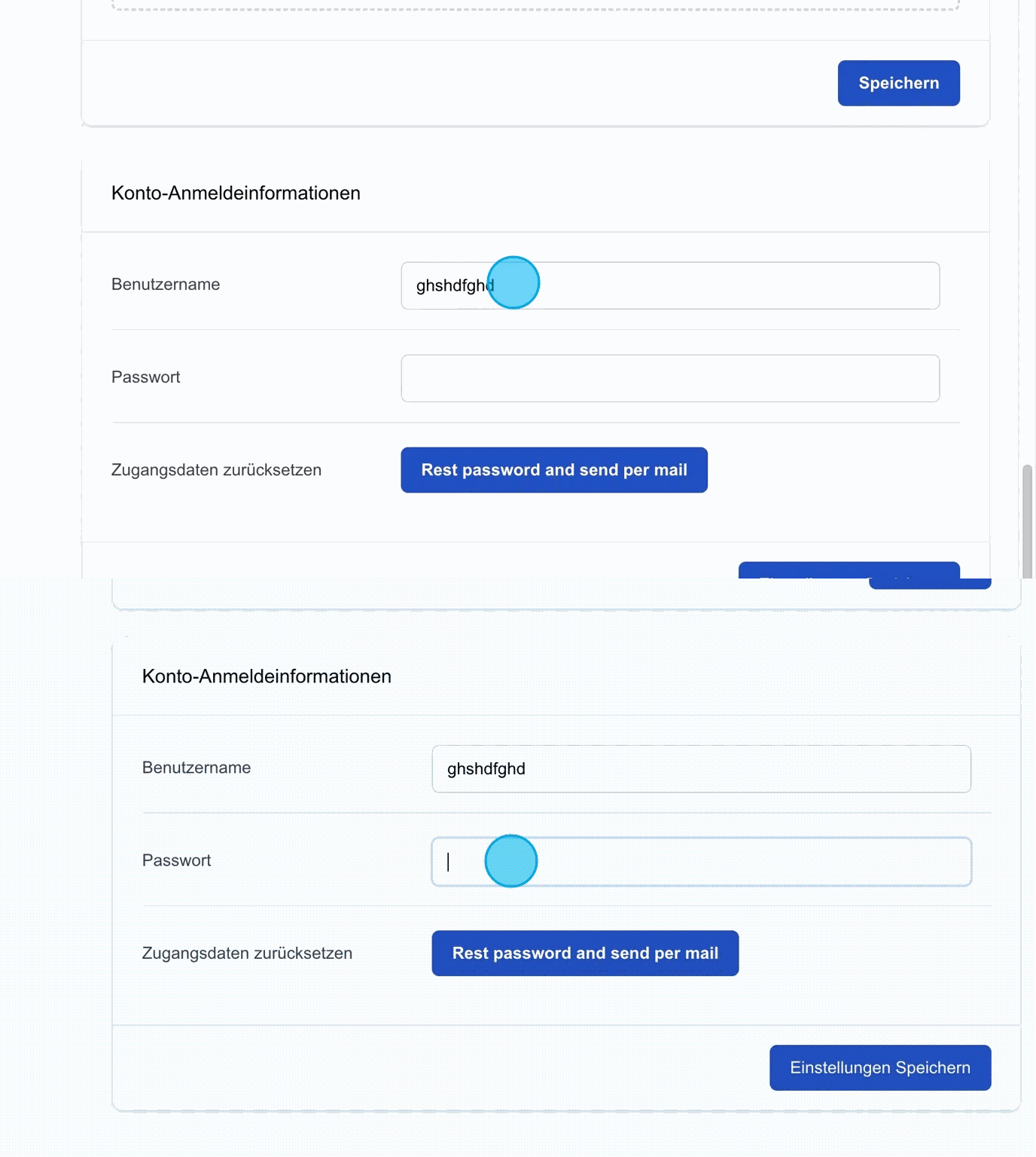
Username & password
The username and password can be adjusted and changed in these fields.
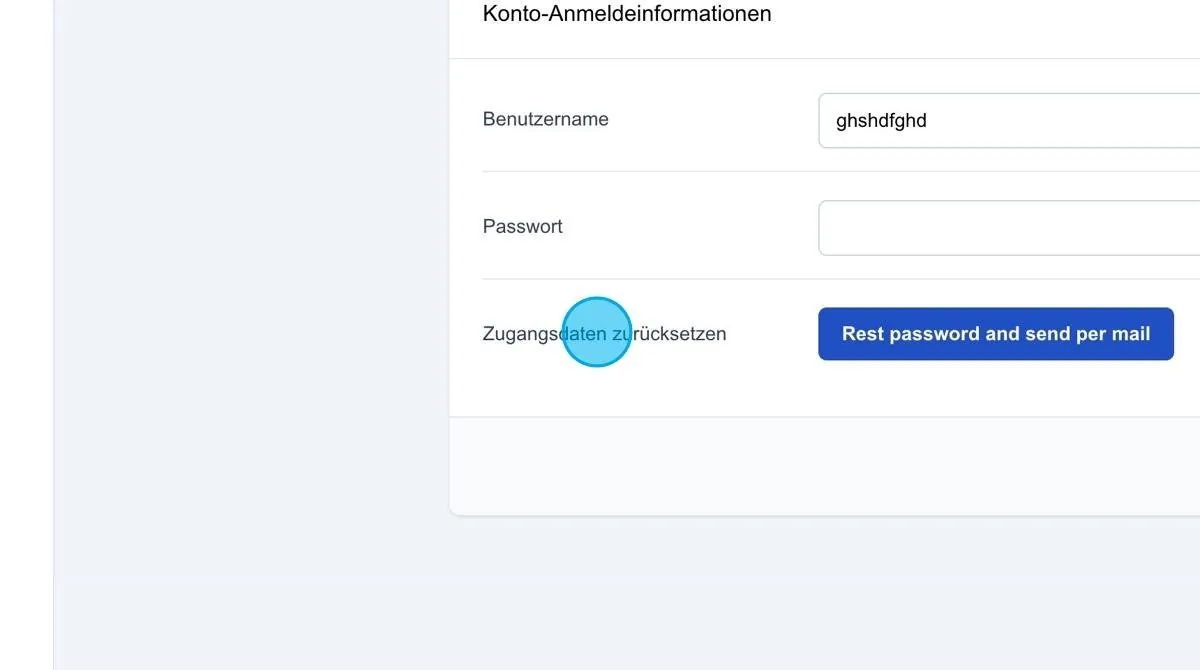
Reset credentials
The “Reset credentials” button generates a new password in the background. The user then receives an email with the new credentials and a notification that the password has been reset.
Save settings: After changing the password, the new data can be saved here via the “Save” button.