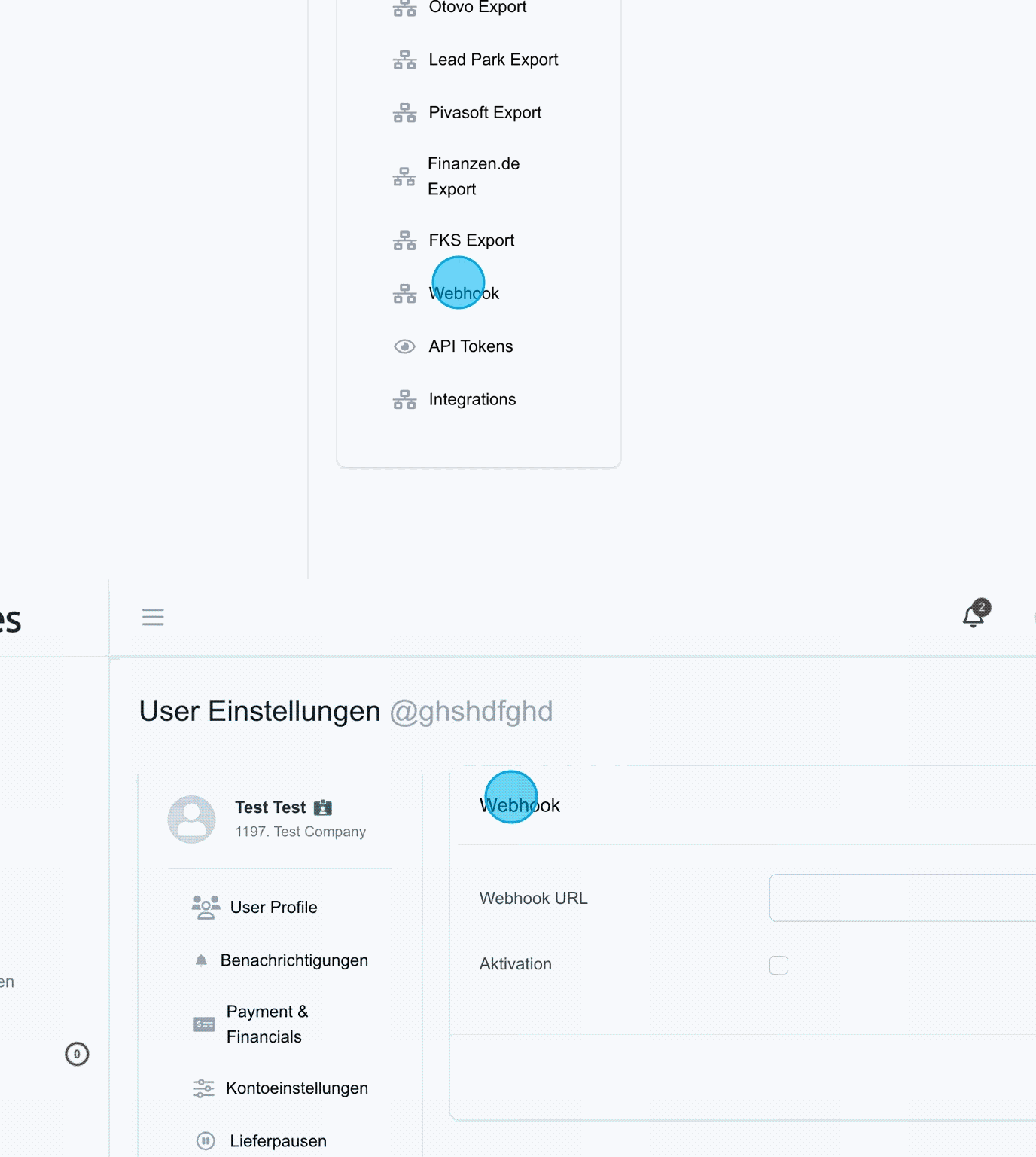
Individual webhooks can be stored here. Webhooks, also known as "reverse APIs", transmit data as soon as a specific event occurs, allowing one application to receive information from another in real time.
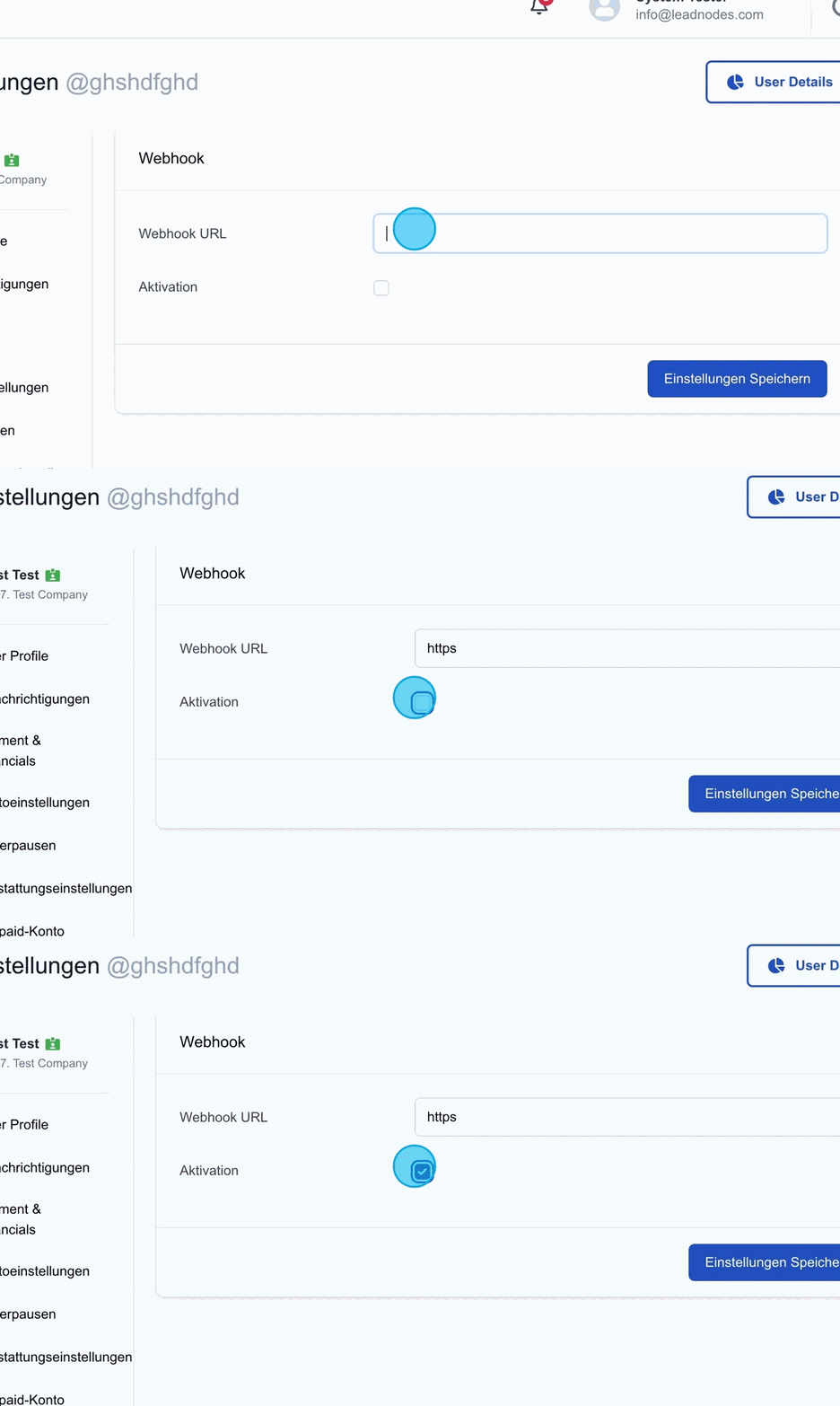
Webhook URL
In this section, a URL such as https://example.com/webhook can be stored. These can be activated below with "activation", so that each time a lead is assigned, a webhook in POST format with the corresponding data is sent to the specified URL.
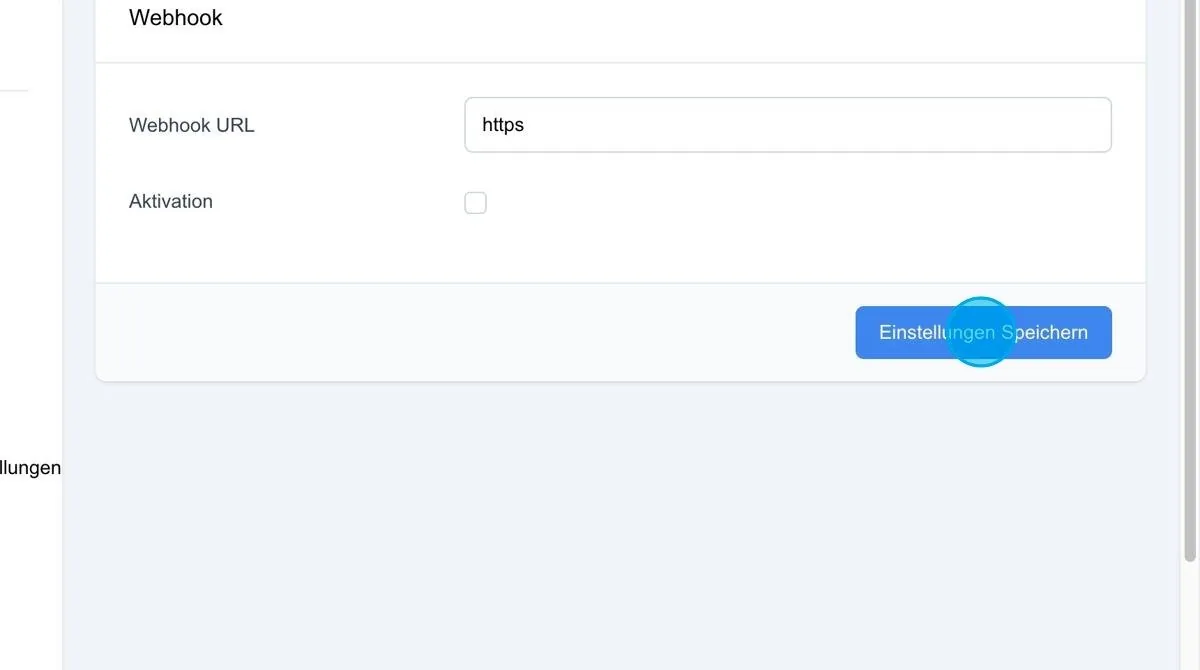
Save settings: After the individual webhooks have been entered and activated, the settings must be saved via this field for the changes to take effect.
Webhook import – test mode
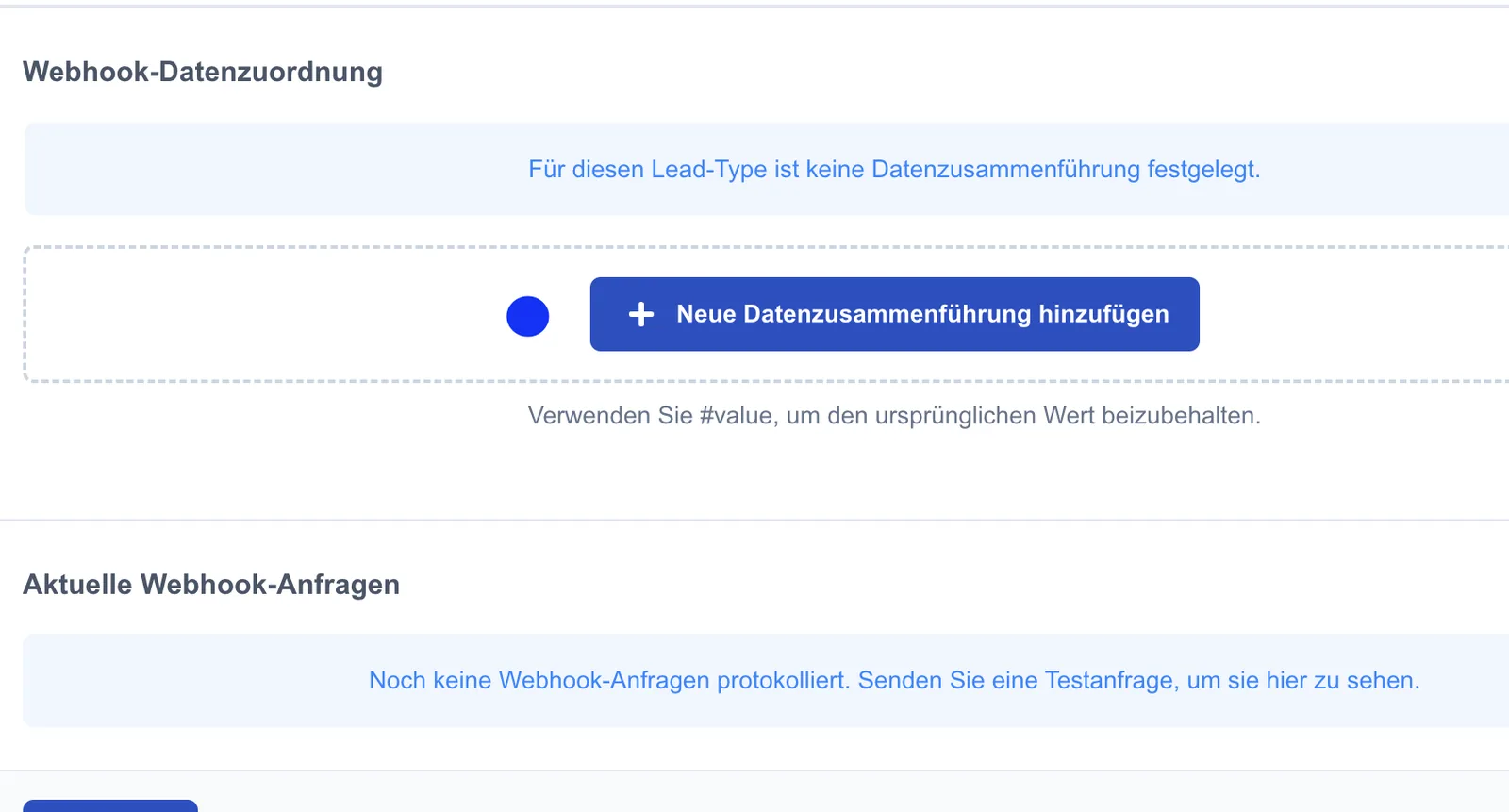
The import webhook has a test mode. In this mode, incoming data is accepted without being imported permanently. The fields can then be assigned in the mapping. Once the mapping is complete, test mode can be deactivated.
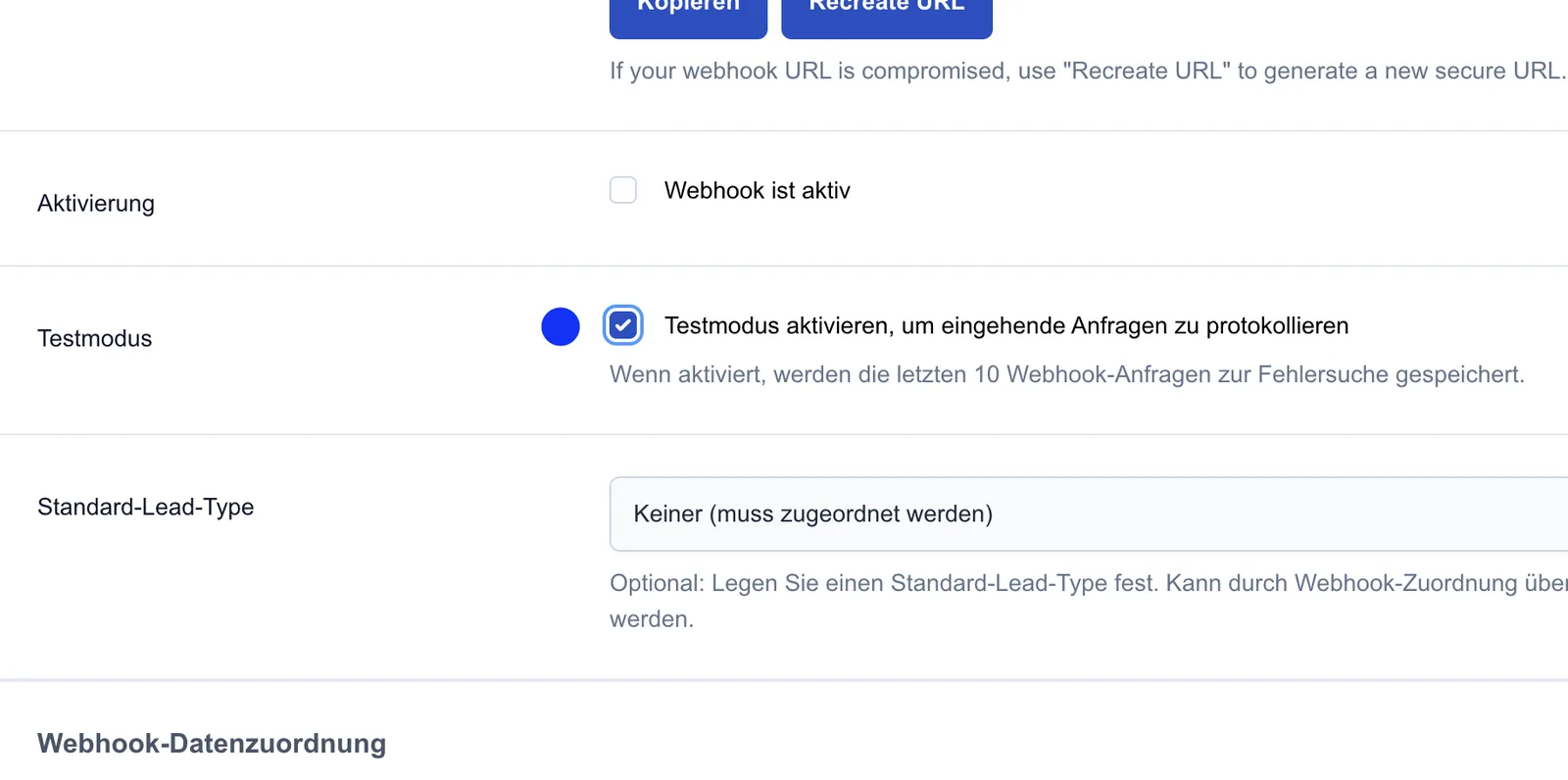
Mapping for webhook test import
The data can then be assigned via the mapping.
Once the fields have been mapped successfully, test mode can be deactivated. From that point on, leads are processed and imported live.
Advanced webhook integration
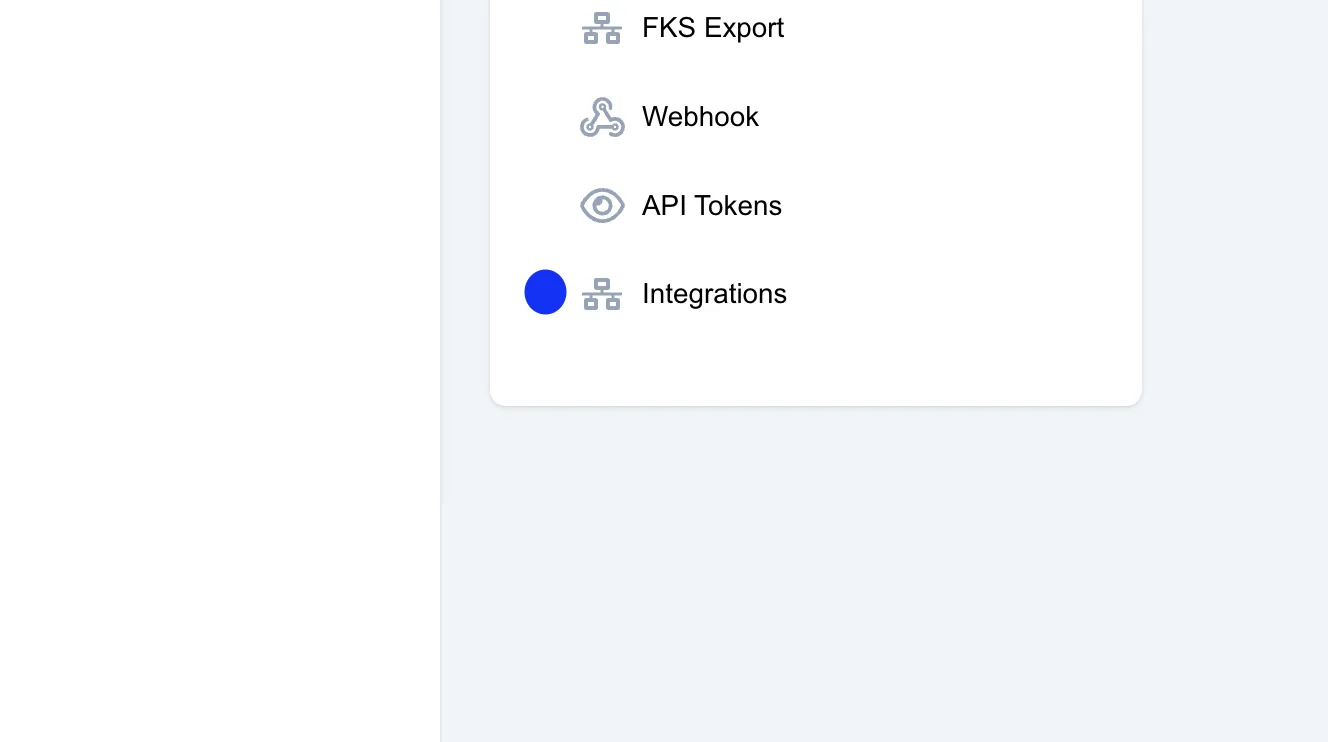
The advanced webhook integration can be found in the menu under “Integrations → Webhooks”. It can be edited via "Settings". Several webhooks per user can be managed here.
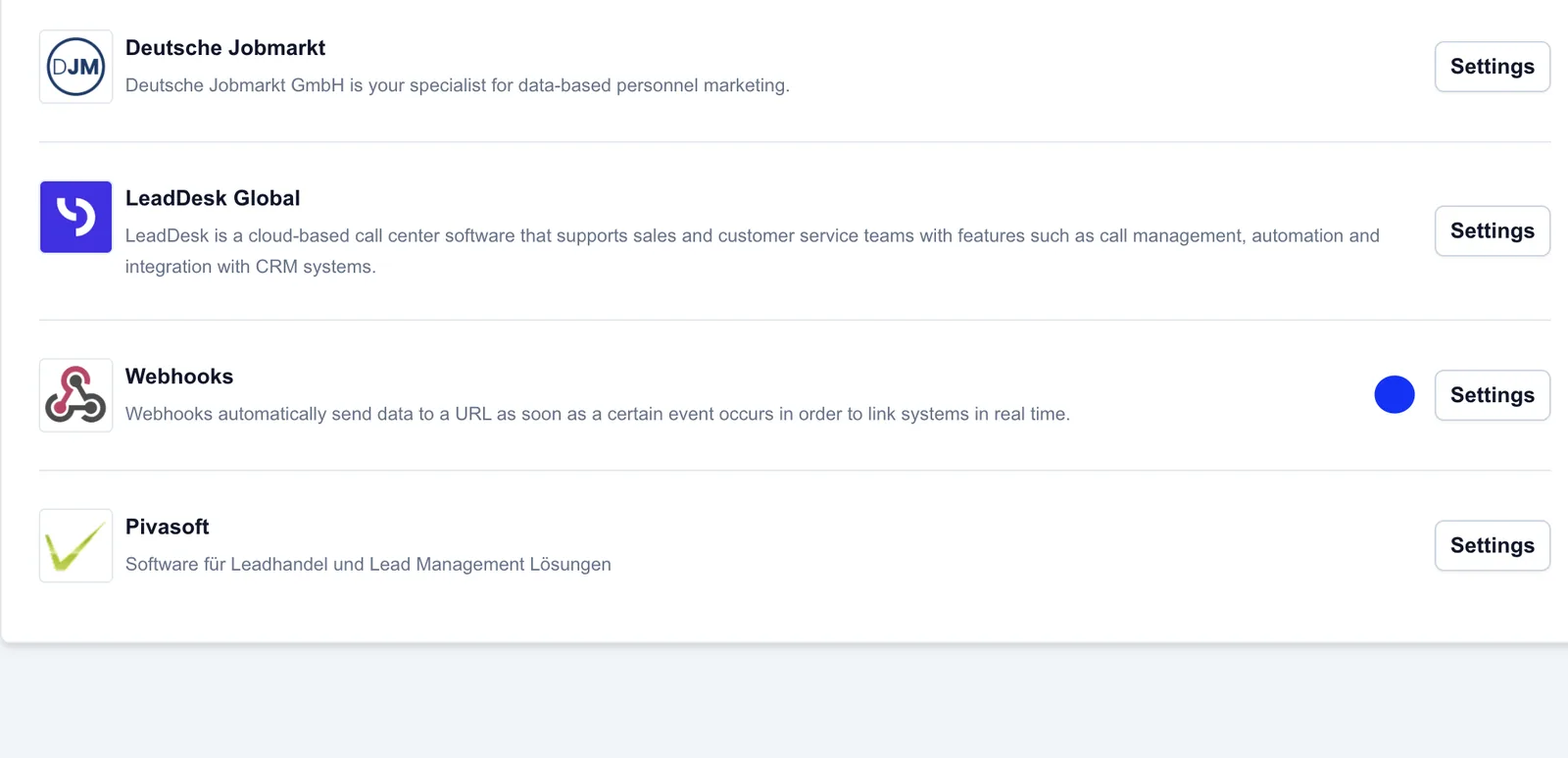
Managing webhook URLs
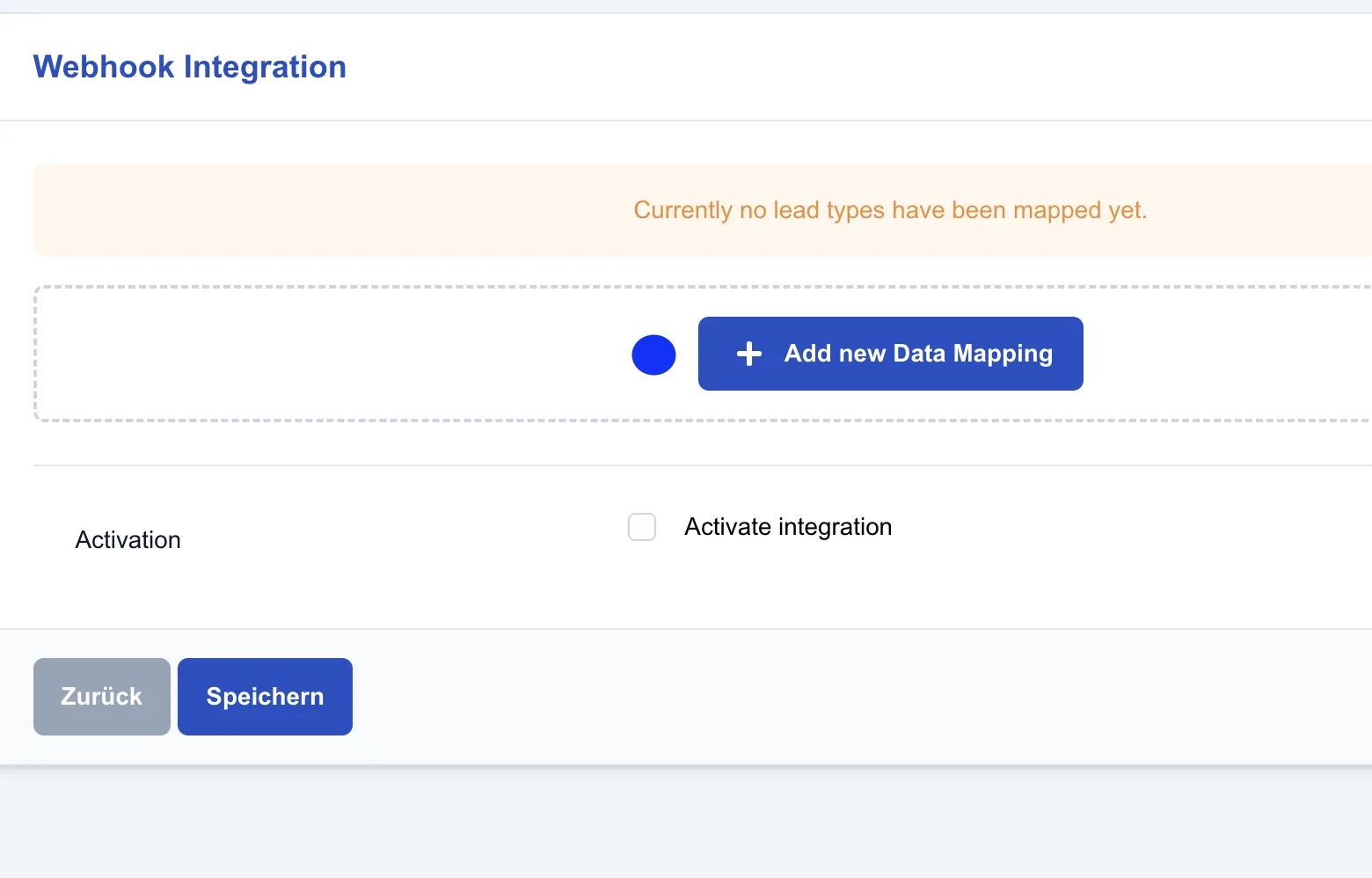
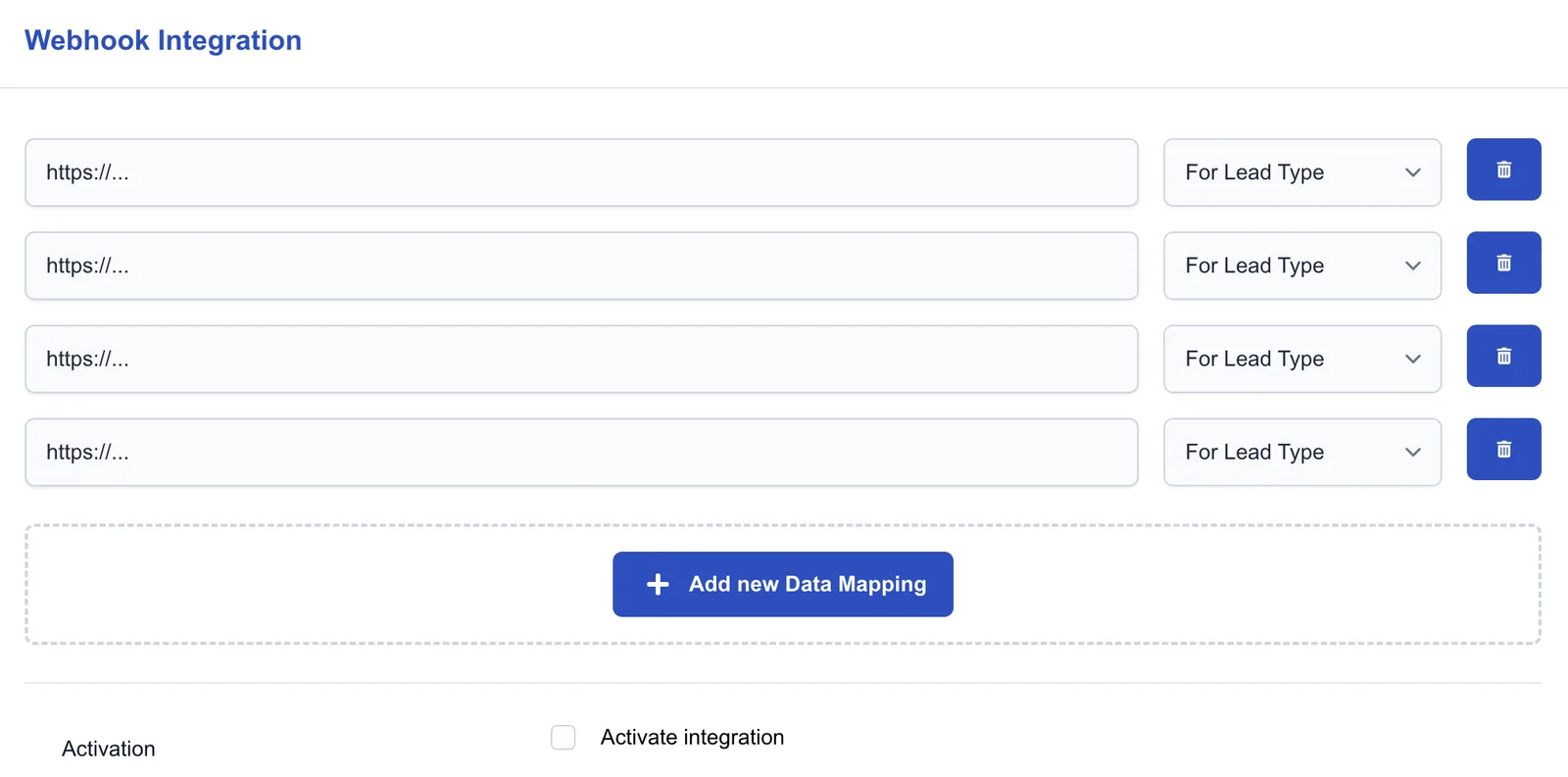
Add new Data Mapping: Here, several webhook URLs per user can be created, and for each URL you can define whether it should be activated for all leads or only for a specific lead type.
Triggering the webhooks
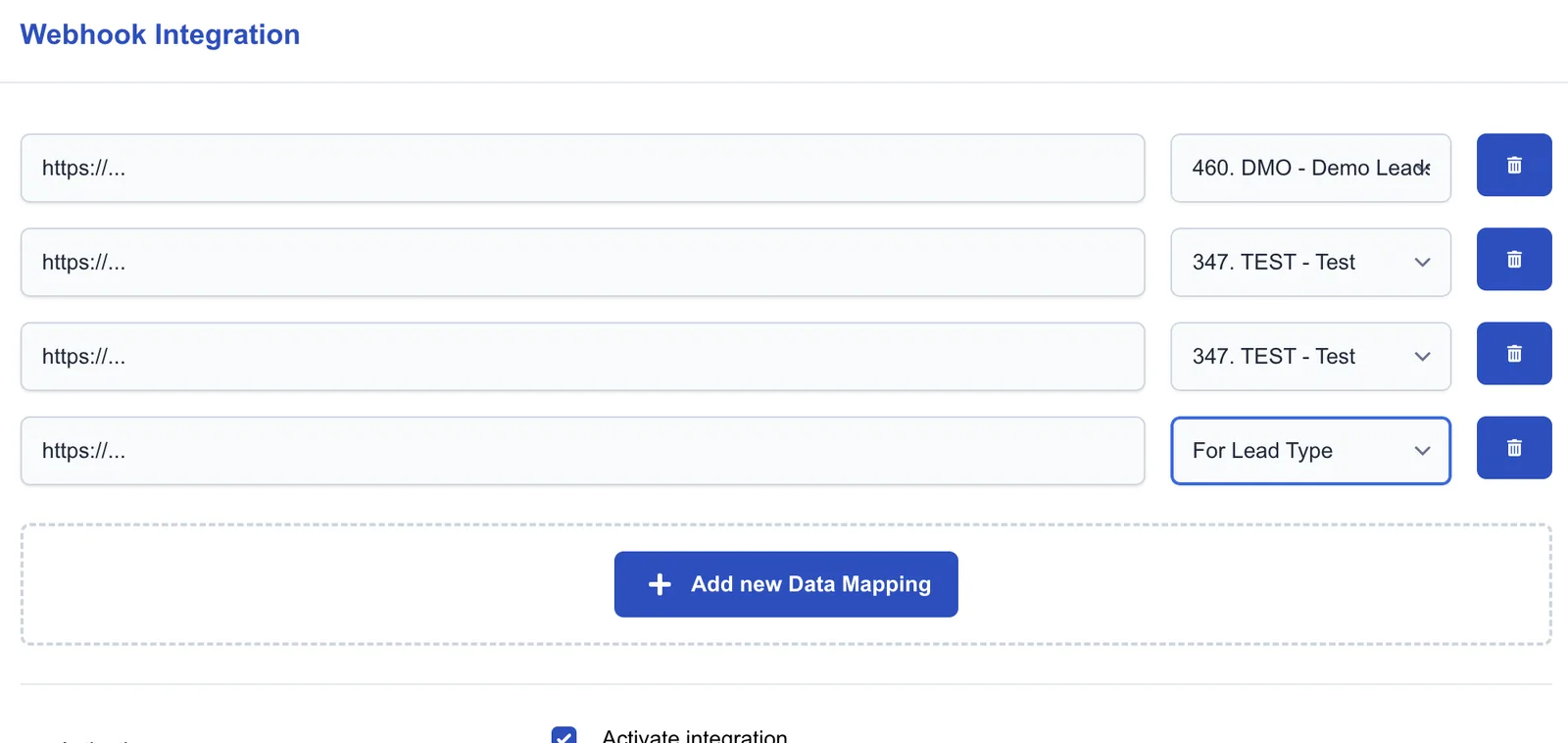
A webhook is only triggered when the previously defined condition is met. The lead data is then sent automatically via POST request to the respective URL. Here you can either select a specific lead type or apply it to all lead types.
Activating or deactivating a webhook
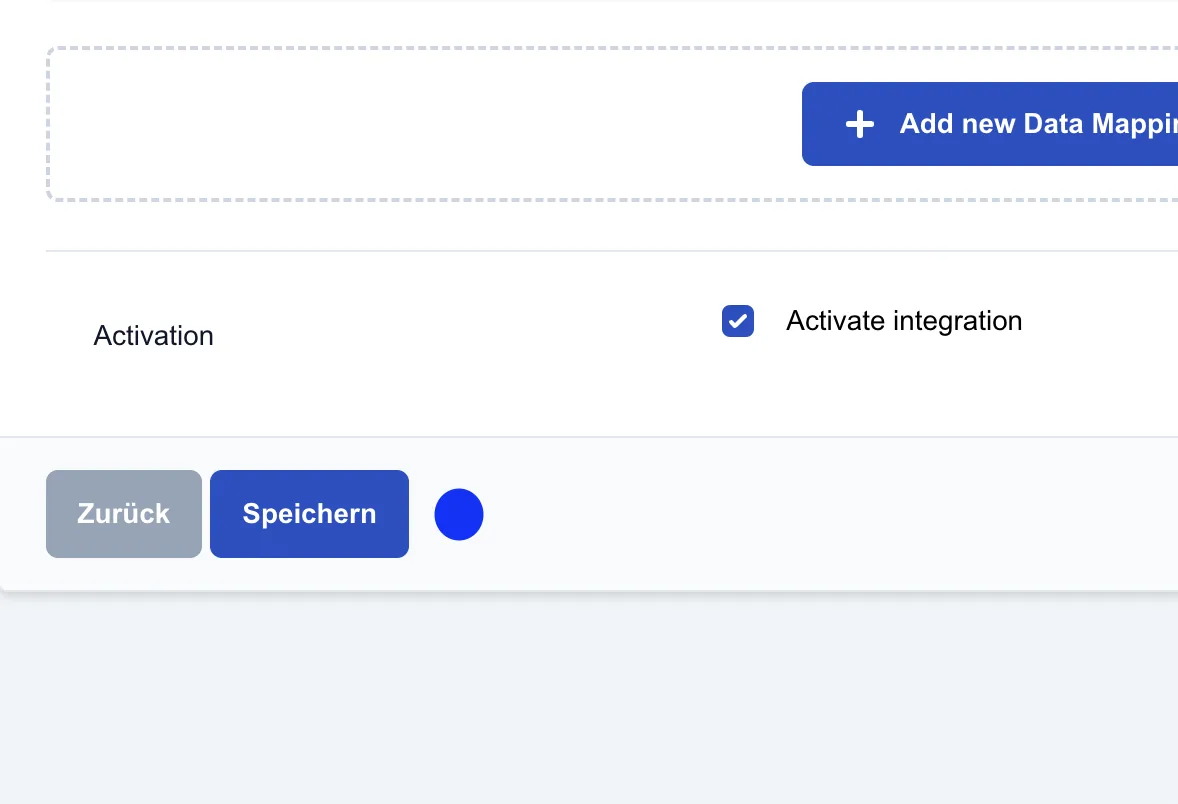
Activate Integration: Each webhook can be activated or deactivated individually.
As soon as a webhook is active and the defined criteria are met, the data is transferred automatically.
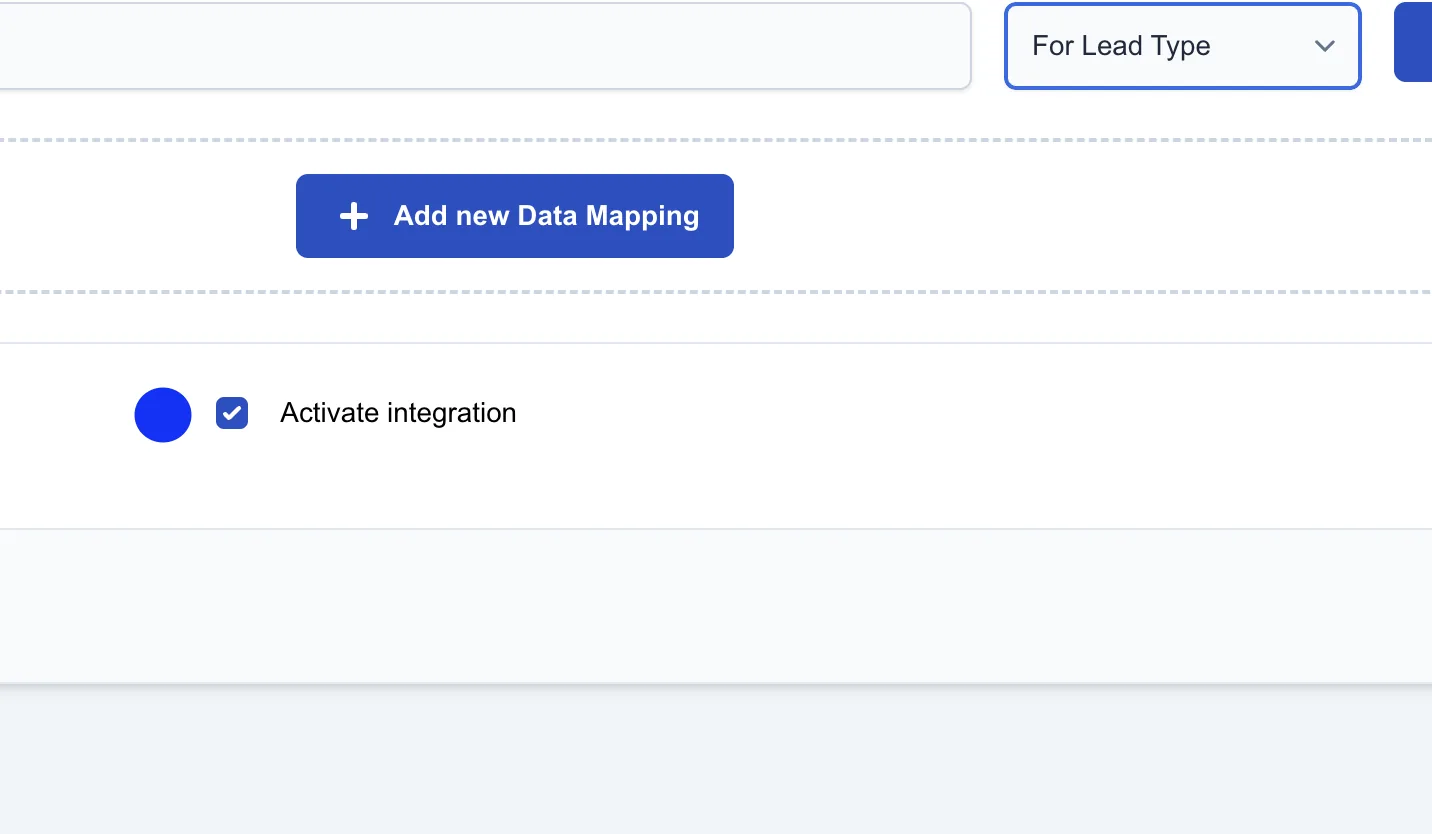
Save: The selected webhooks are saved in the system for the respective user.