
With the Monday CRM integration, you can transfer leads directly from Leadnodes into a Monday CRM system.
Requirements:
API key: This is required for authentication.
List ID: The ID of the list into which the leads are to be entered.
How to create an API key
-
Log in to your Monday account.
-
Click your profile picture or initials in the top right corner (next to the Monday logo).
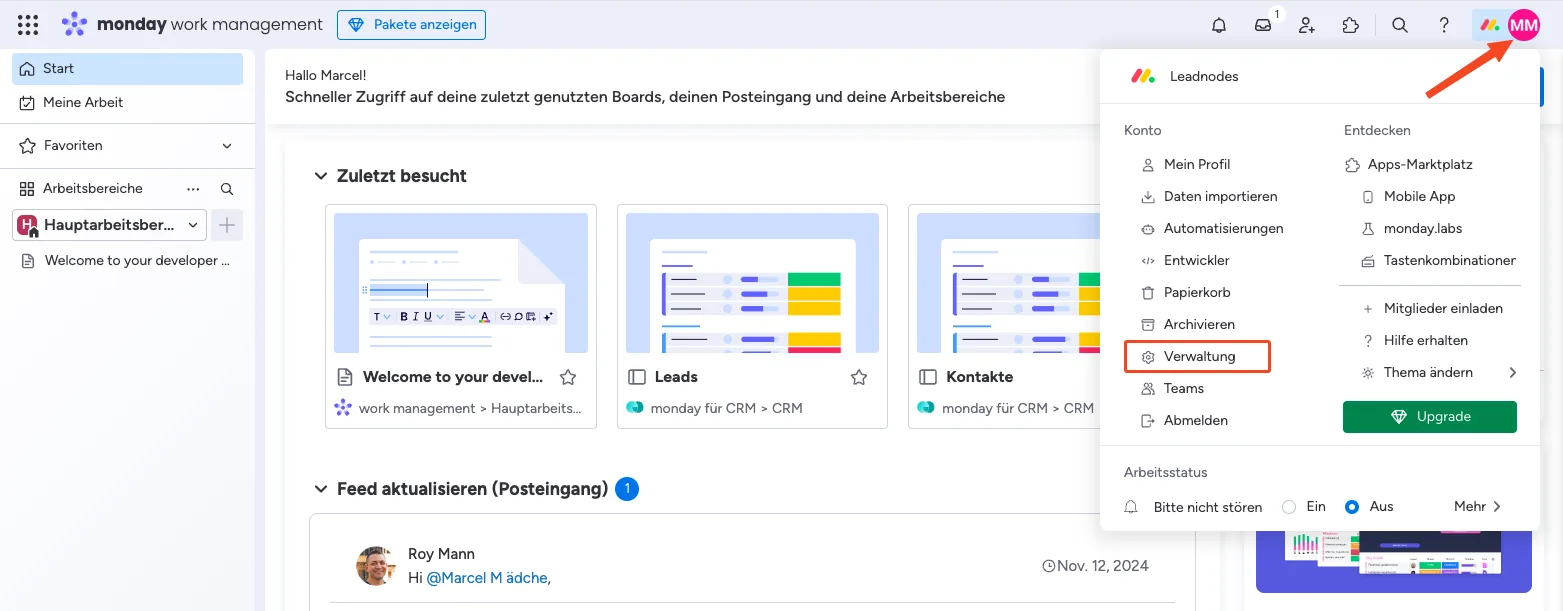
- Navigate to Administration:
Select “Administration” to go to the admin area.
- Open the “Connections” section:
• In the left-hand menu you will find the “Connections” item.
- Switch to the “API” tab:
• Here you can create your personal API token.
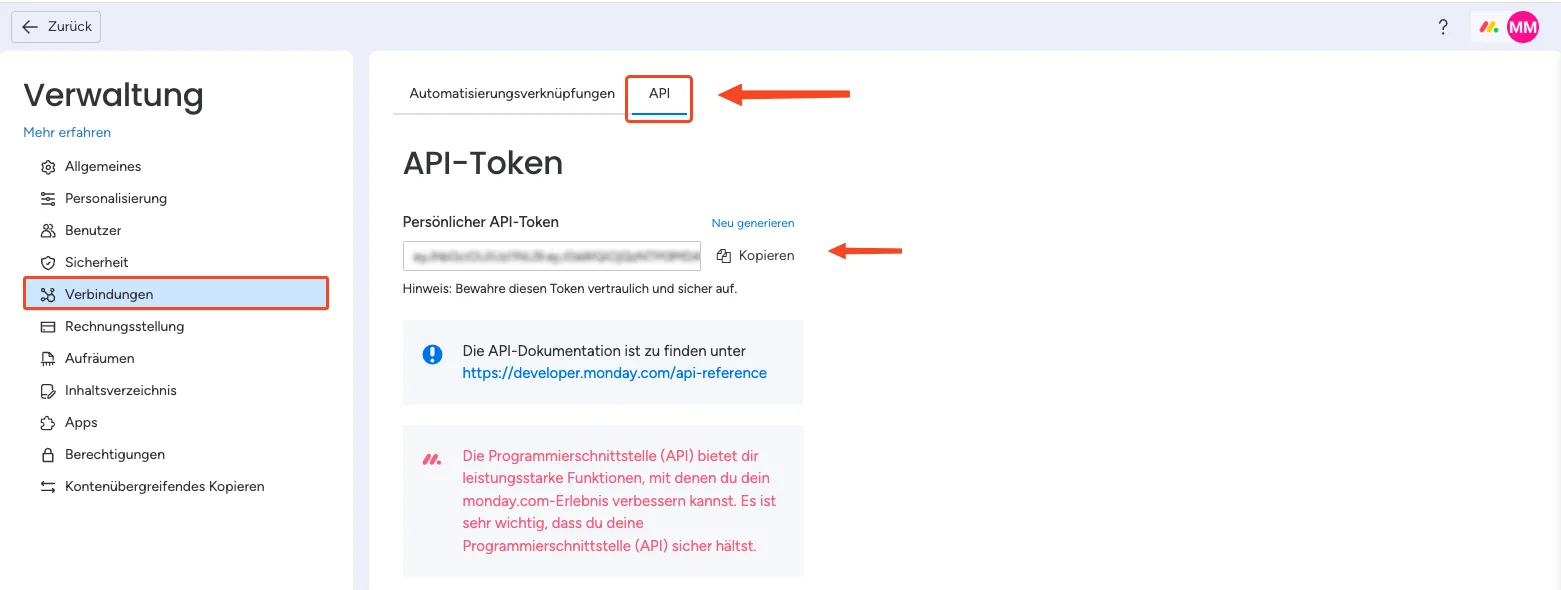
- Copy the API key:
• Once the token has been generated, copy it to use it in Leadnodes.
How to find the list ID
-
Open Monday CRM.
-
Navigate to the available lists in the left-hand menu.
• Here you can see all lists that have been created in your CRM. -
Select the desired list:
• Click the three dots next to the list name. -
Show the list ID:
• The list ID of the selected list is displayed in the submenu.
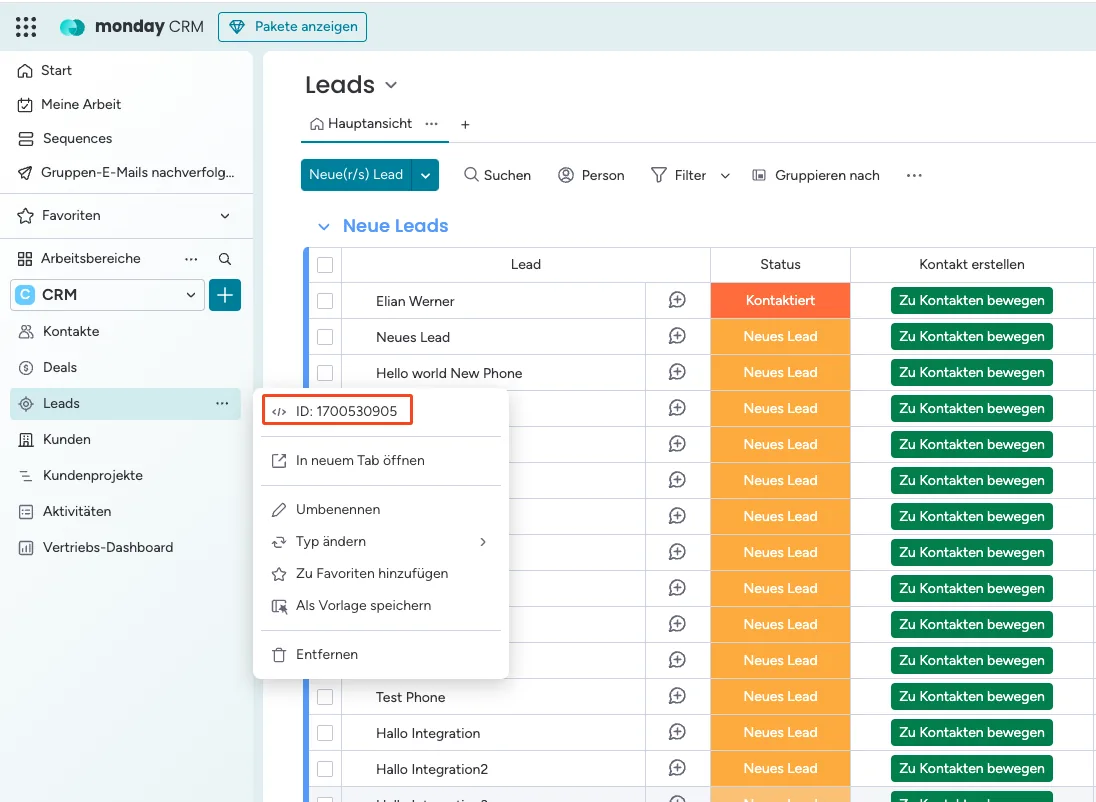
You need this ID to transfer leads into the corresponding list.
Entering the data in Leadnodes
- Select a user:
• Select the user whose leads are to be transferred to Monday.
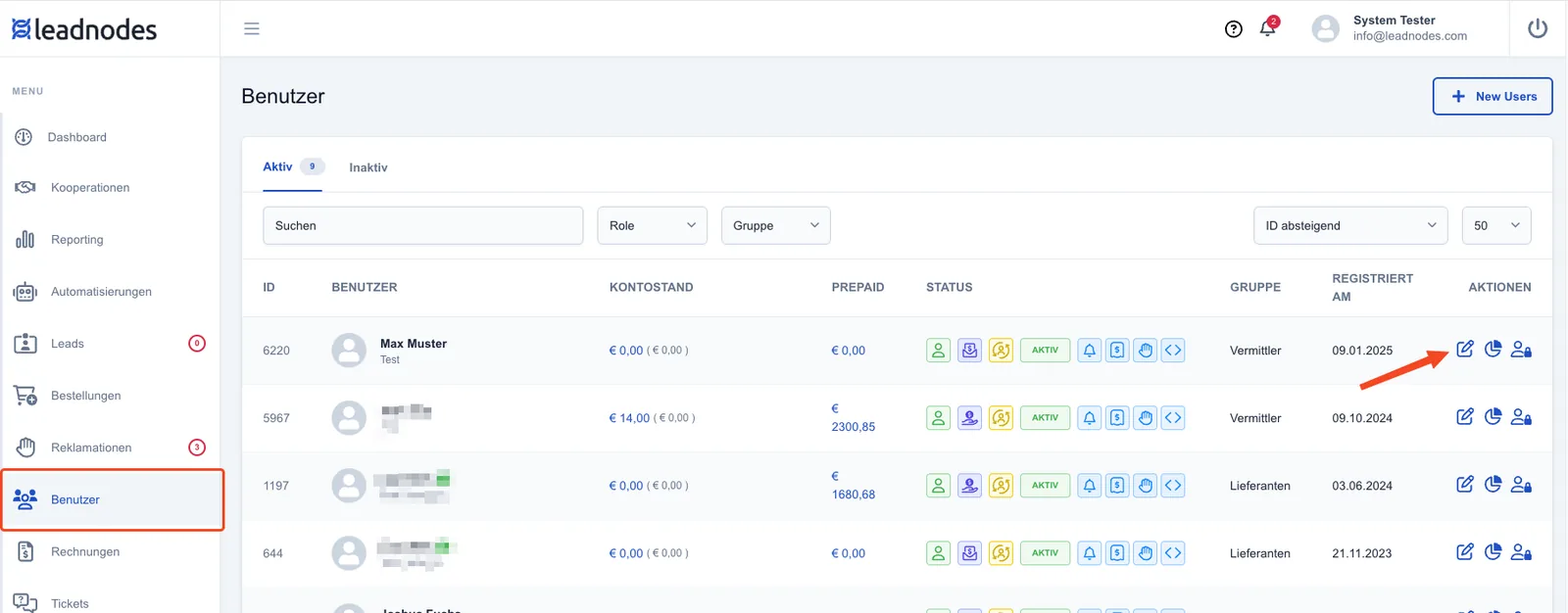
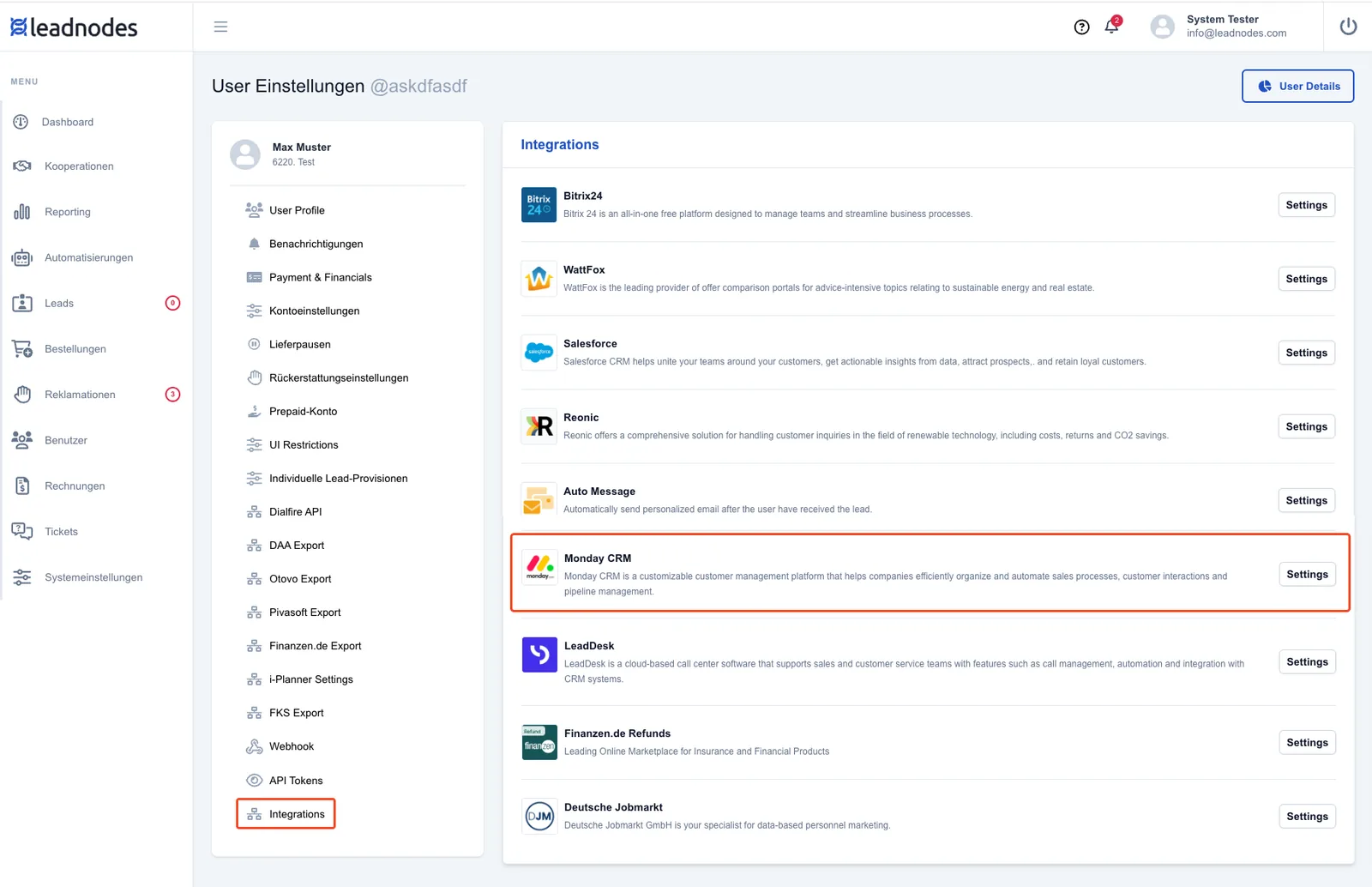
- Navigate to the integration settings:
• In the user settings, go to “Integrations” and select the Monday integration.
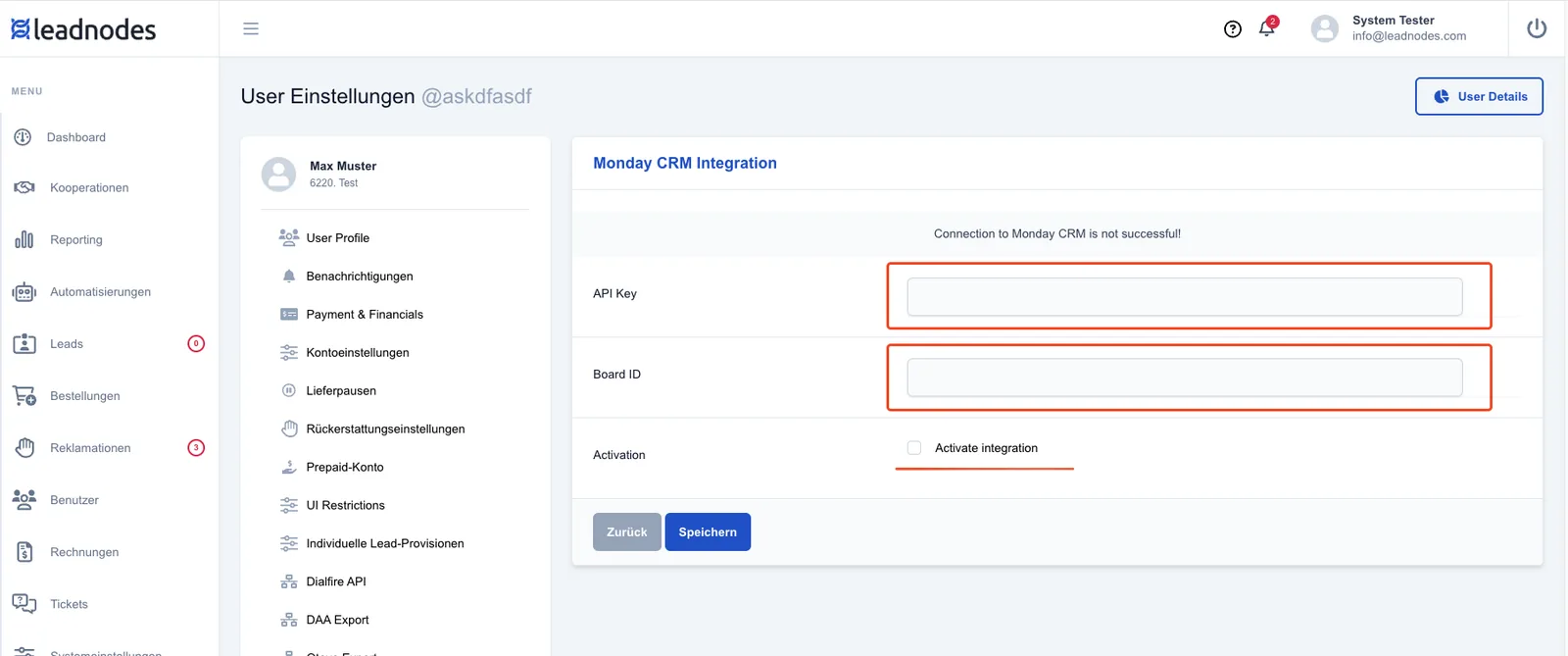
- Enter the API key and list ID:
• Enter your API key and the list ID to connect Monday CRM with Leadnodes.
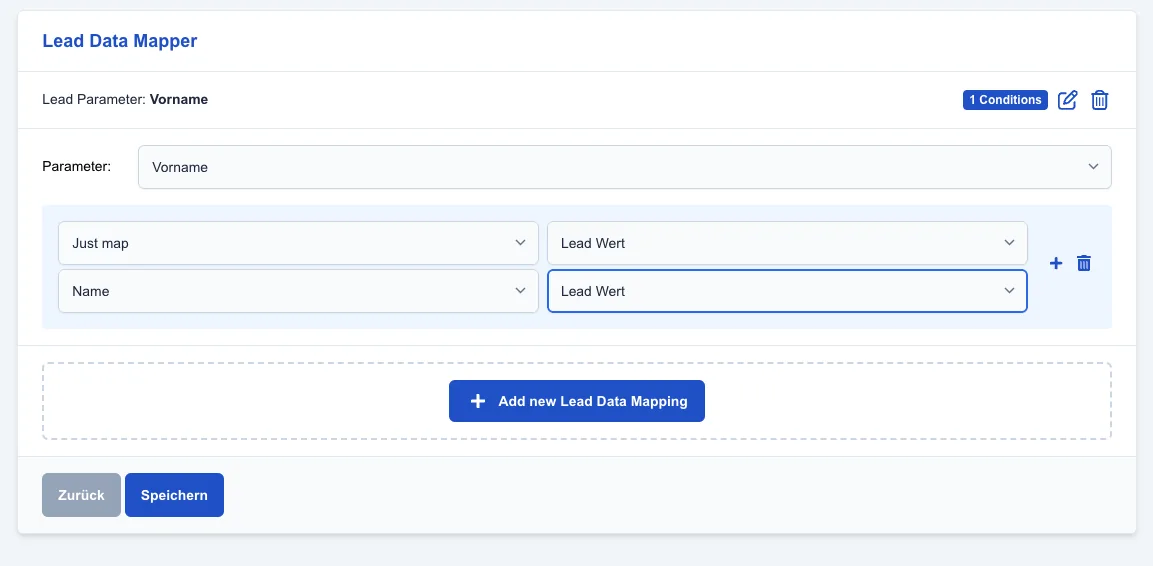
- Map leads and list data:
• Finally, you need to map the lead data to the corresponding list fields.
The integration is now ready to use, and your leads can be transferred to Monday efficiently.