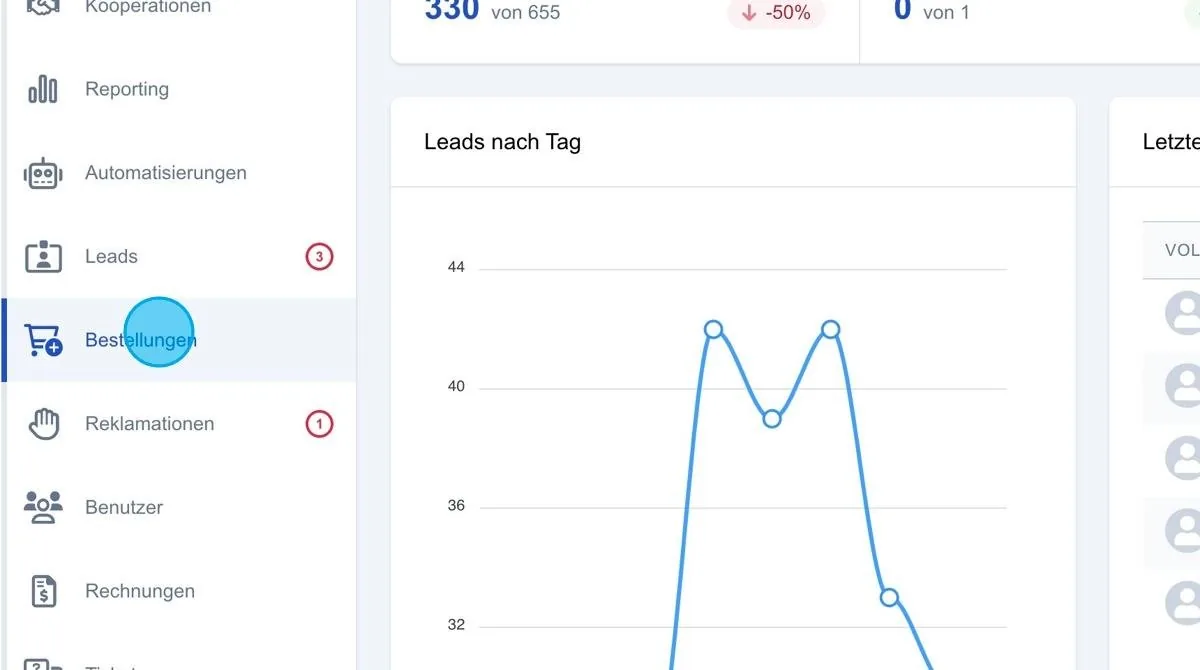
In this area you can view and edit existing orders or add new orders.
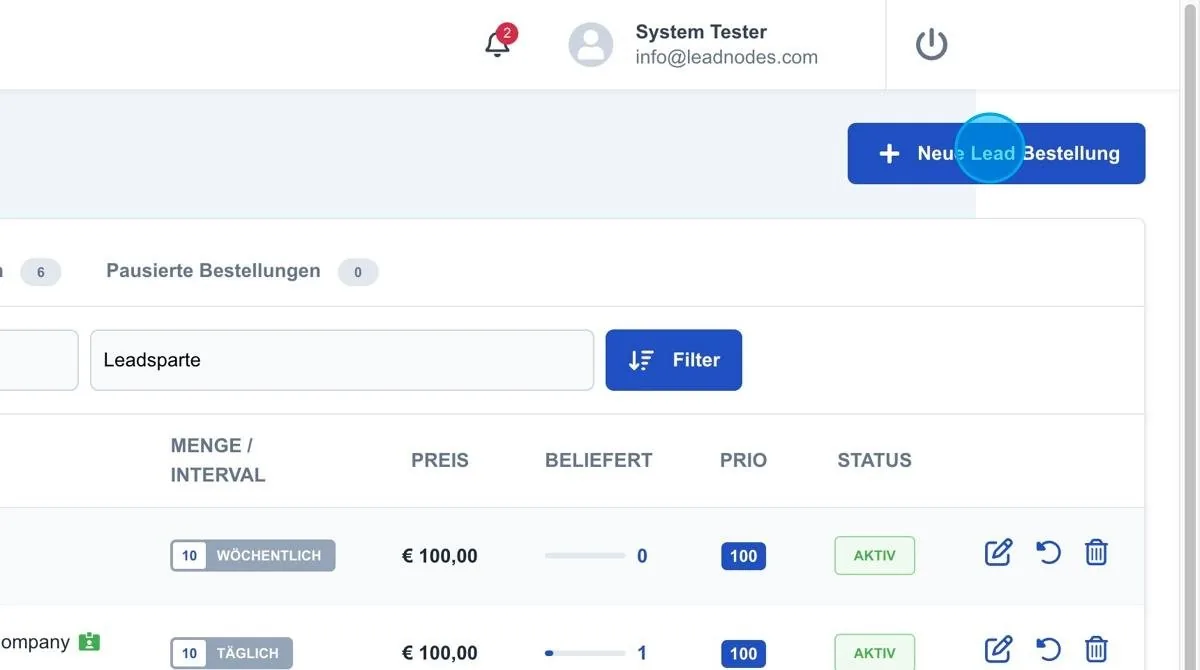
New lead order
At the top right, via the “New lead order” button, a new order can be created.
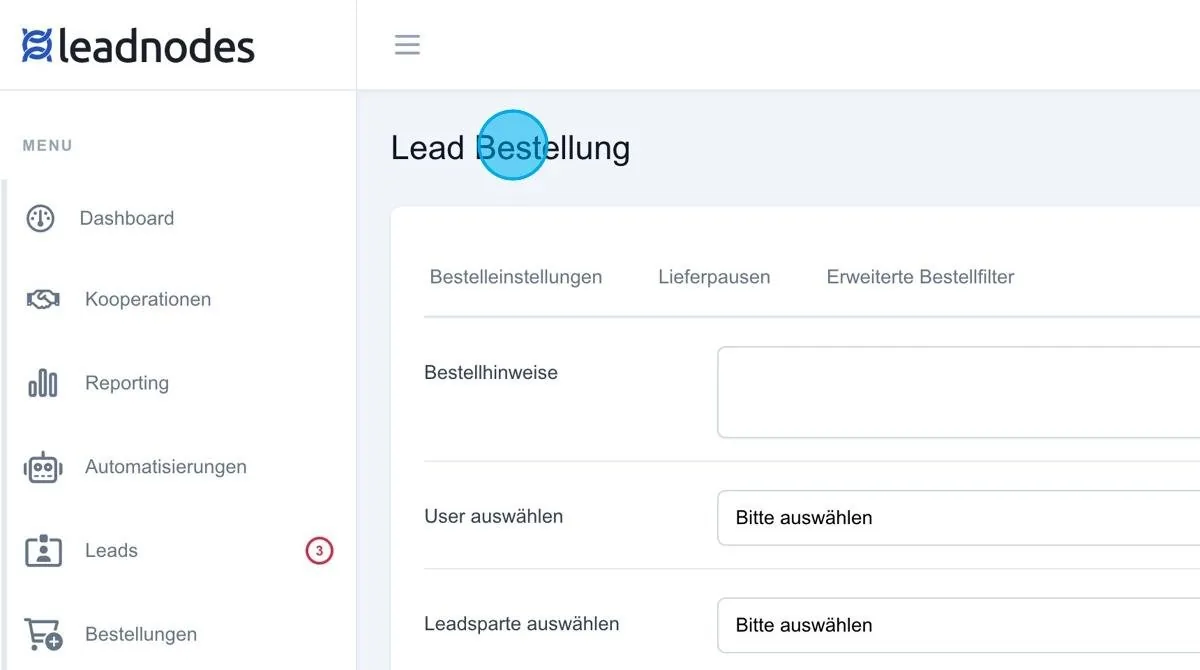
Lead order (order settings)
After selecting the “New lead order” button, the following page opens. All relevant details for the order should be entered here.
Order notes
In this field, a short note is stored so that you can later understand the reasons or agreements under which the order was created. This helps you keep track, even of orders that have been running for a long time.
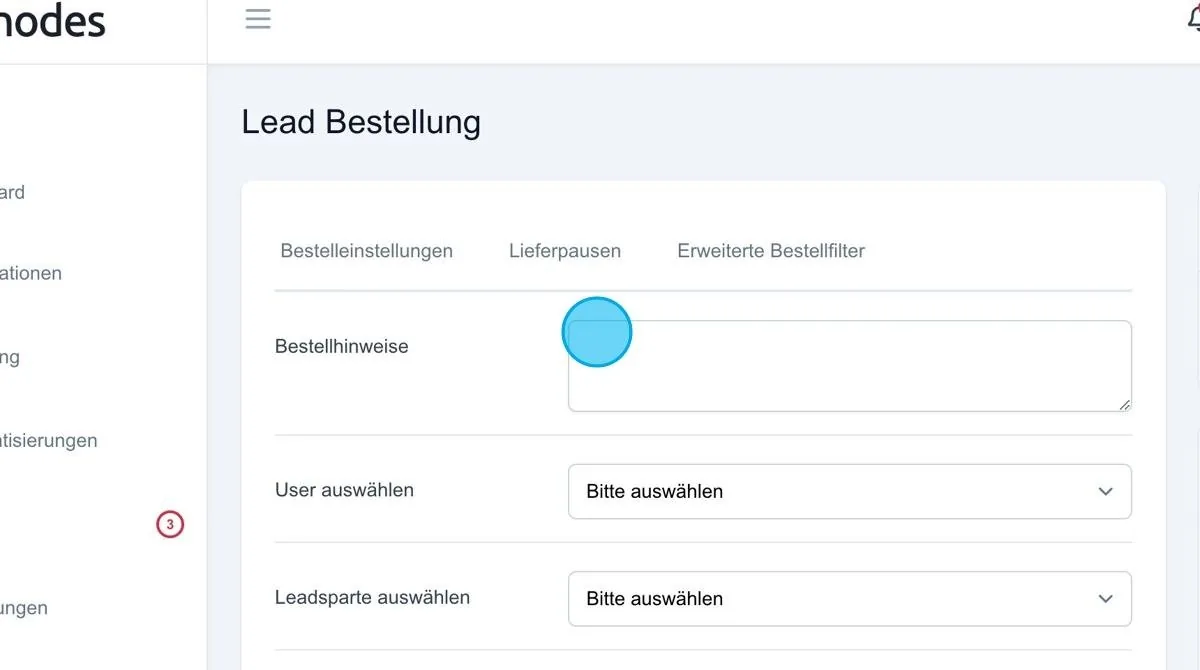
Select user
In this area, the user who ordered the leads is selected. Existing users can be selected via the dropdown menu.
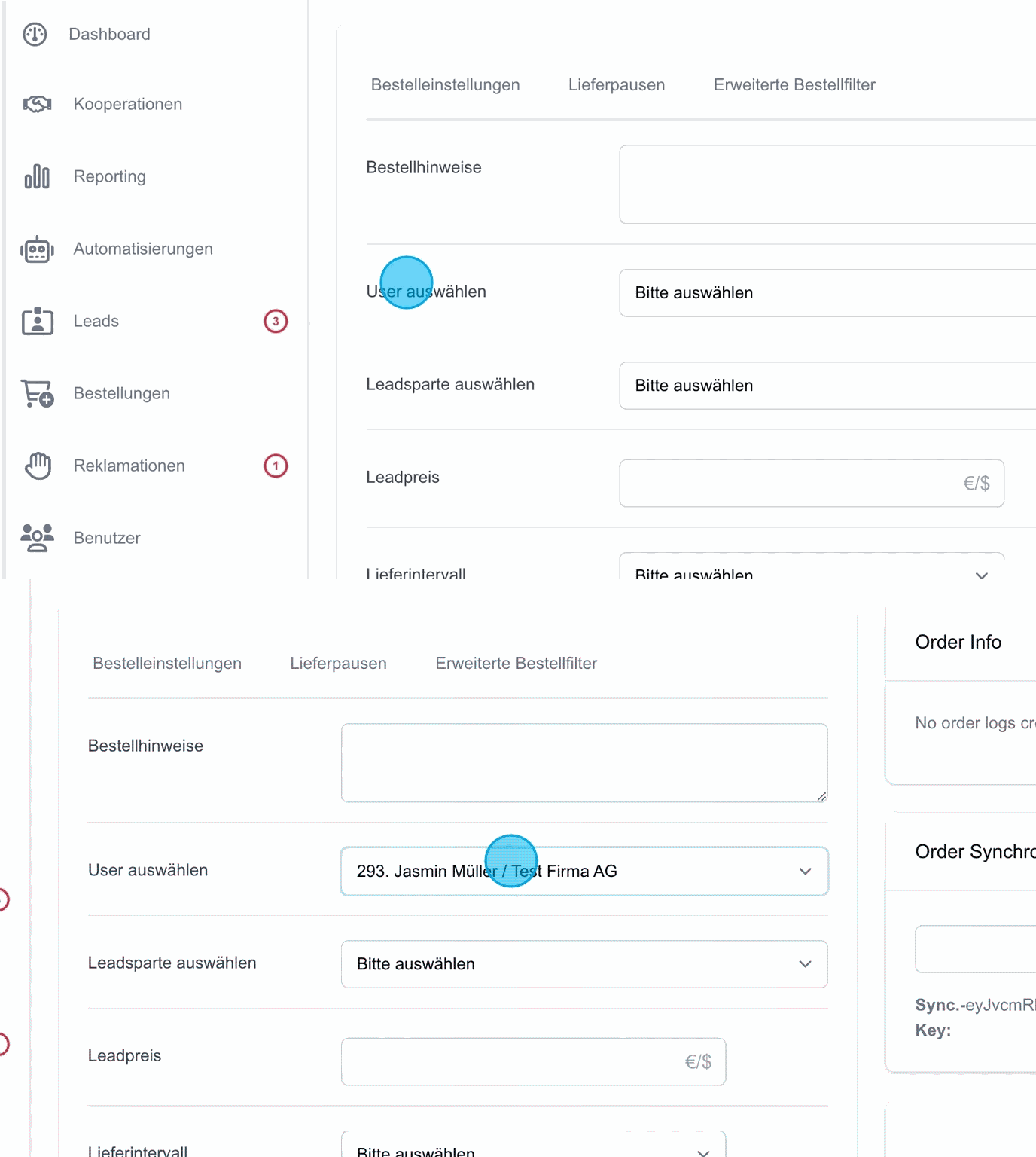
Select lead type
In this area, the lead type that was ordered is selected. The selection is made via the dropdown menu.
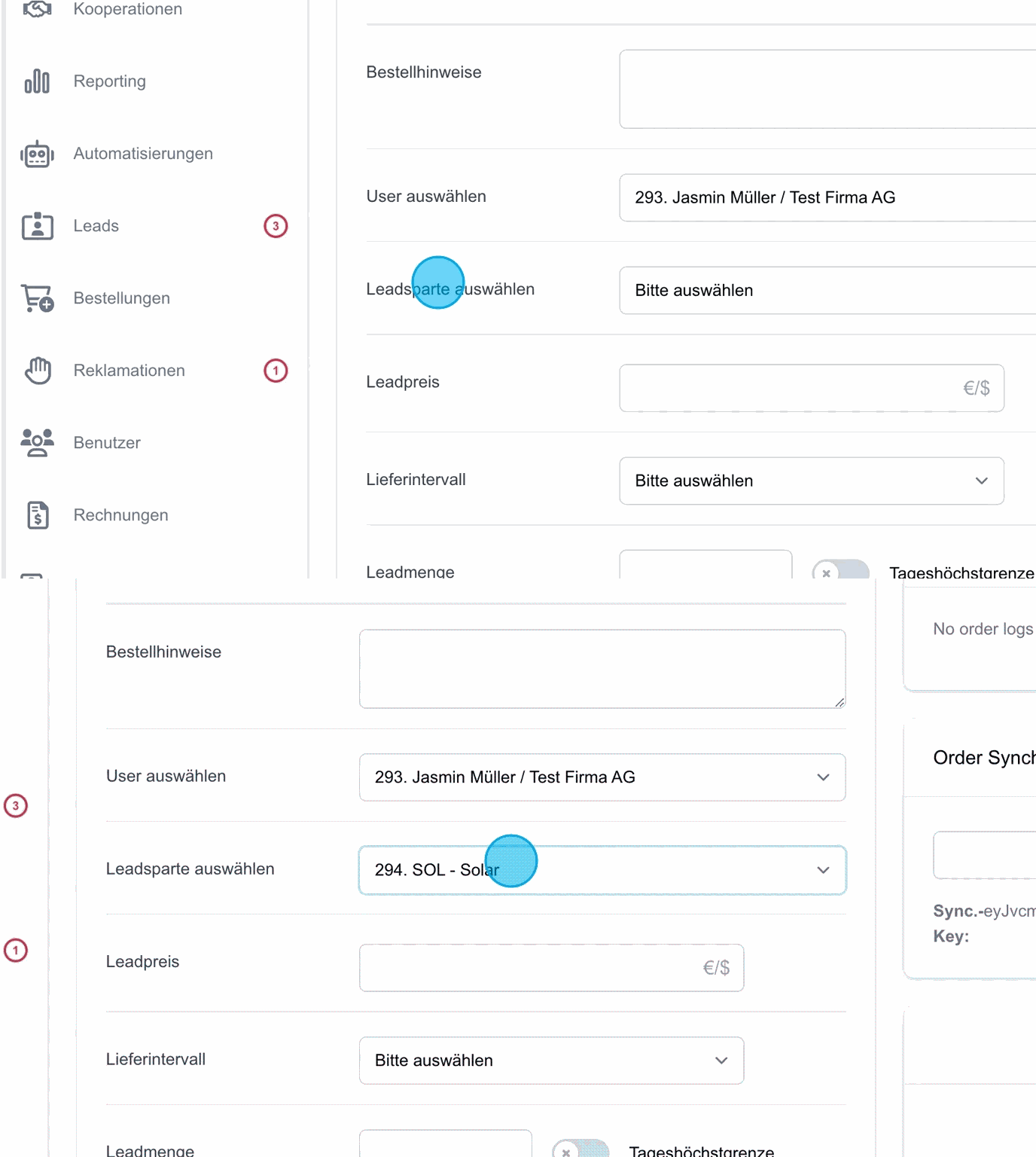
Lead price
In this field, enter the price per lead at which the leads are invoiced to the user.
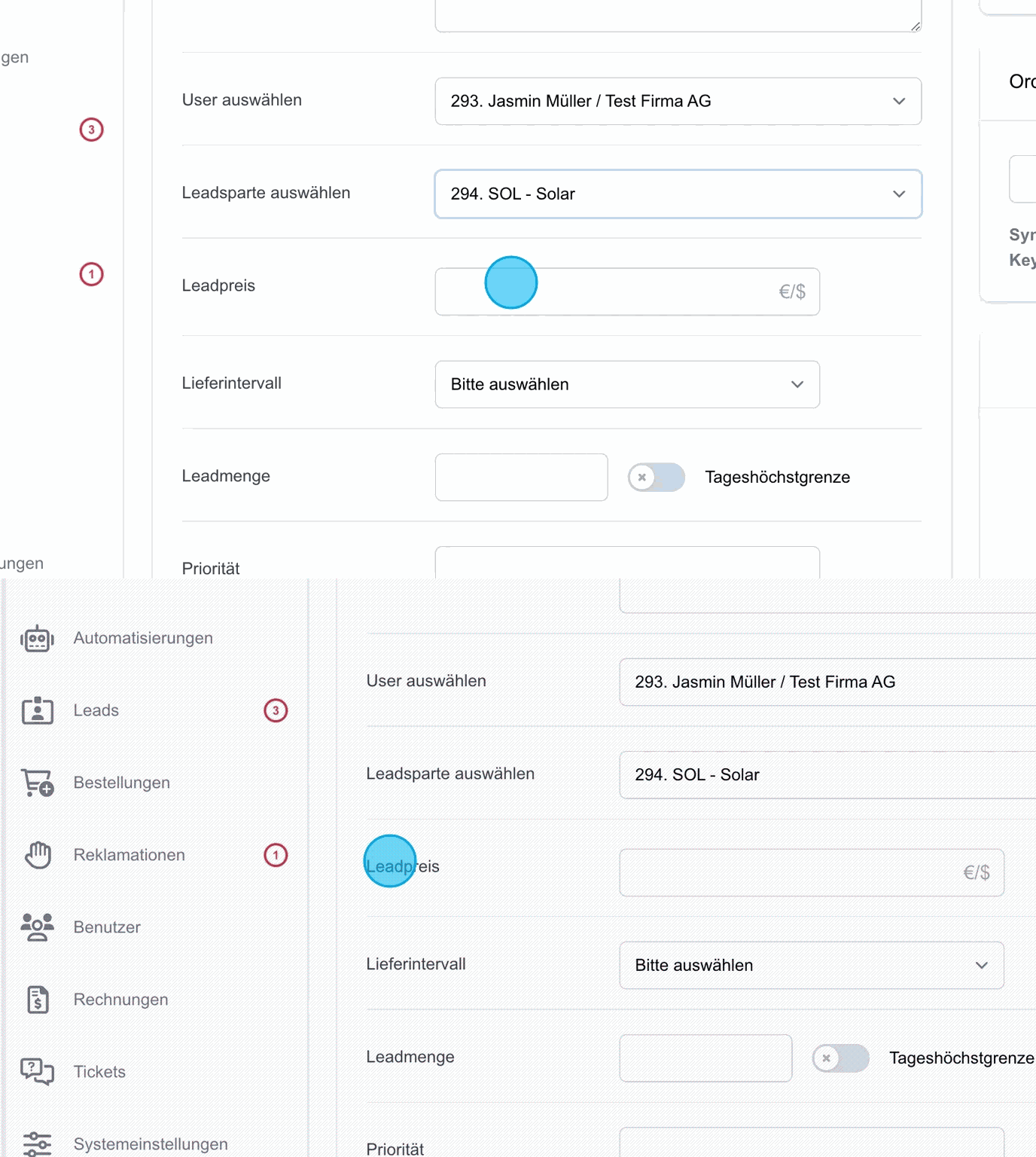
Delivery interval
The delivery interval defines how the order is processed.
There is the "one-off" option, which means the order is fulfilled either until the order quantity is reached or until the order period expires.
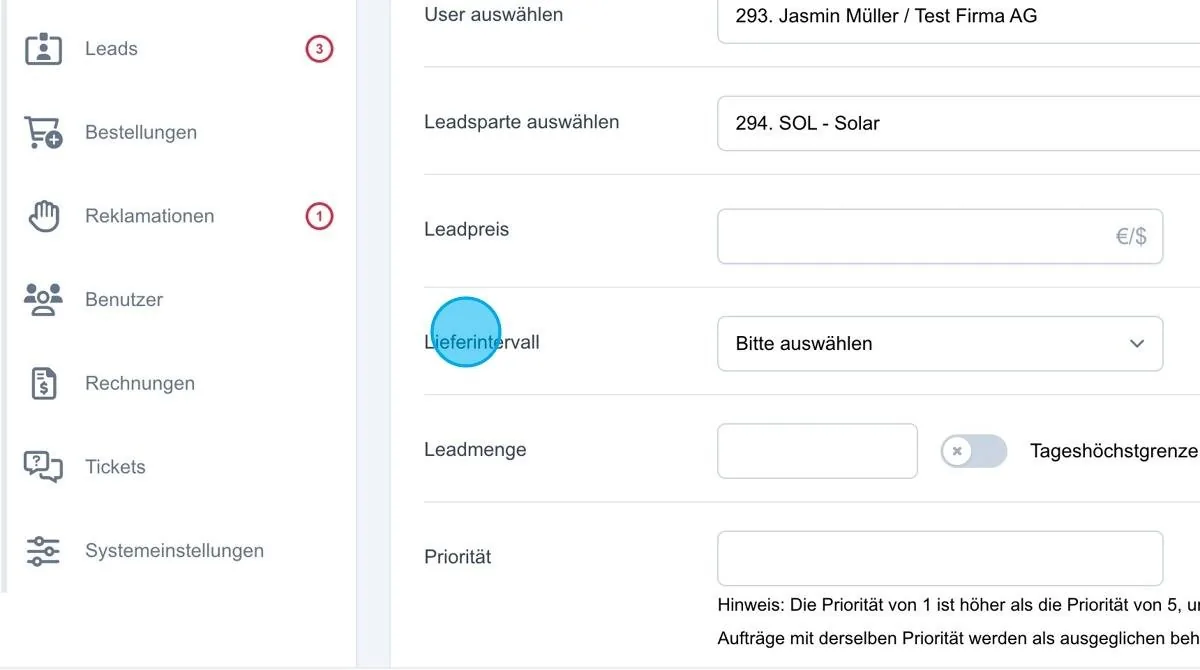
Delivery interval – daily
With the “daily” setting, the leads are delivered every day in the specified quantity. For example, if an order quantity of 10 leads has been set, the user receives 10 leads every day. Every night at midnight the order is reset, so that 10 leads can be delivered again the next day.
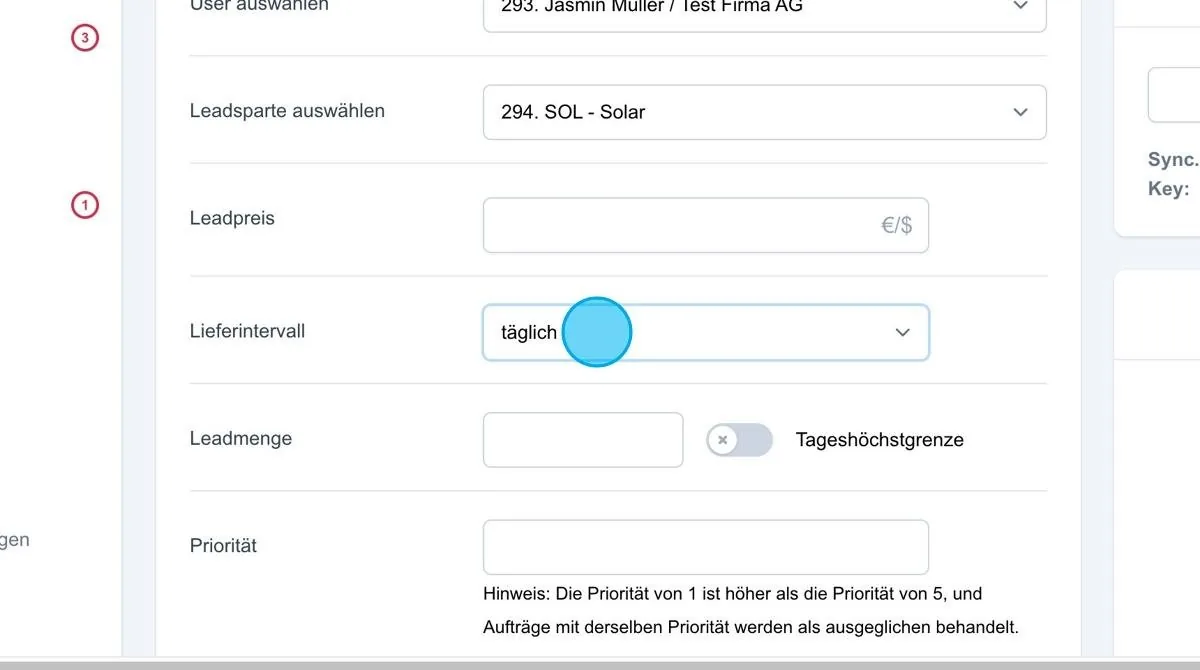
Delivery interval – weekly
With the weekly setting, the order is reset from Sunday to Monday. The principle is the same: as soon as the order quantity for the week has been reached, the order is reset from Sunday to Monday, so that the delivery quantity can be delivered over the coming week.
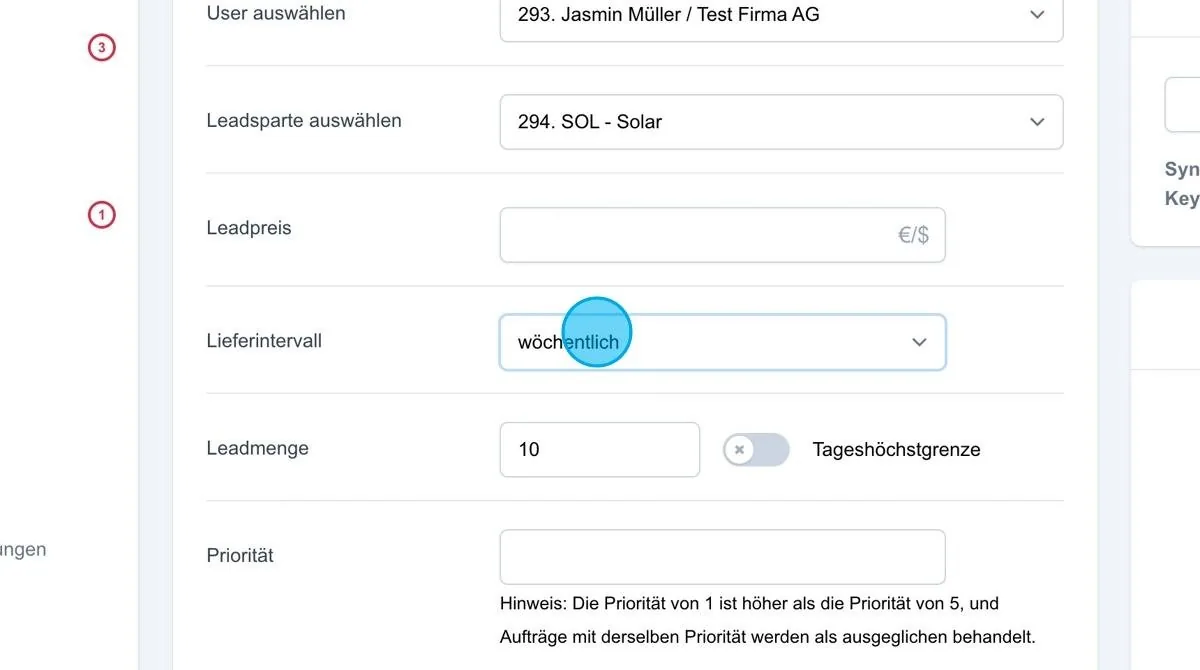
Delivery interval – monthly
With the monthly setting, the order is reset during the night before the first of the month, so that the new order period can begin.
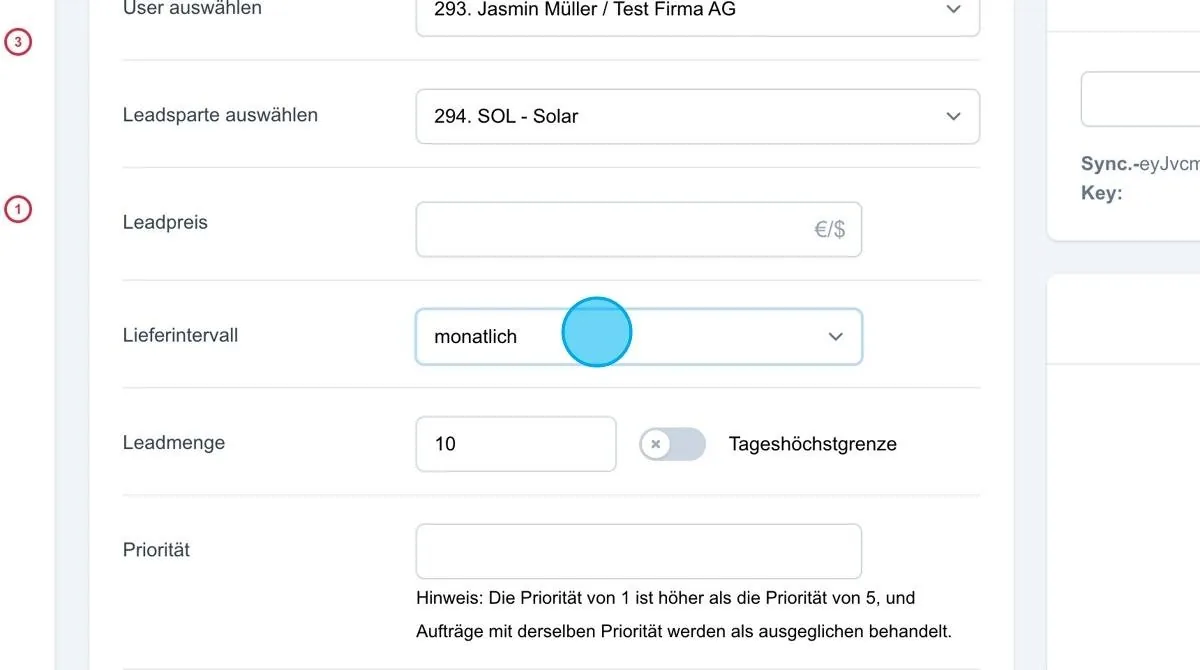
Lead quantity
Here, the quantity of leads ordered is set, always in combination with the selected delivery interval. There is also the “Daily maximum” option, which is particularly relevant for weekly or monthly delivery intervals.
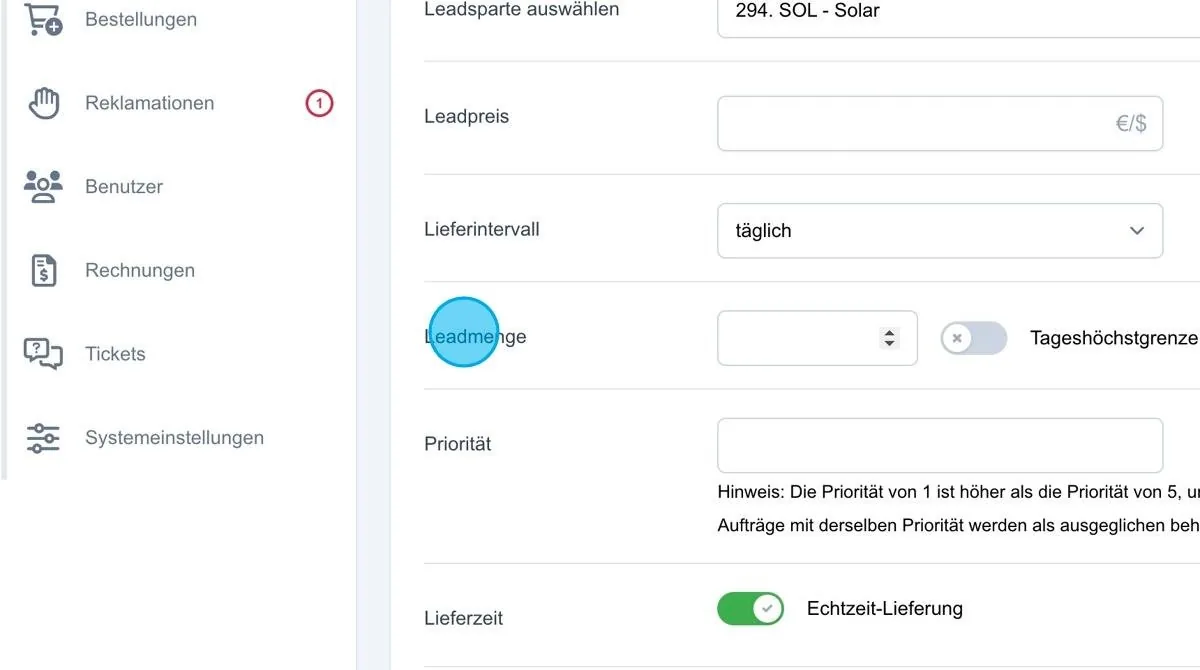
Compensate complained leads
Here you can define whether leads that have been subject to a complaint should be compensated automatically. If this option is active, the user automatically receives a new lead after a complaint. If the function is deactivated, no compensation takes place.
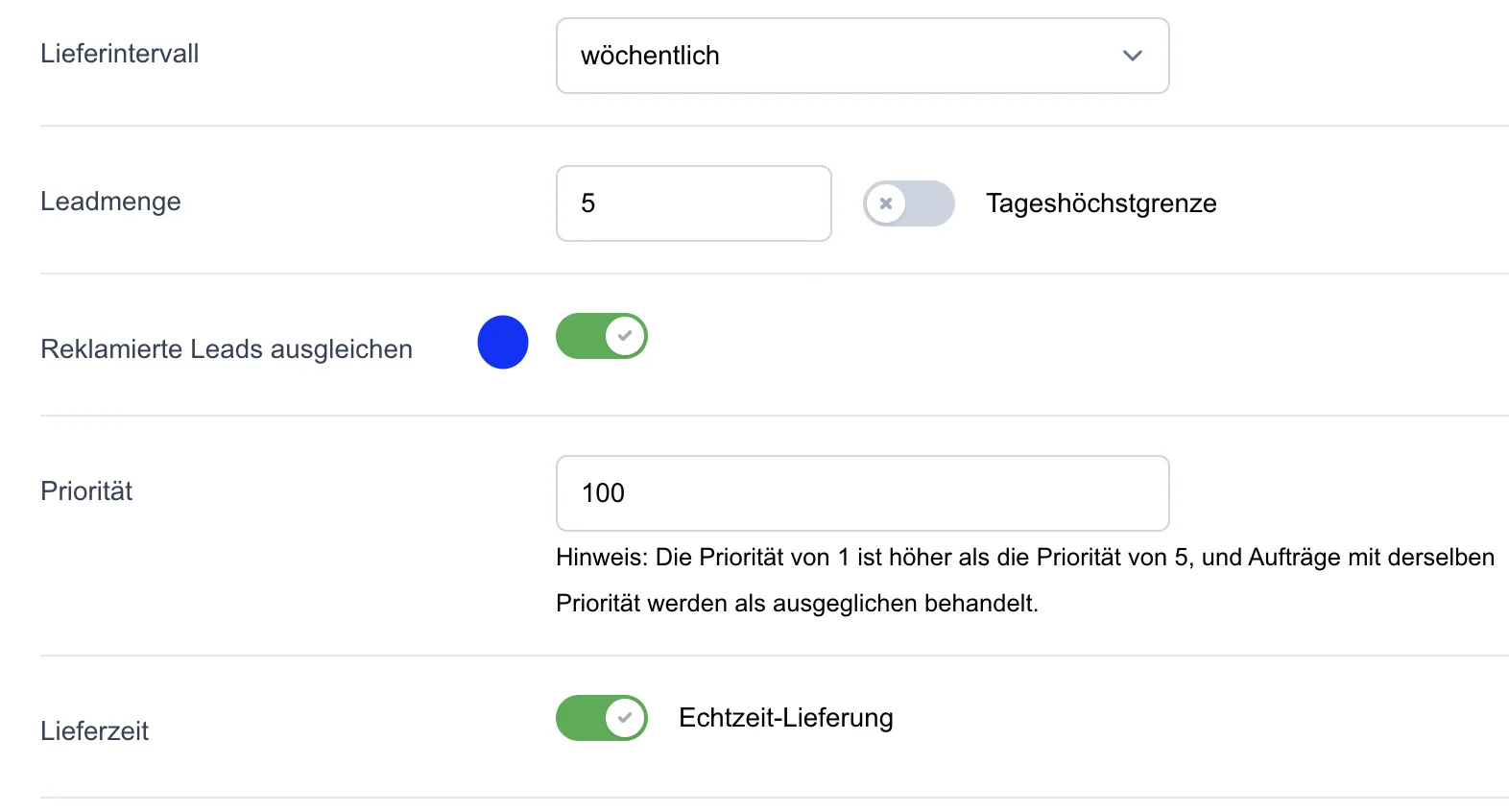
Exclusive Order
The “Exclusive Order” option can be activated for orders. If a lead is assigned via such an order, it is allocated exclusively and is not used multiple times in multi-selling.
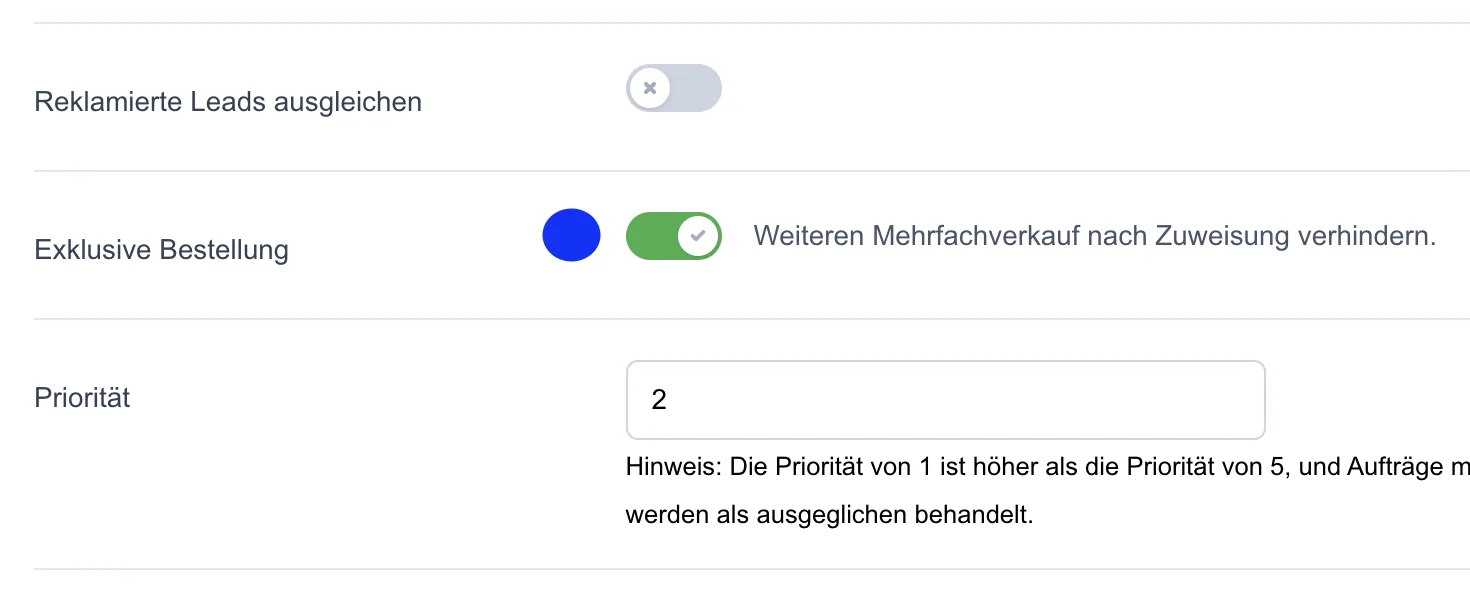
Daily maximum for the lead quantity
If, for example, the user orders 100 leads per month, it is possible that all leads are available right at the start of the month. To prevent all 100 leads from being delivered at once, a daily maximum can be set. If, for example, you enter a daily maximum of 20 here, the 100 leads are spread over the month, with a maximum of 20 leads per day.
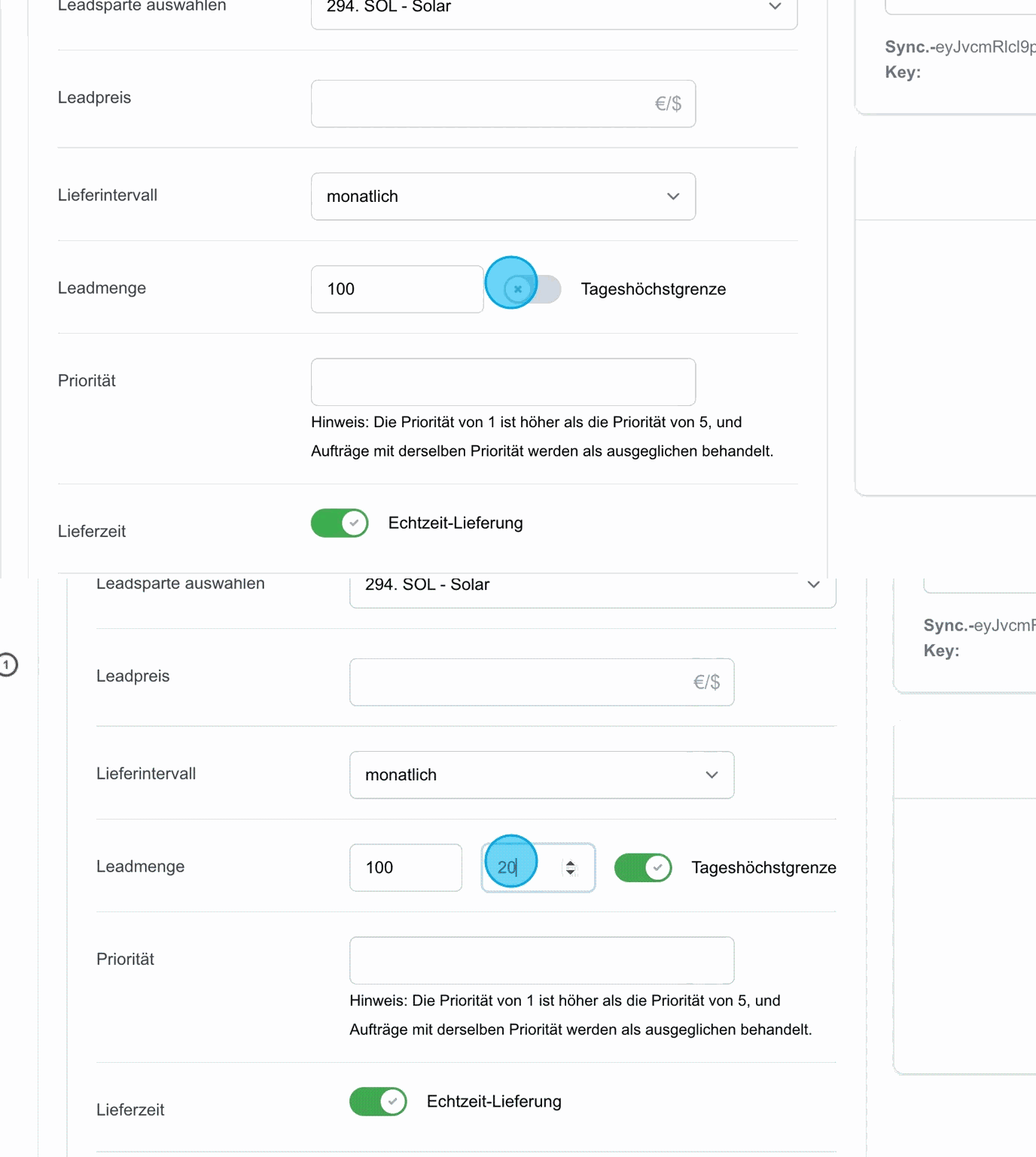
Priority
The priority indicates which order is processed preferentially. Priority 1 stands for the highest priority. Orders with a higher priority are fulfilled first. It is advisable to enter a relatively high value here, e.g. 100, to leave enough room for prioritising downwards later. Tip: it can make sense to keep all orders on the same priority level so that the system distributes the leads evenly across all orders.
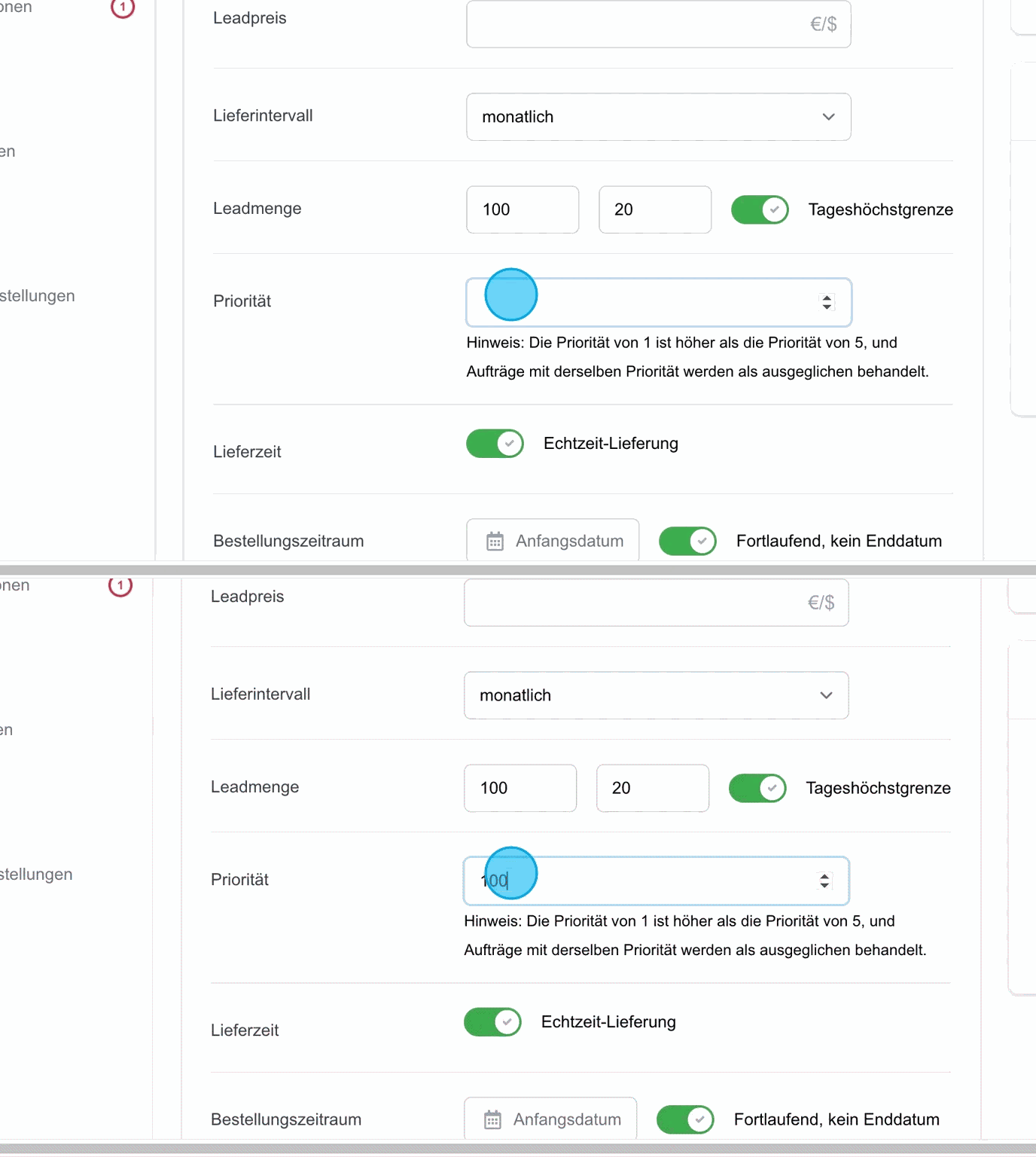
Delivery time
As a rule, leads are distributed in real time. As soon as a lead is received, it goes through a check. If no irregularities are found, the lead is released for sale and forwarded directly. A user enters their data on the website, and the lead is transmitted to the customer within a minute, so that they can make contact immediately.
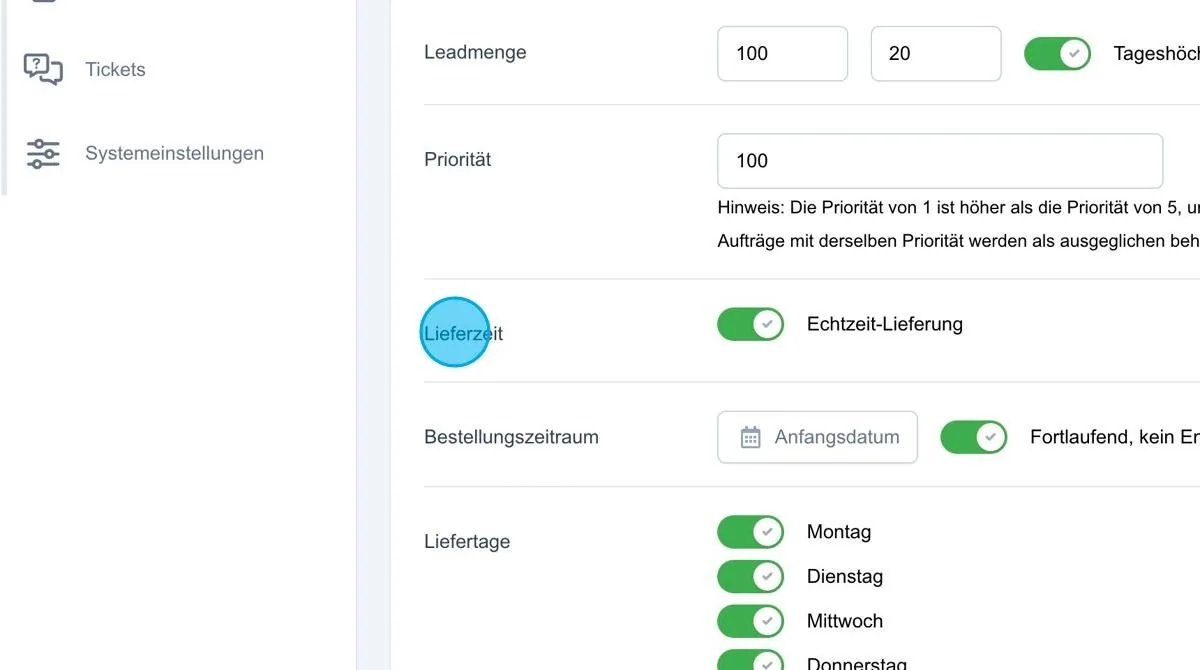
Delivery time
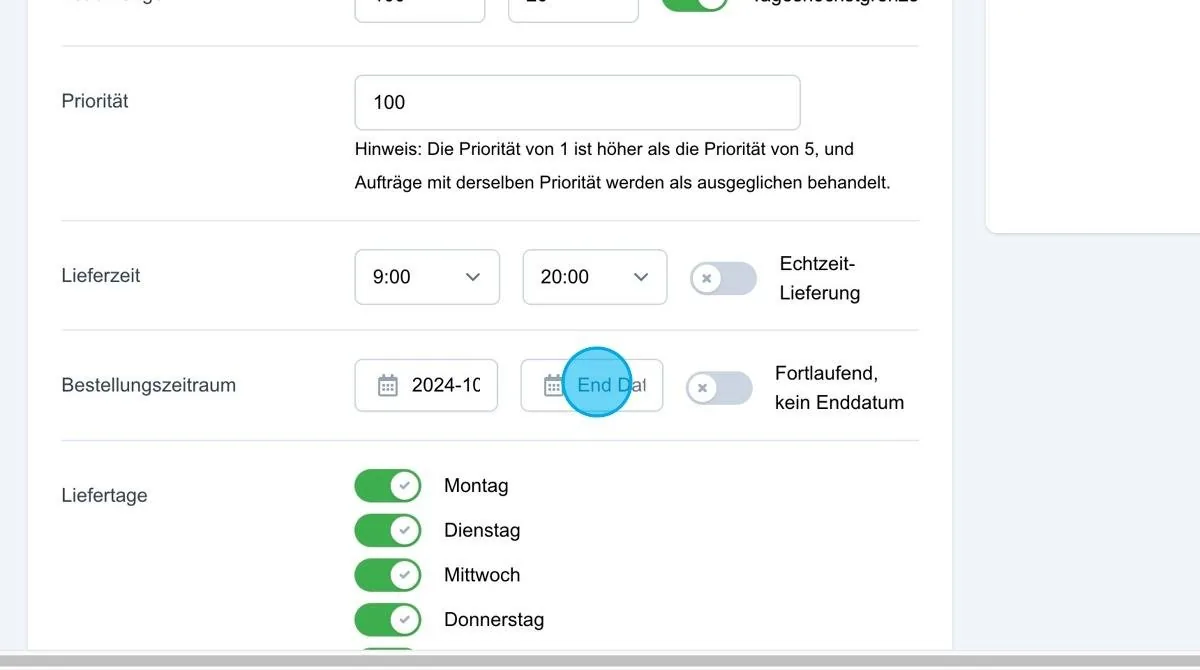
Some users do not want to receive leads outside certain times, as this can create additional pressure to process leads immediately. To counter this, the delivery time can be defined. For example, a time window from 9 am to 8 pm can be set, so that leads are only delivered within this period. Leads received outside this period are only delivered the next day from 9 am.
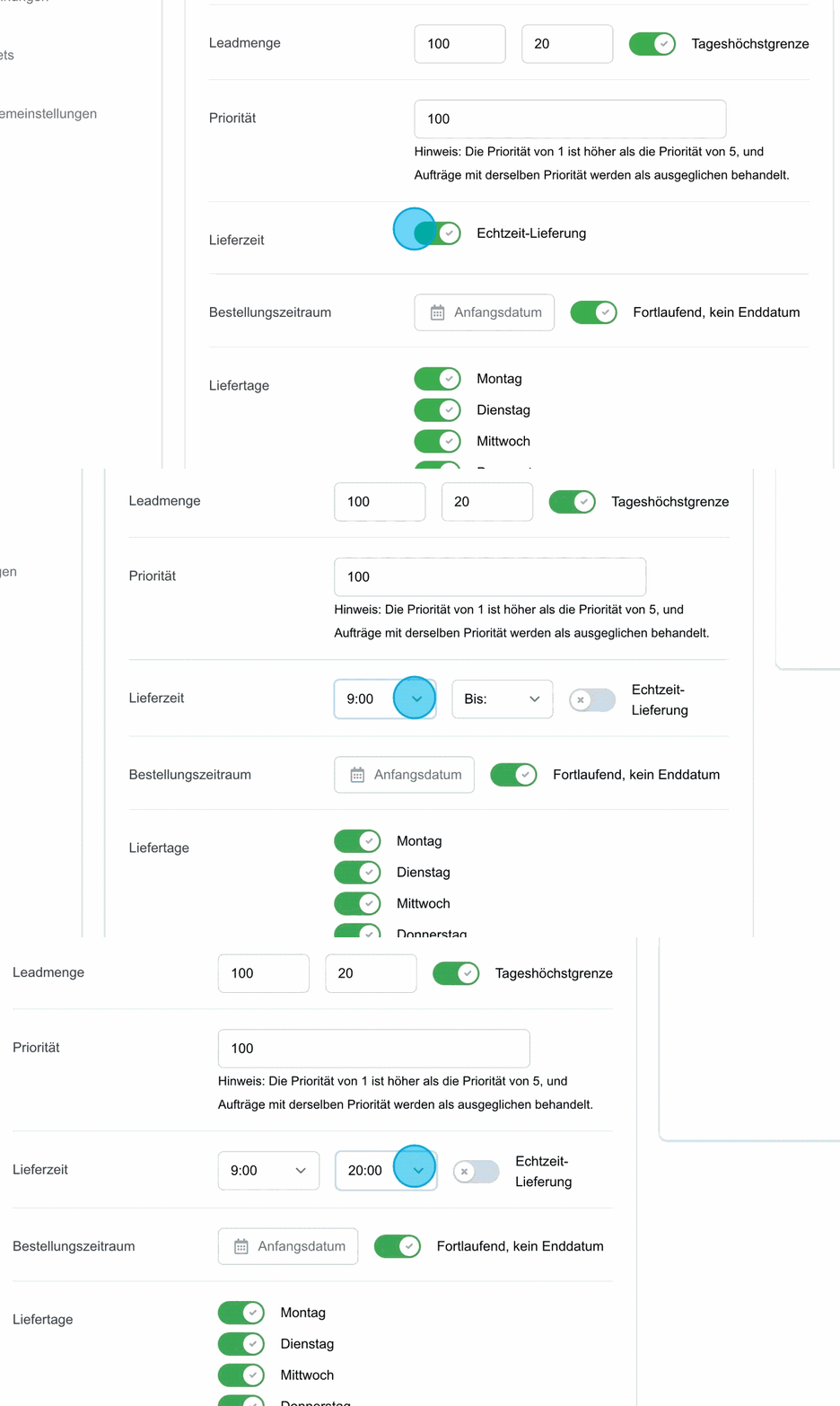
Order period
In the order period, a start date is set from which the order should be active. The “ongoing” option means that no end date is defined. This setting is particularly suitable for orders with daily or weekly intervals, which are reset automatically and continue to run until the customer cancels the order.
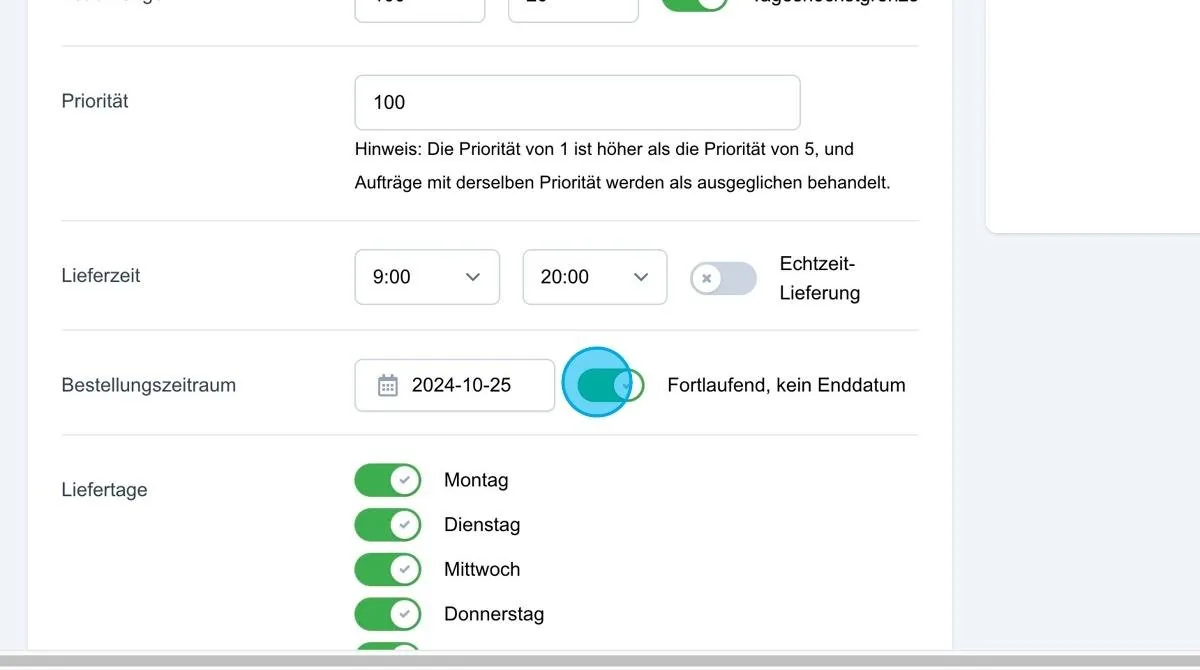
Order period with end date
Alternatively, an end date can be set via this setting. If an end date is defined, the order is automatically deactivated on that day. If the ordered delivery quantity is reached before the end date, the order is also completed and no further leads are delivered.
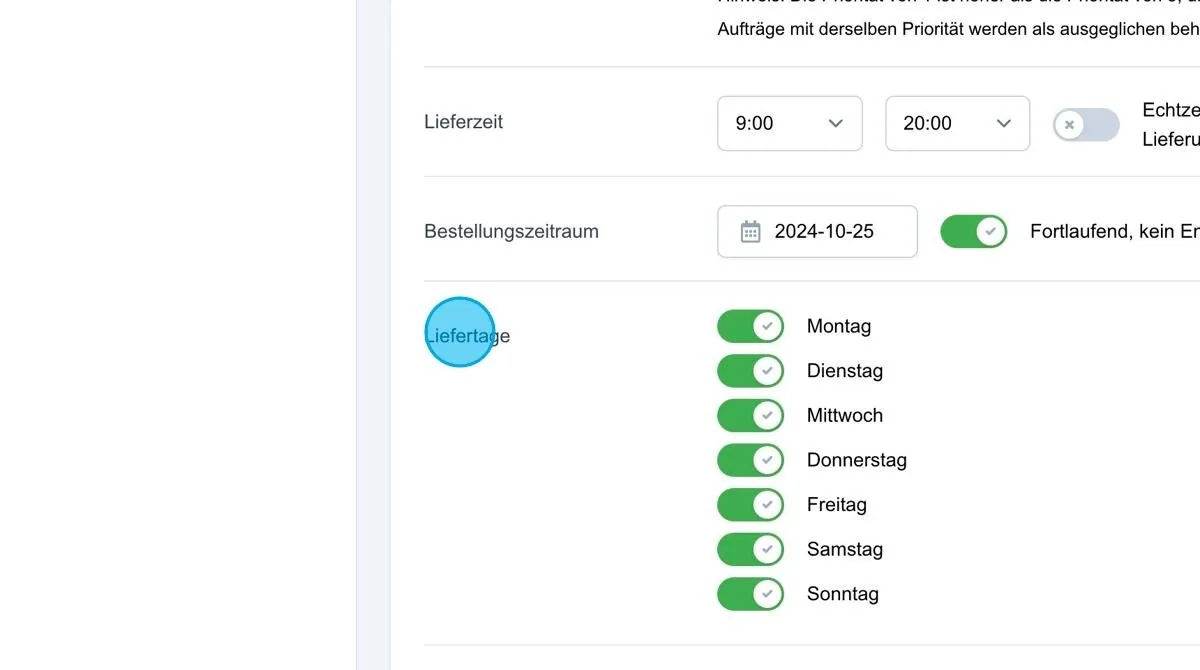
Delivery days
Here you can define on which days no leads should be delivered, for example on Saturdays and Sundays. No leads are then delivered on these days.
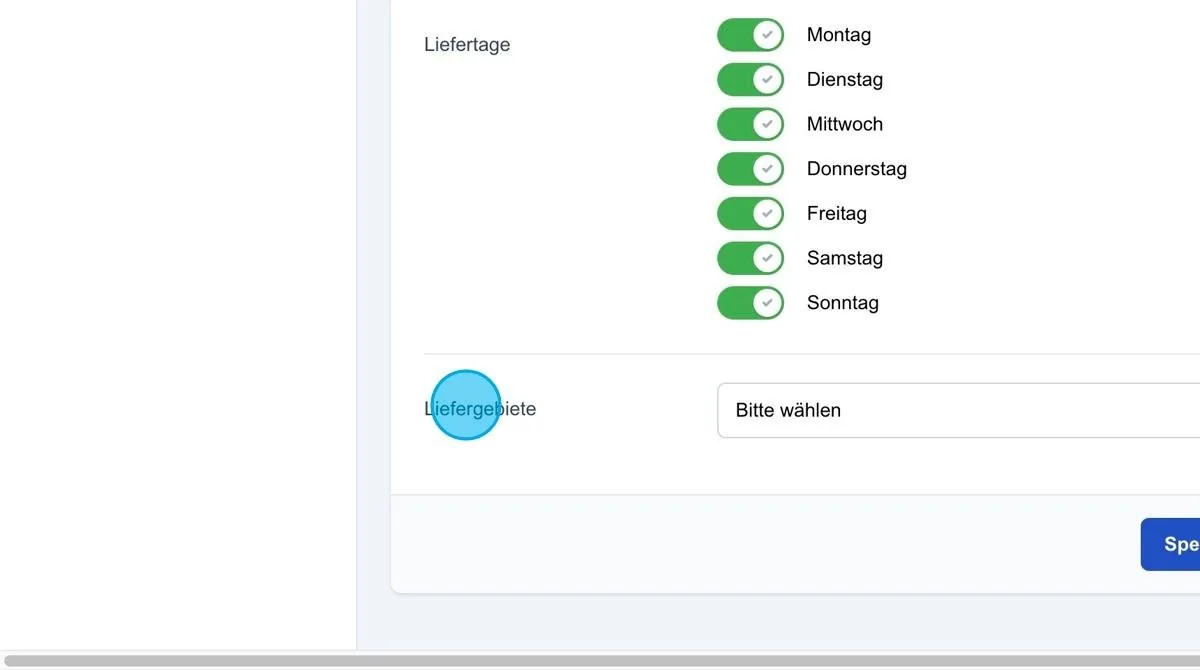
Delivery areas
In this section, the delivery areas are defined, which determine the regions in which the leads are to be delivered.
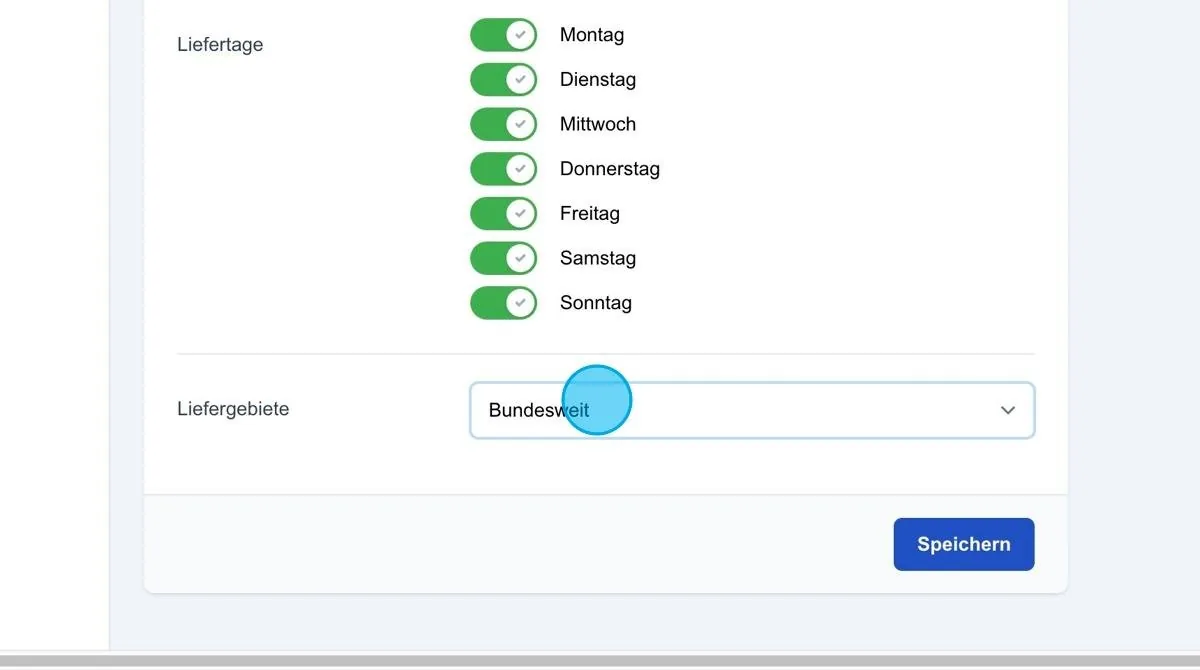
Nationwide
The first option is “Nationwide”. If this setting is selected, every incoming lead matches the order, regardless of postcode or federal state. For example, an incoming PKV lead is automatically assigned to the order if “Nationwide” is activated.
Delivery areas – federal states
With the “Federal states” setting, you can specify that leads are assigned to their respective federal state based on the postcode. For example, Bavaria and Lower Saxony can be selected here. As soon as a lead is received and contains a postcode, the system checks whether it belongs to Bavaria or Baden-Württemberg. If so, the lead is accepted by the order accordingly.
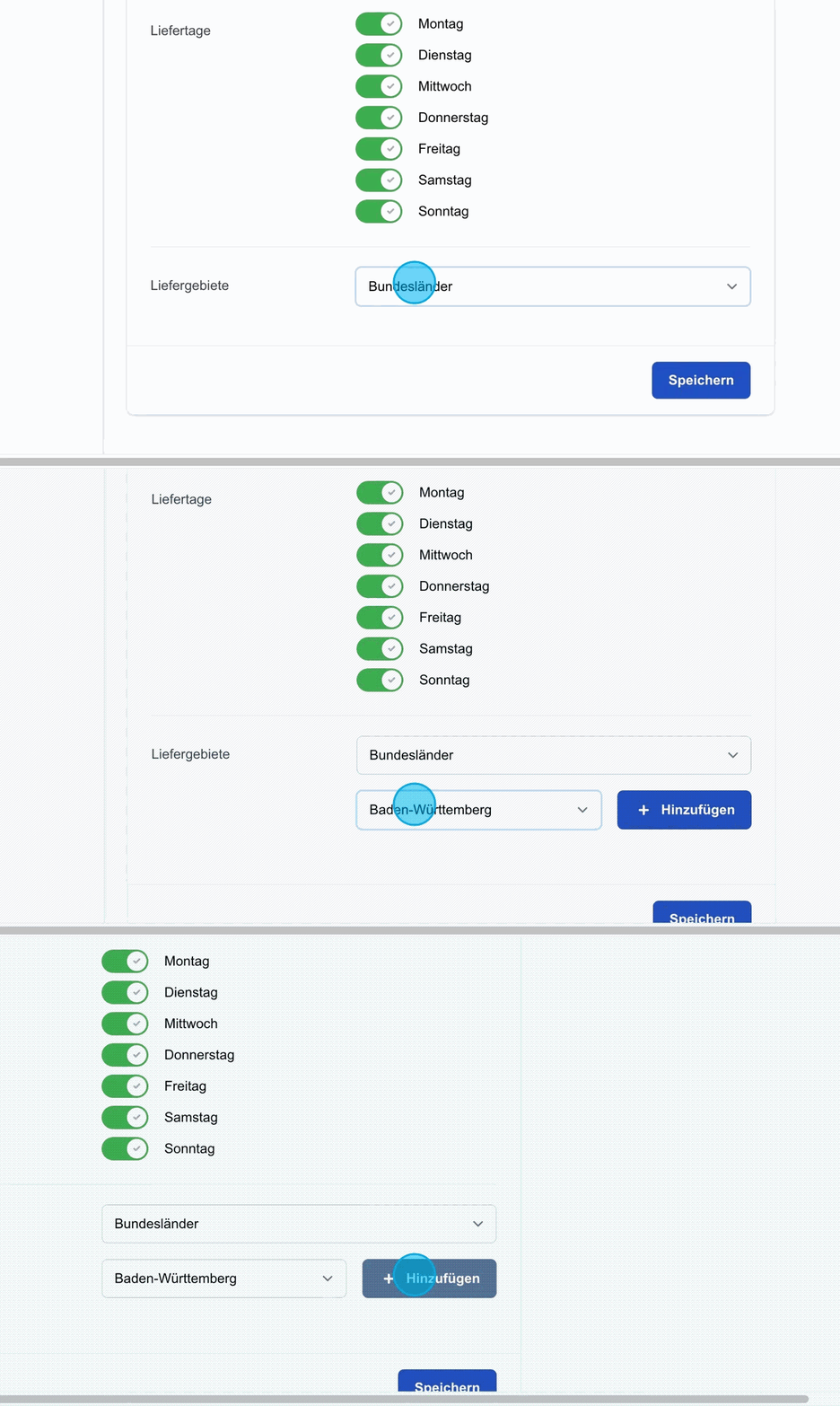
Add
Further federal states can be added here via the "Add" option.
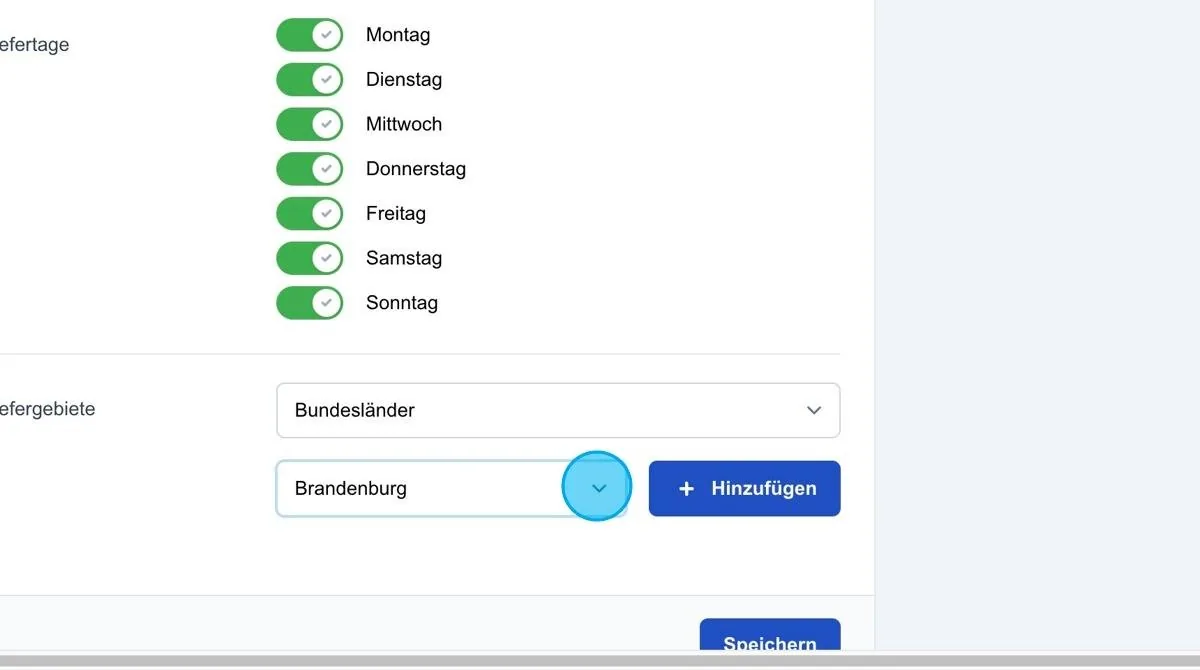
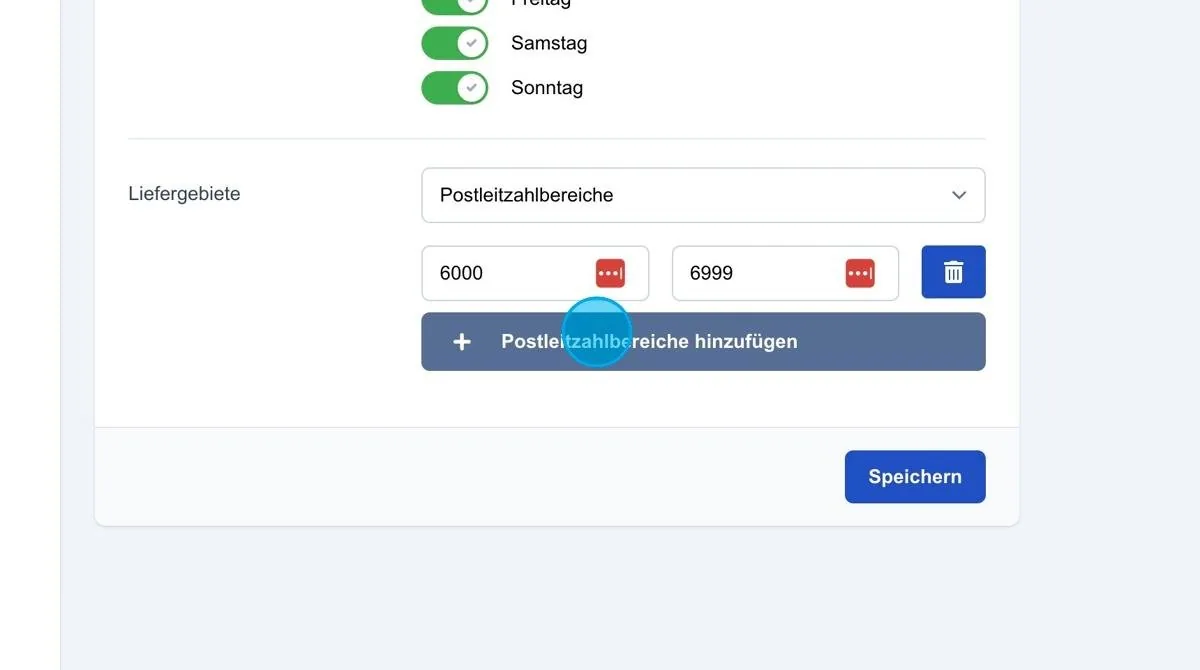
Delivery areas – postcode range
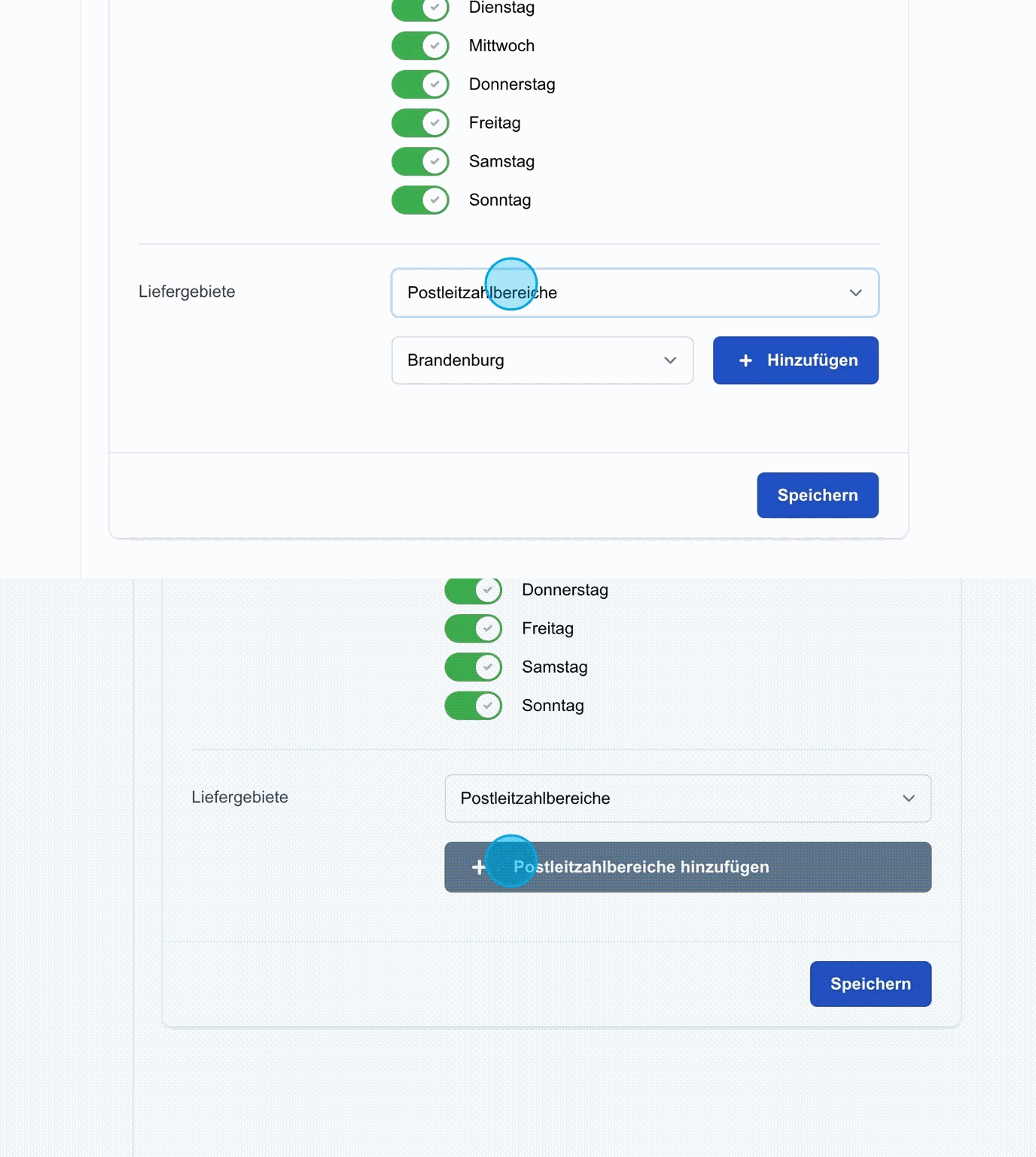
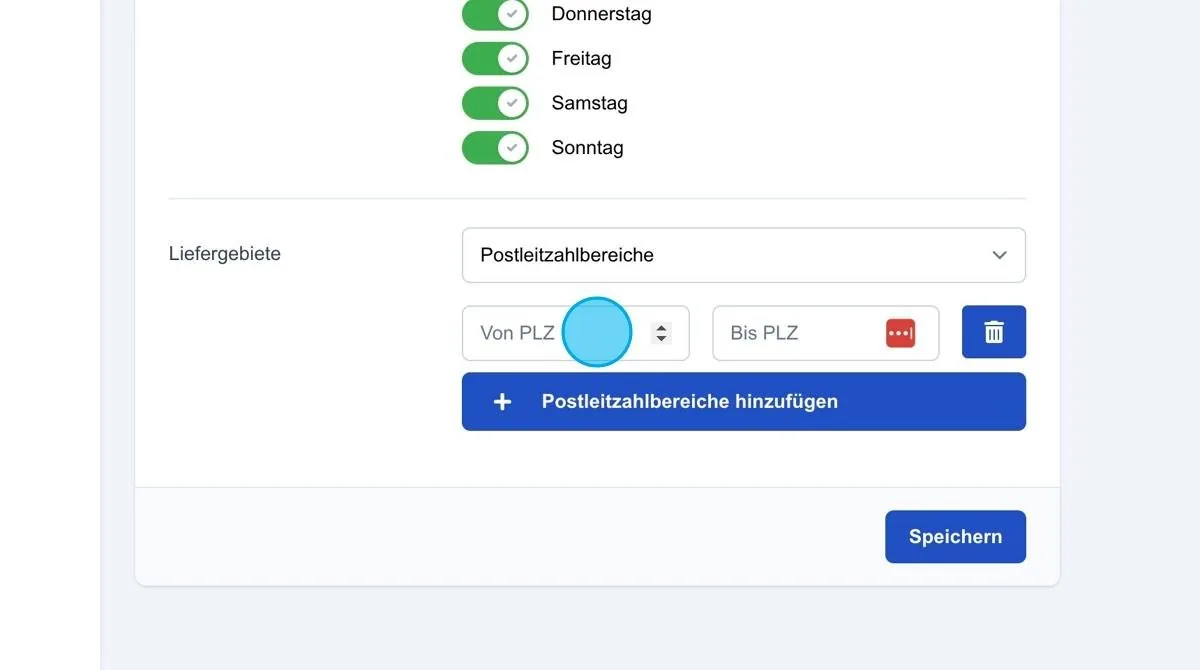
The next option is the “Postcode range”. Here you can add specific postcode ranges in which leads are to be generated. For example, the range 60000 to 69999 can be defined. If a lead with the postcode 64839 is received, it falls within this range and is assigned to the order.
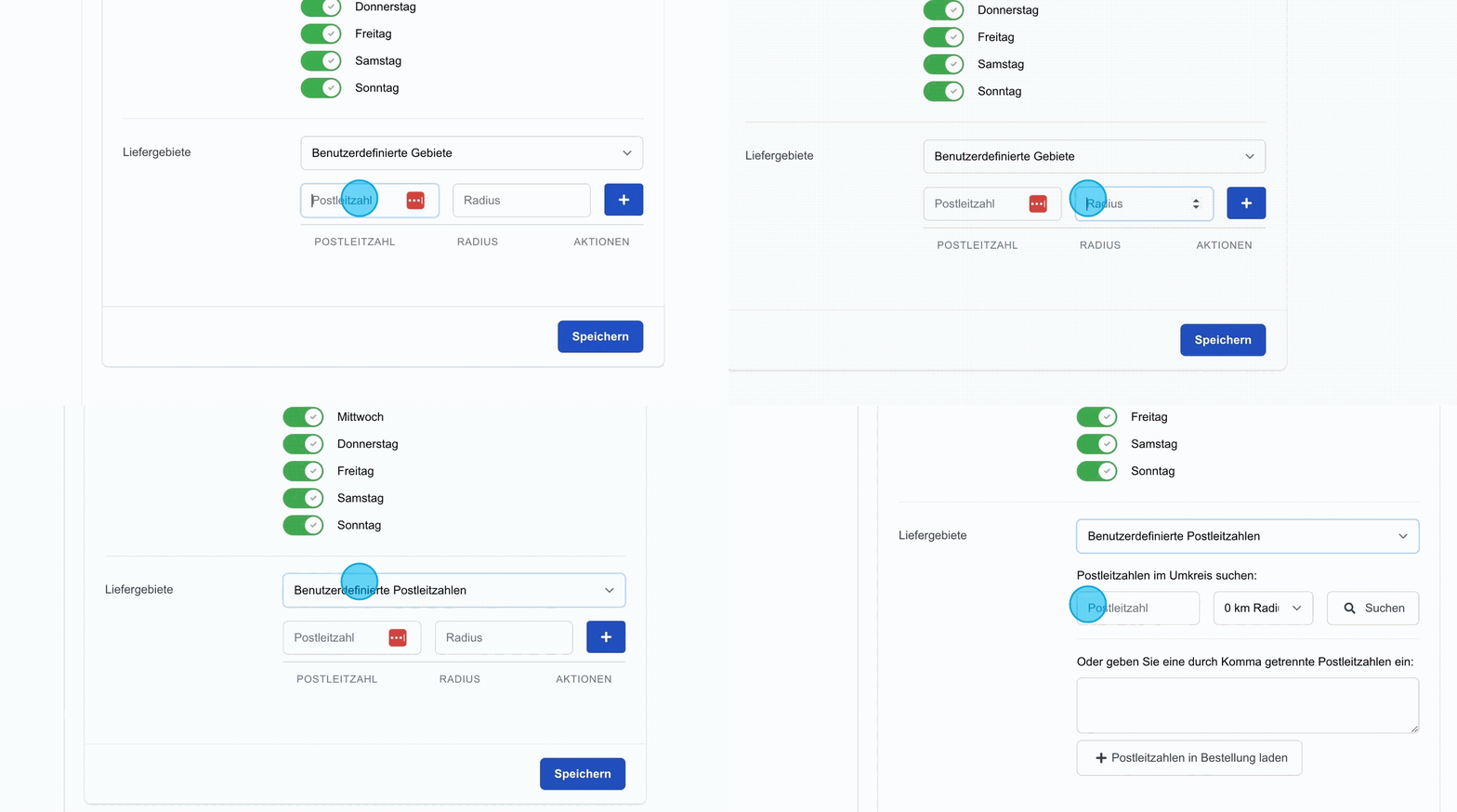
Delivery areas – custom areas
The fourth setting is “defined areas”. Here, a specific postcode, e.g. 64839, can be combined with a defined radius. Several postcodes and radii can be added. The system then checks whether a lead's postcode lies within the selected radius. If so, the lead is assigned to the order. If not, the order does not apply to this lead.
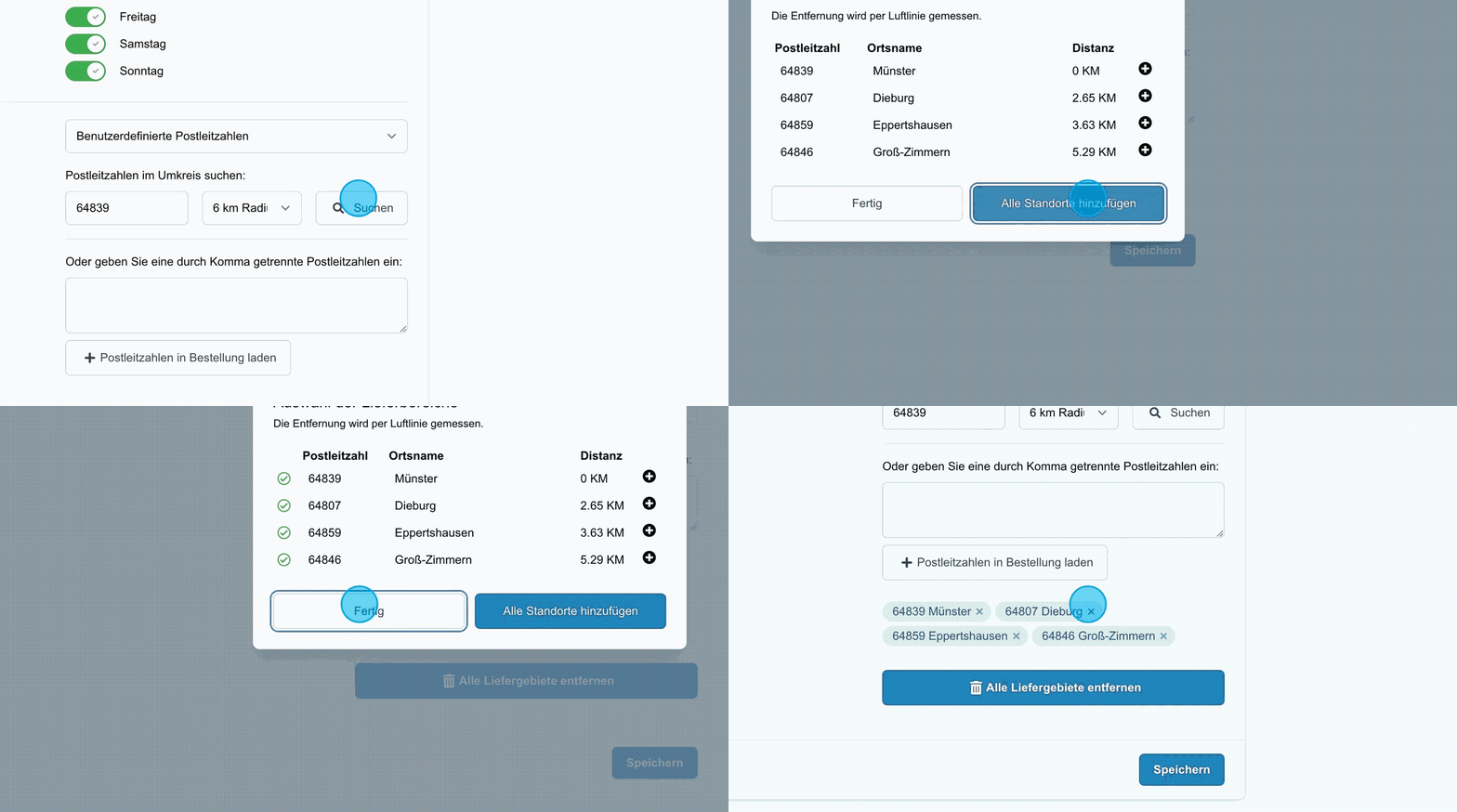
Delivery areas – defined postcodes
The last setting allows you to add specific postcodes. Similar to the radius, a postcode can be entered here and neighbouring places searched for. The system shows places in the vicinity, including distance information, and allows individual places to be selected. All displayed locations can be added if desired, or specific postcodes can be removed again by clicking the “X”.
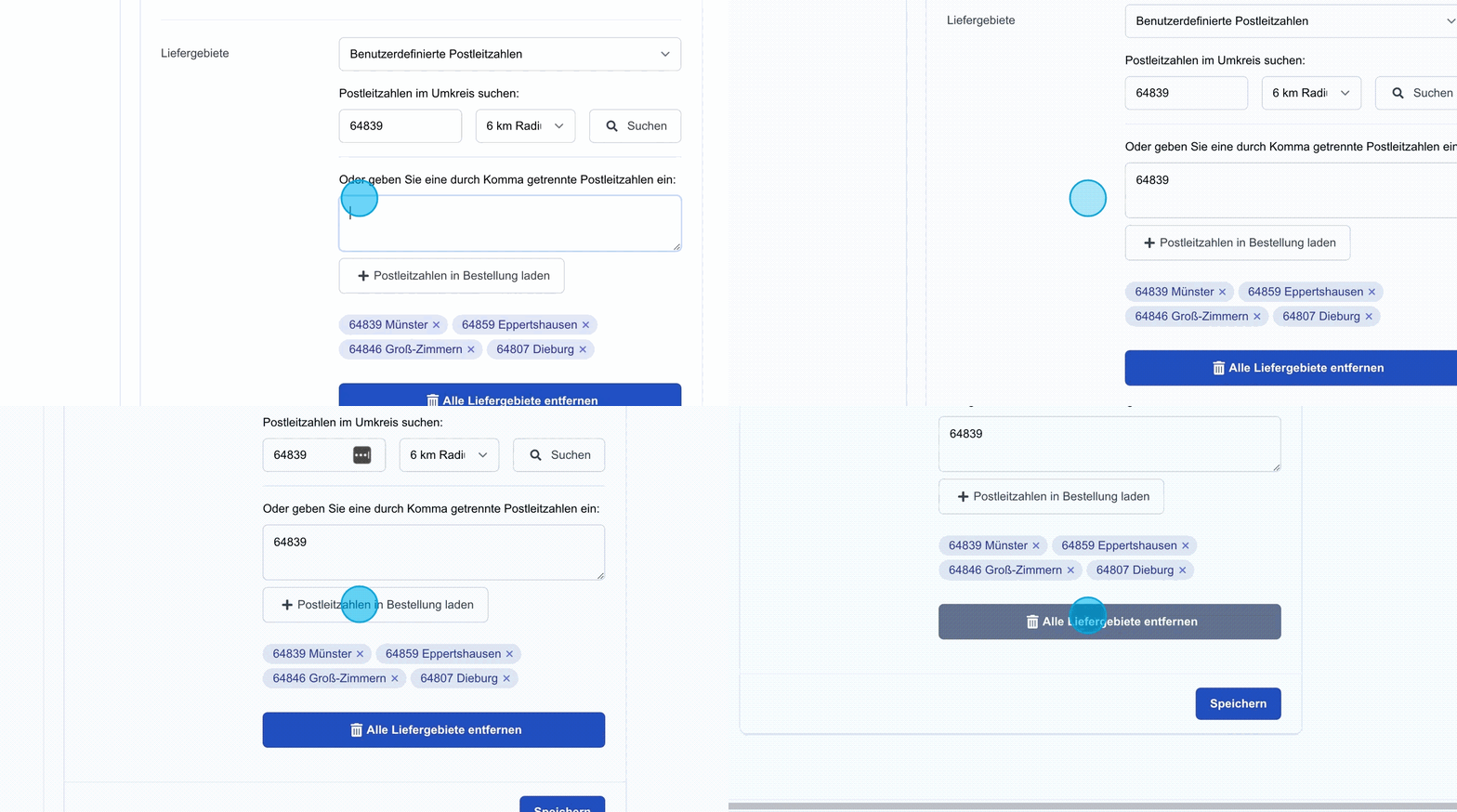
Additional postcodes can also be added via the search or as a comma-separated list. If required, the “Remove all delivery areas” button can be used to delete the entire list and make room for new postcodes.
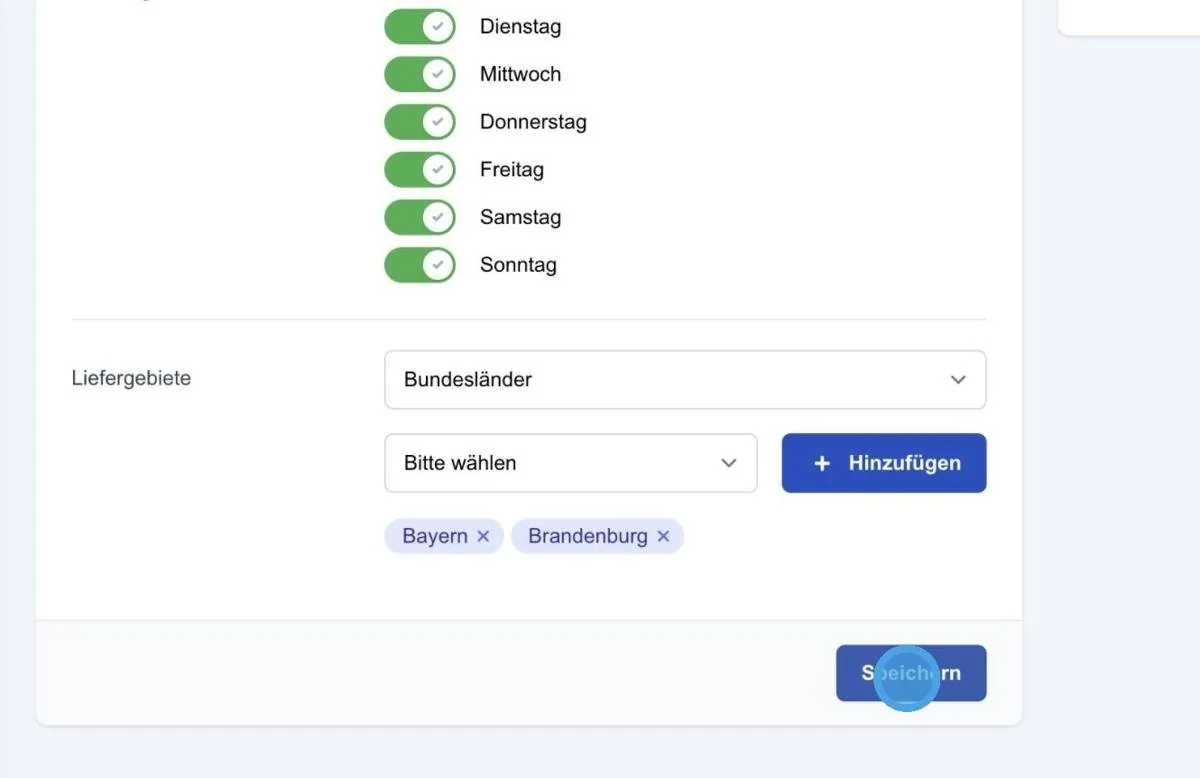
Save: Clicking “Save” permanently applies and saves all settings made for the order.