In the next step, validation can be configured for the lead type. This is where you define which criteria a lead must meet in order to be considered qualified. These validation rules make it possible to ensure the quality and relevance of the leads for the respective lead type.
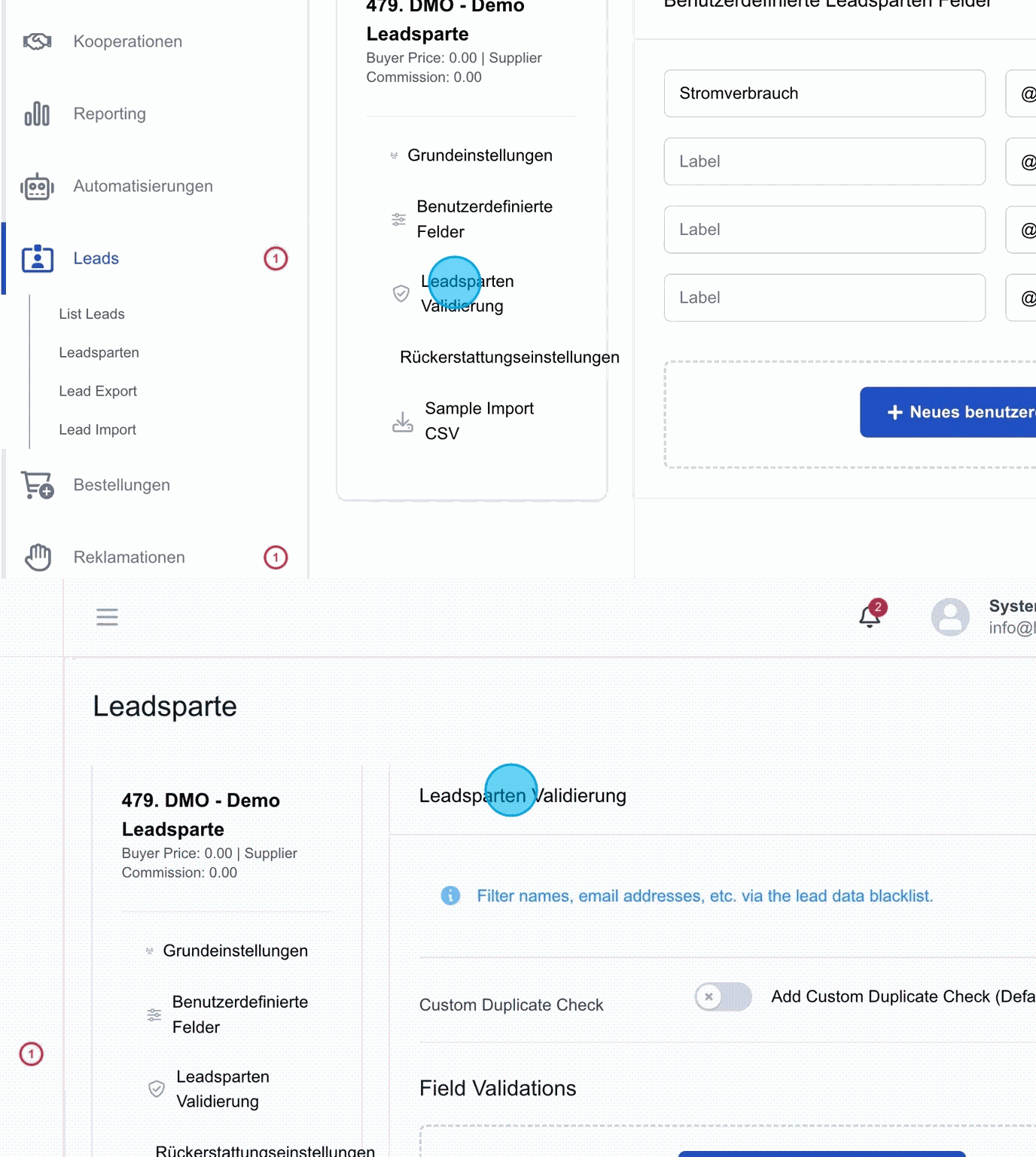
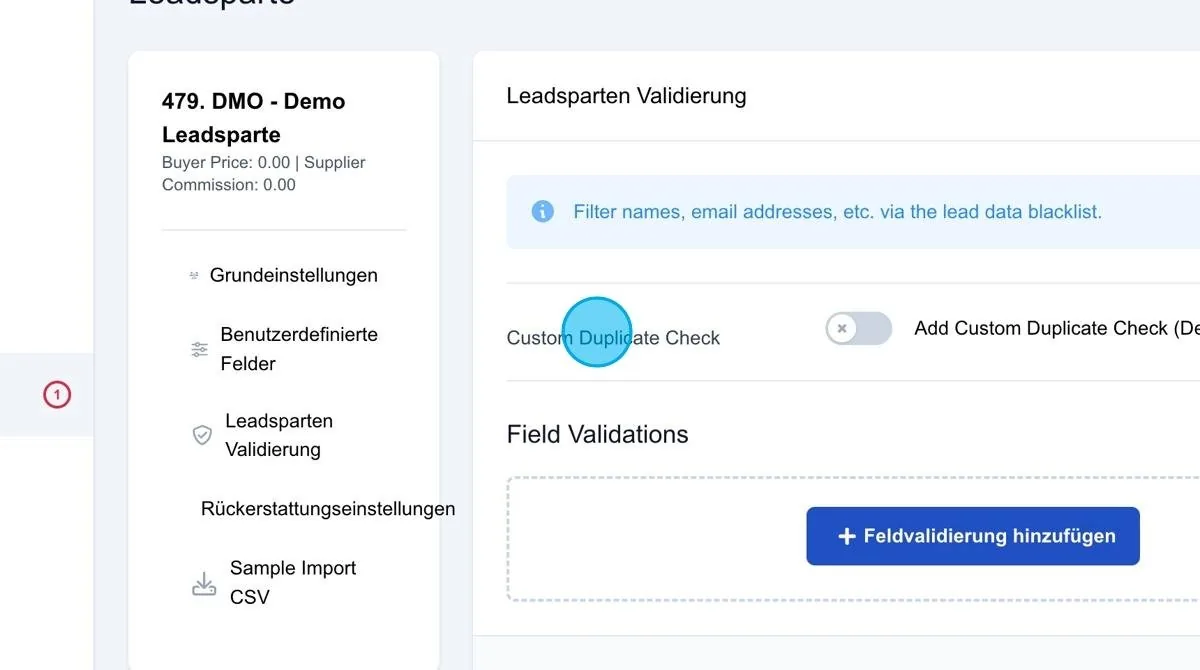
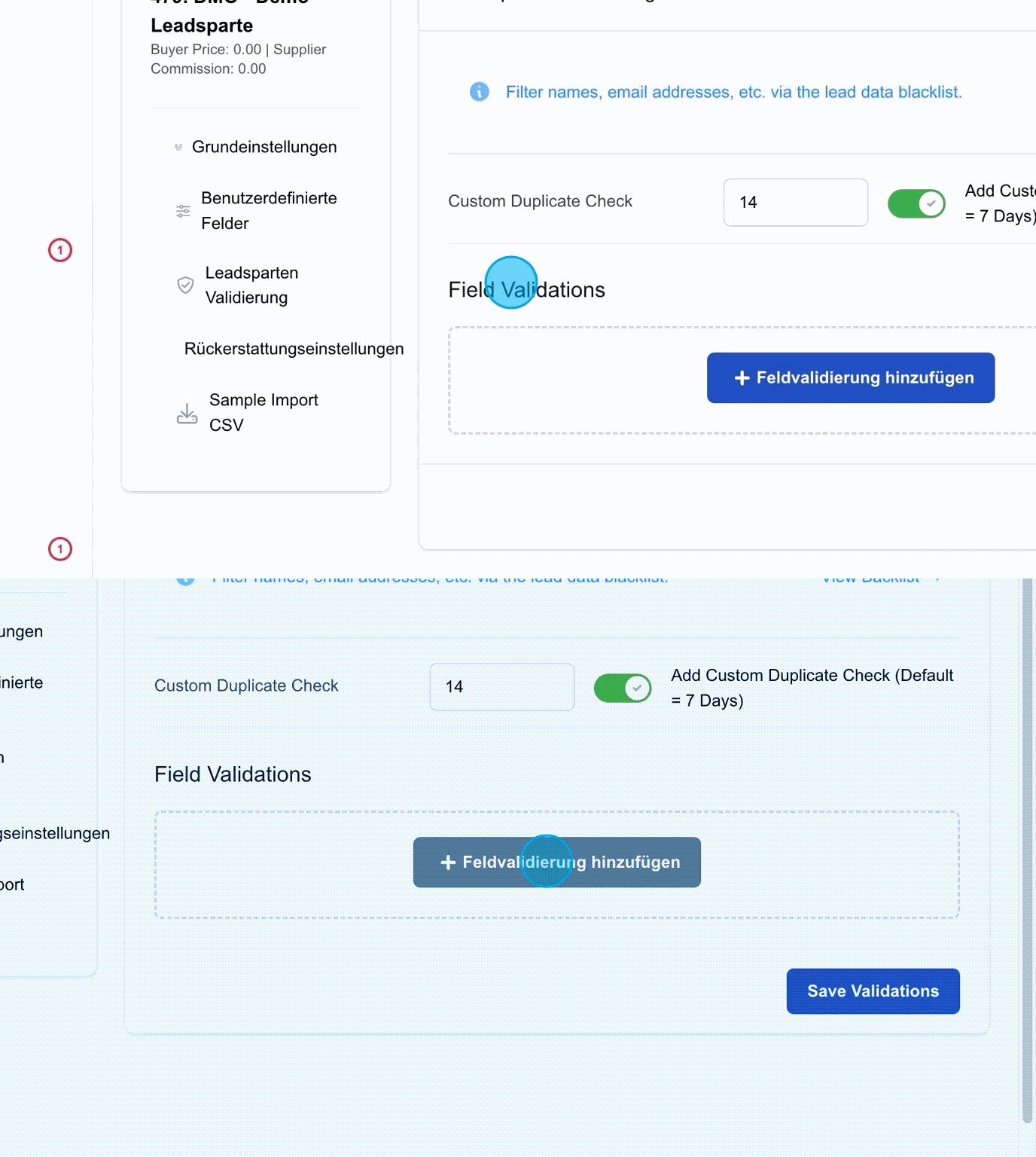
Custom Duplicate Check
There are two kinds of validation, one of which concerns checking the lead for duplicates. By default, the system checks a lead's data retroactively over a period of seven days to determine whether it has already been received.
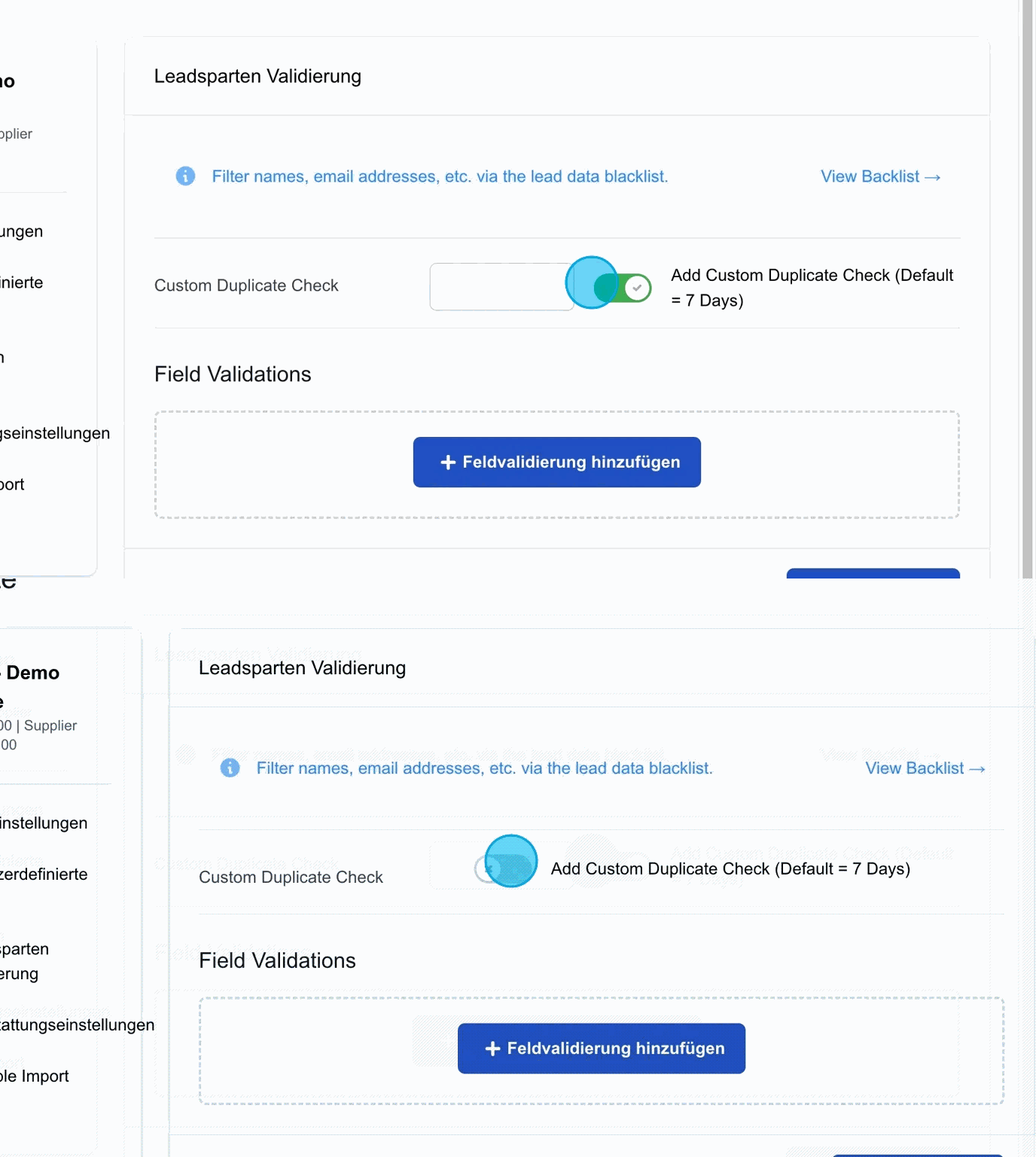
By activating the corresponding button, a longer check period can be set for the duplicate check. For example, a period of 14 days can be entered. In this case, the system checks whether a lead with identical data has already been imported within the last 14 days. This allows the check period to be flexibly adapted to individual requirements.
Field Validations
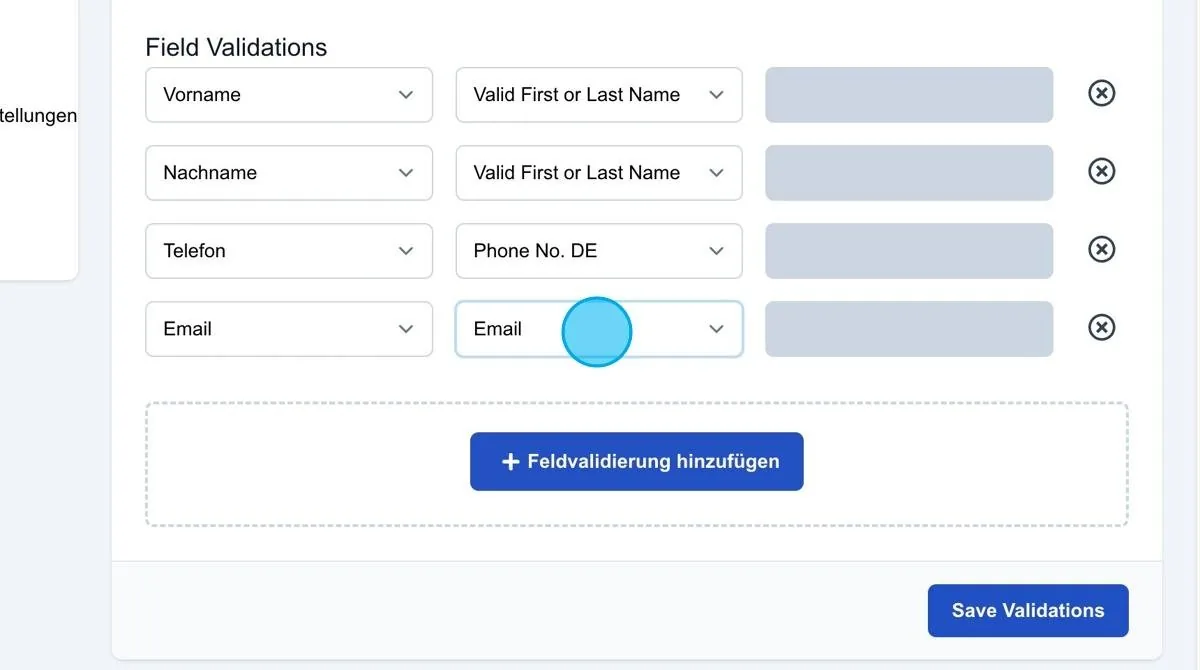
Field validation offers the option of checking individual fields of a lead for correctness. For example, you can define whether the first name or last name should be validated. If a lead with incorrect or incomplete data enters the system, it is not rejected but moved to the “Review” status.
In this case, the logs provide detailed information about which validation was triggered and what the error is. This keeps the lead traceable, and it can be corrected manually.
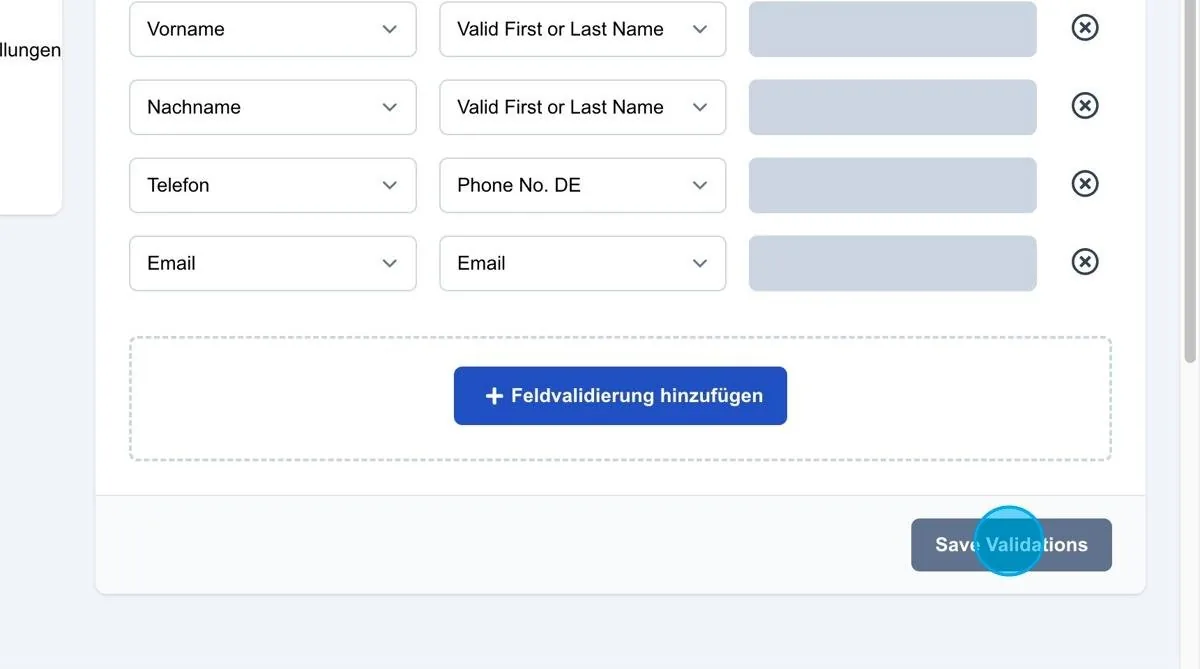
All fields, including the custom additional fields, can be validated individually. Validation is frequently activated for first name, last name and phone number. For the phone number, for example, it can be ensured that it matches the German format.
In addition, it is possible to check the email address. If this option is activated, the system checks whether the email address has a valid format. This setting helps to ensure the quality of incoming leads.
Save Validations: Clicking the “Save Validations” button saves all field validations you have set up. The defined rules then become active, and from that point on the system checks incoming leads against the specified validation requirements.