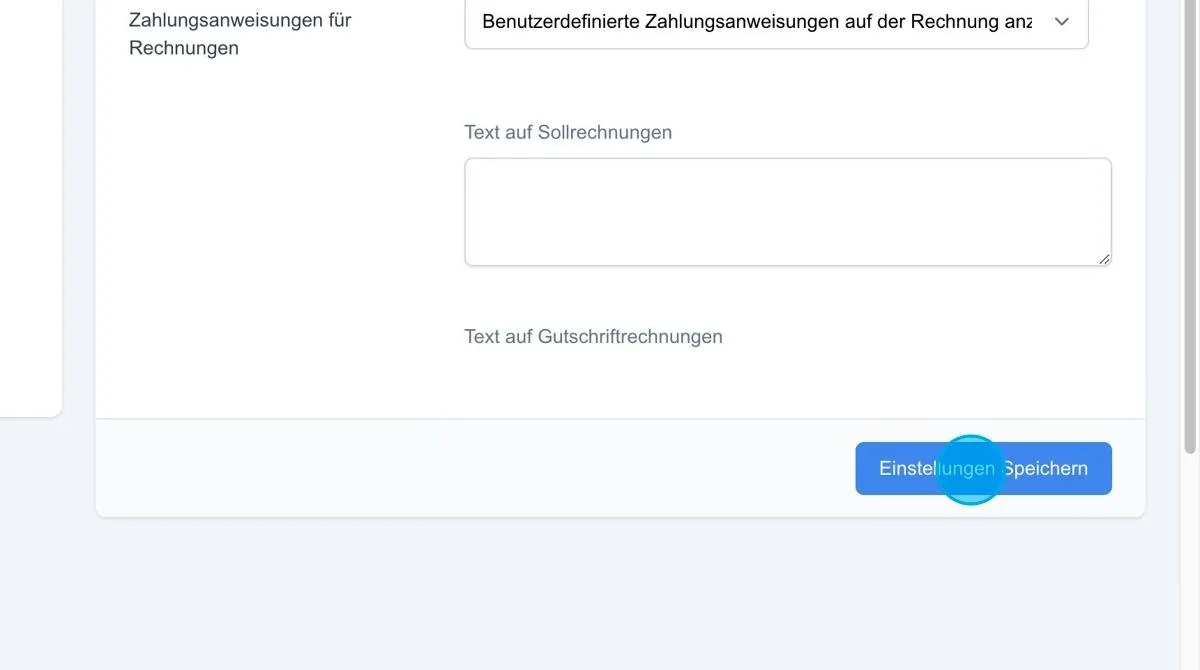
Under 'Account settings', all functions of the account can be configured.
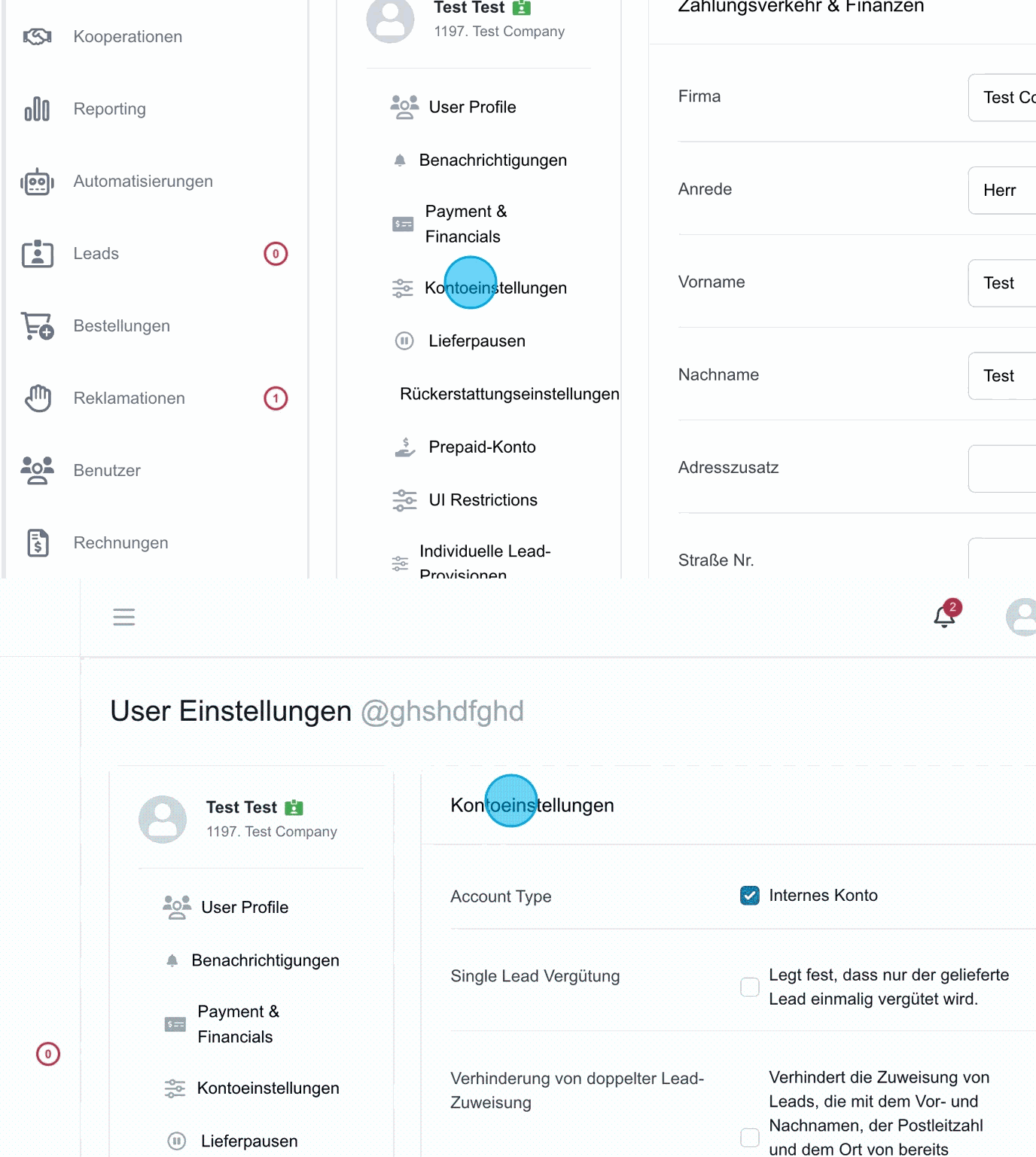
Account type
Here the option "Internal account" can be activated for an internal account. An internal account is managed like any other account, but no payment items are generated, so no billing takes place. (For example for employees, suppliers etc.)
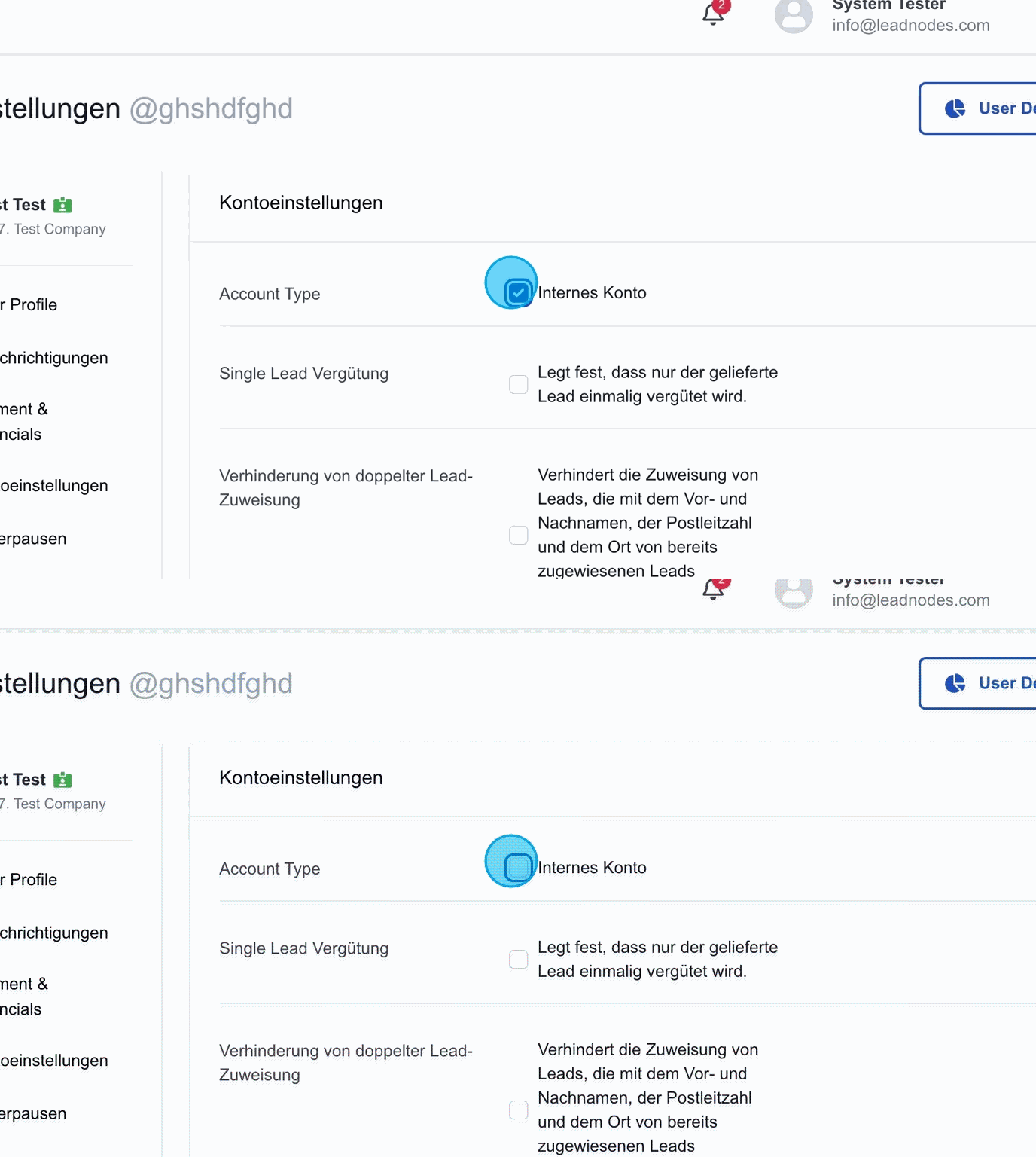
Single lead remuneration
When this option is activated, you can define whether the lead is remunerated once or receives multiple remuneration if the lead is sold several times.
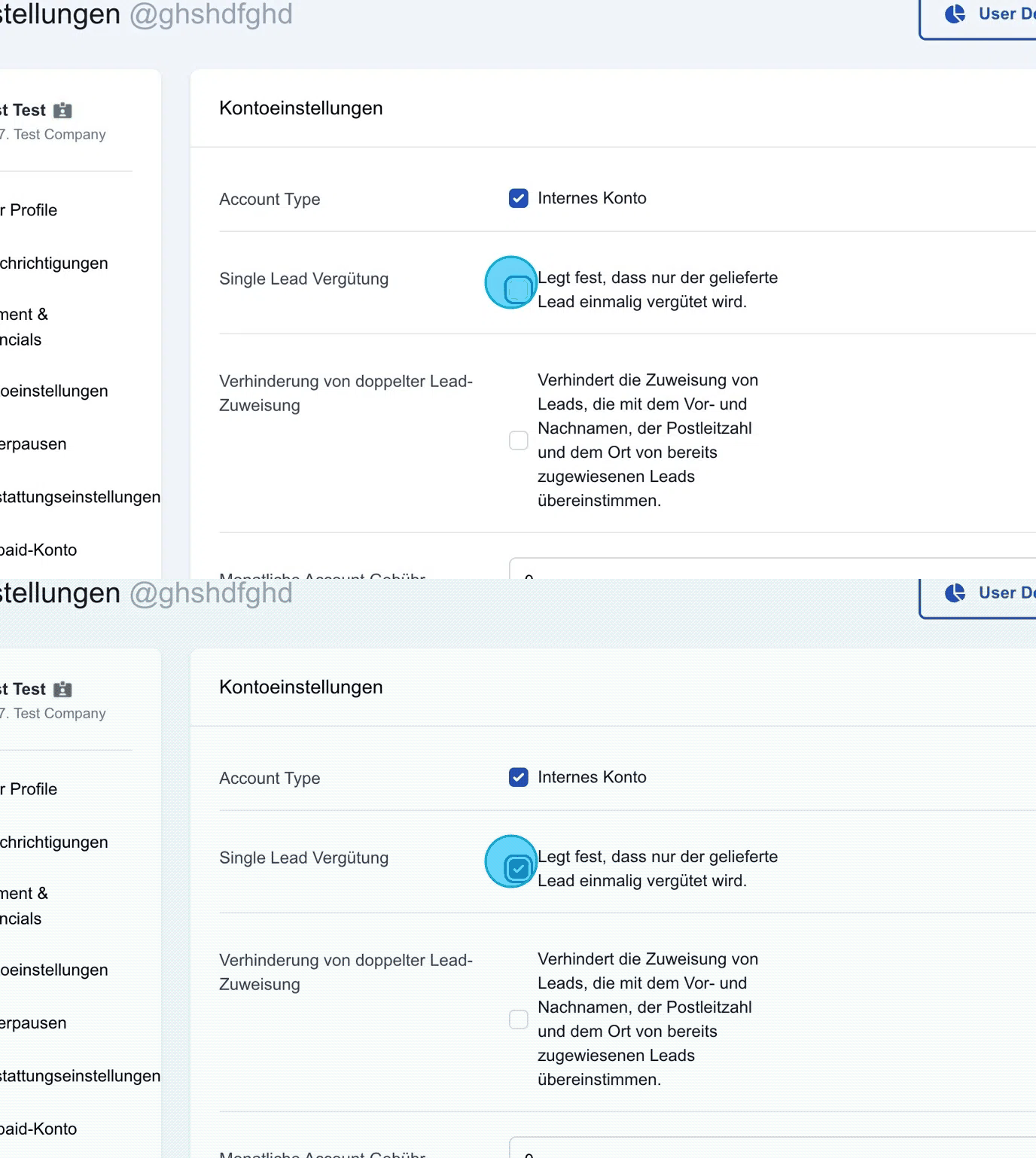
Prevention of duplicate lead assignment
When this option is activated, a duplicate check is performed during lead assignment. The system checks whether the name, postcode or city match a lead that has already been assigned. If the user has already received a lead with exactly the same data, this lead is not distributed to them again, regardless of the time period.
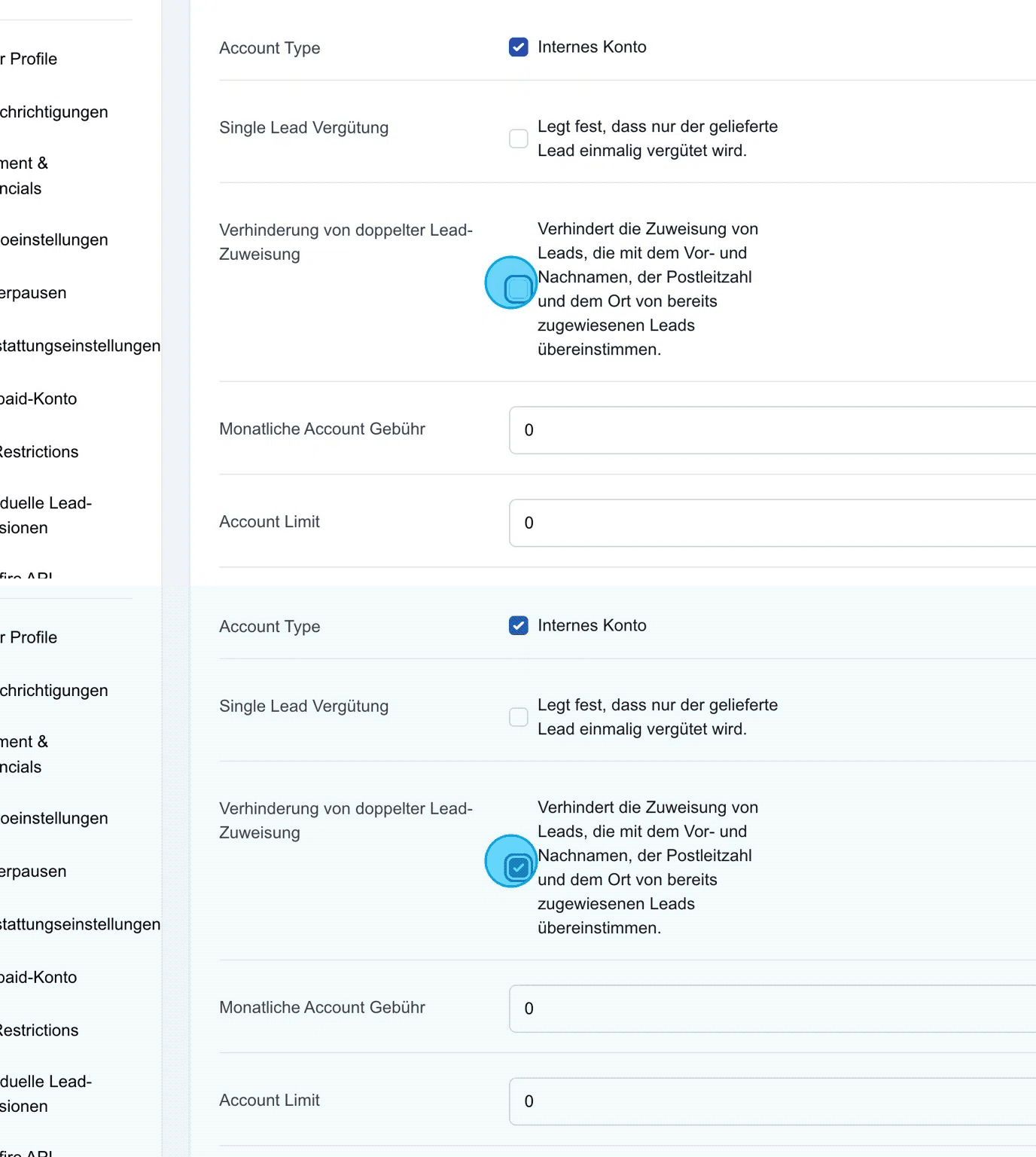
Anonymized Supplier Leads
Here the anonymisation of delivered leads can be activated for suppliers.
If this option is active, leads are no longer displayed in full after they have been sold.
This serves to protect against data being passed on to external systems.
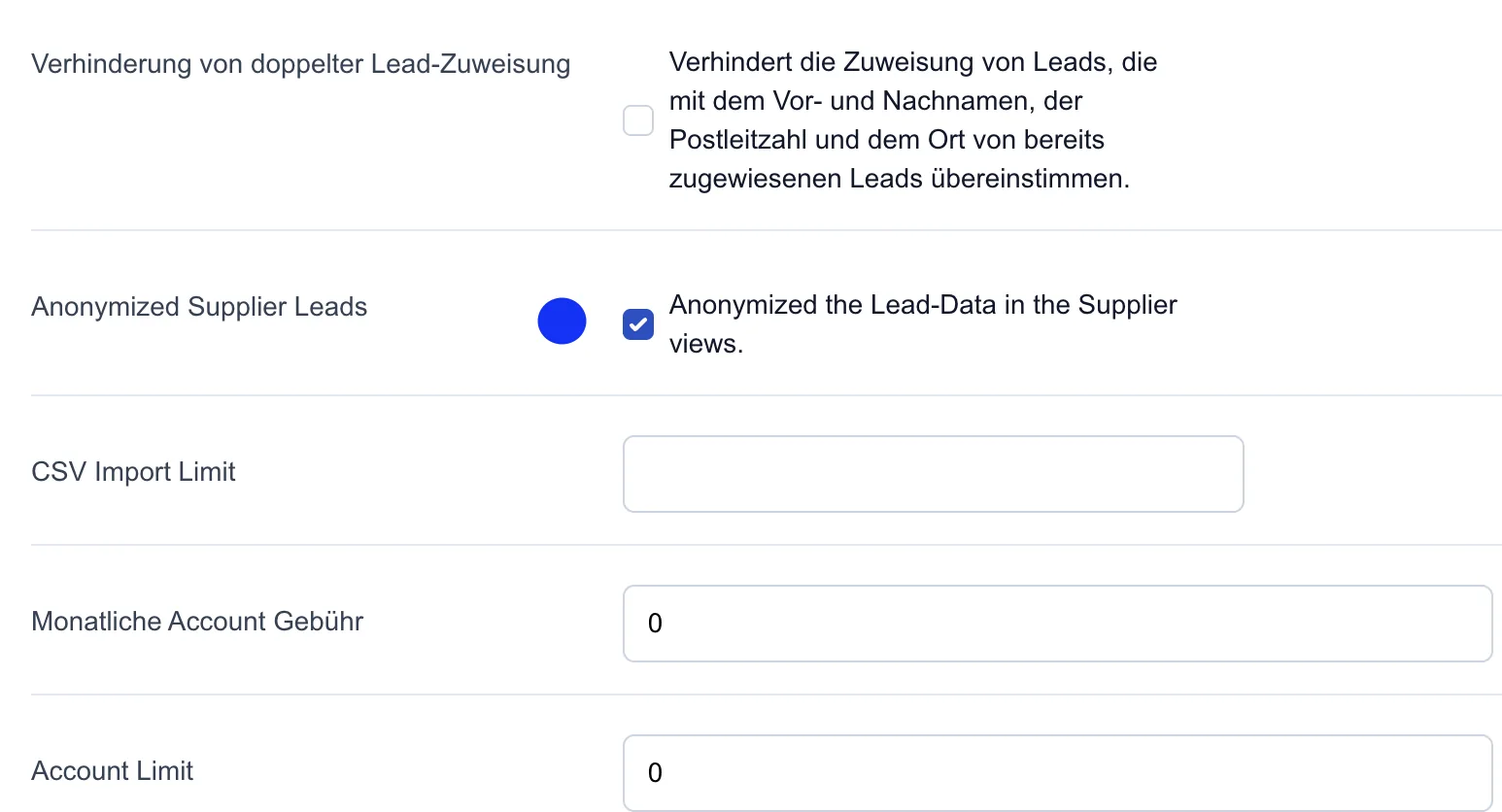
CSV import limit
Also under Account settings, a CSV import limit can be defined for individual users. The limit determines how many leads a user may deliver into the platform via CSV file. The restriction is automatically applied in the Leads → Lead import section.
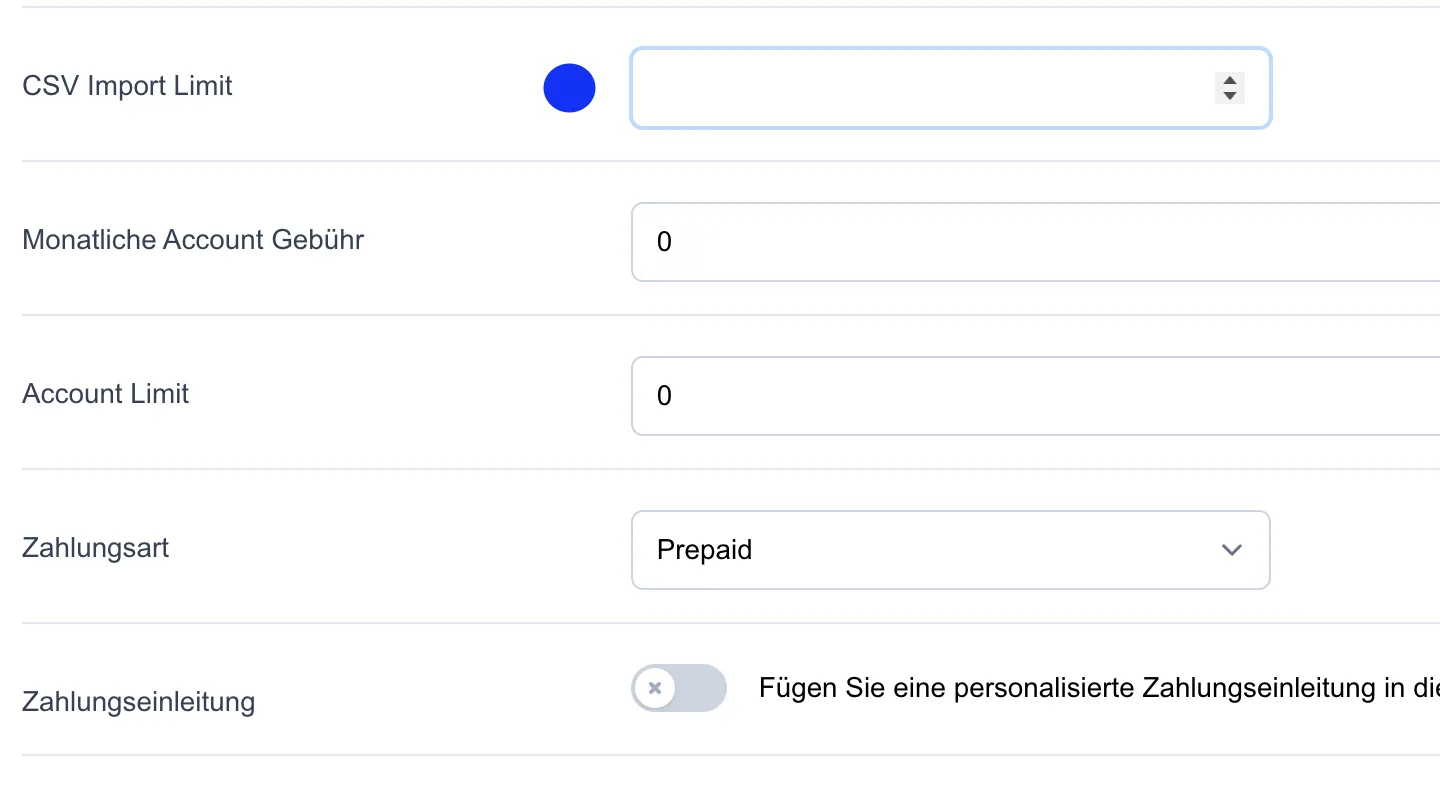
Monthly account fee
In this section the monthly account fee can be stored. If a fee is entered, billing and invoicing take place automatically at the end of the month.
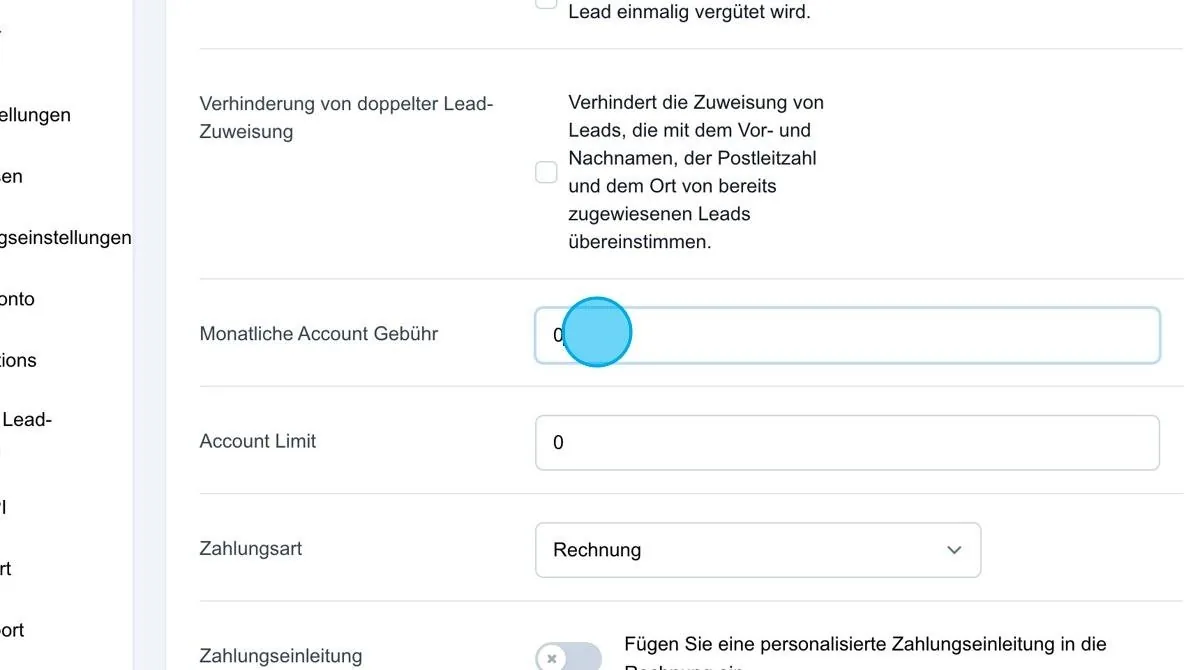
Account limit
Here an account limit can be stored. The limit is counted against each assignment. Once the limit is exhausted, no further leads can be assigned until the limit is released again. This depends on the payment interval configured for the platform. As soon as billing has taken place and the outstanding amounts have been settled, the limit is reset and the user can obtain leads again within the limit.
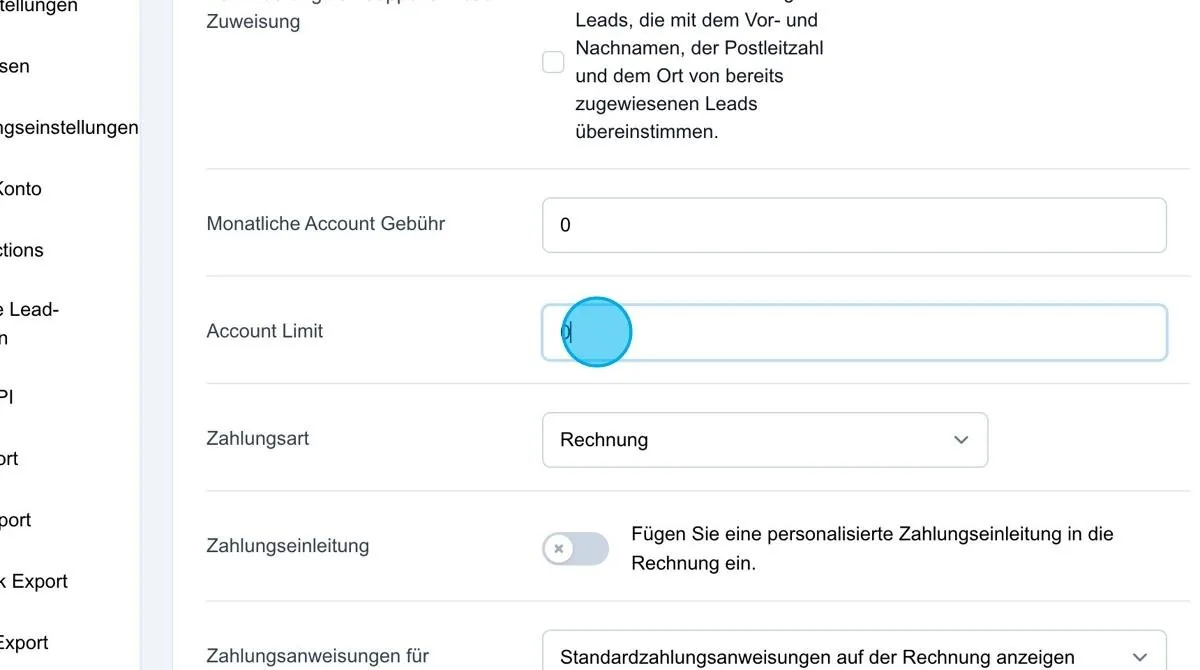
Payment method
In this section you can define which payment methods are available to the user. By default, the payment method "Invoice" is preset, which assumes a direct debit. It is also possible to switch to "Prepaid". In this case the user must first top up their account in order to obtain leads, and the amounts are then offset internally against the prepaid account. There is also the option "Offsetting". This is a status indicating that an invoice has been created and carries the status "Offsetting". This means that no further steps are taken with the invoice for the time being, as the invoice may be offset against a commission or similar.
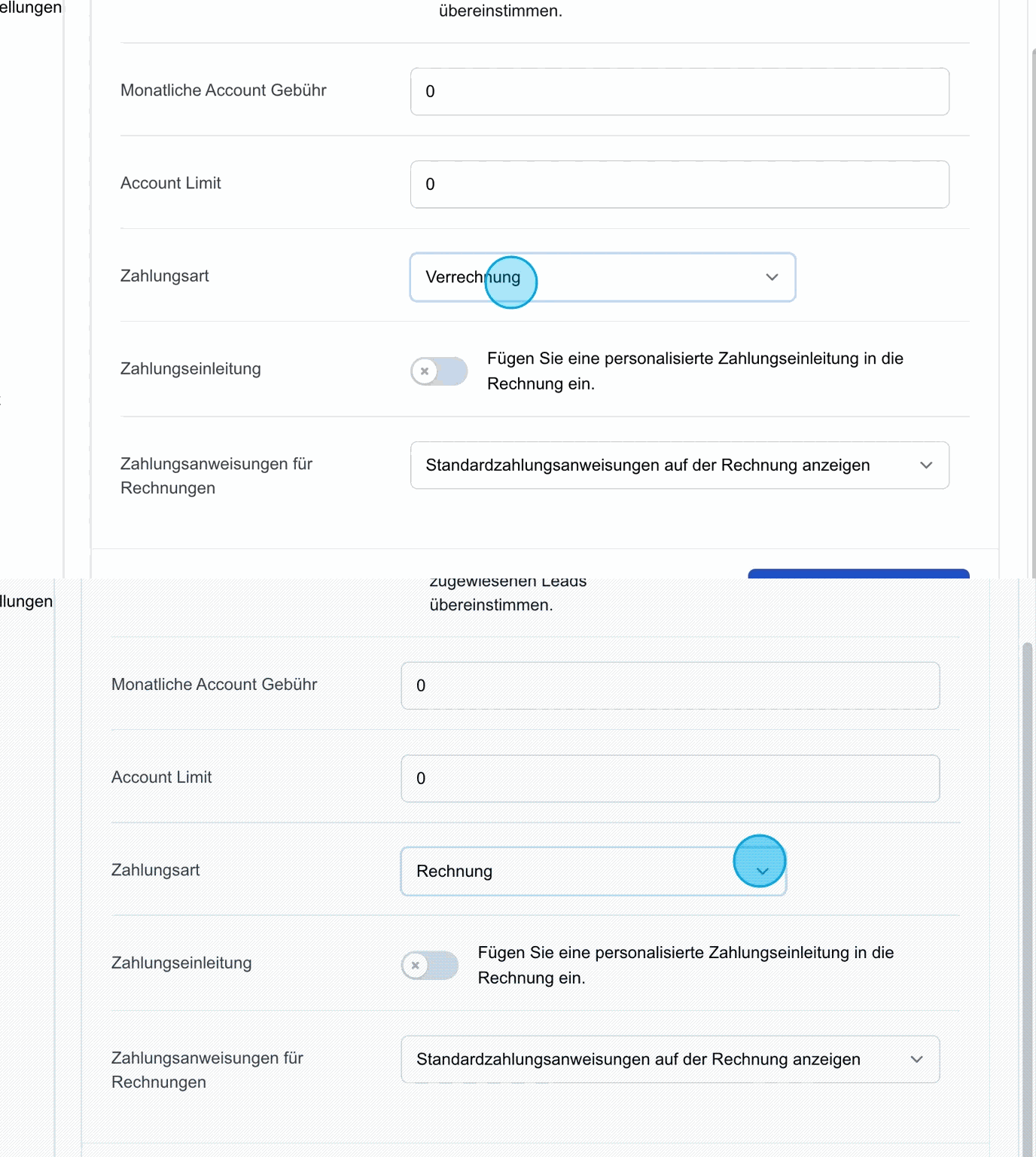
Payment introduction
Here the payment introduction for a user's invoice can be defined individually. For example, a personal message could be inserted here, such as "Mr Max Mustermann, thank you for your trust. We hereby invoice you for the following items."
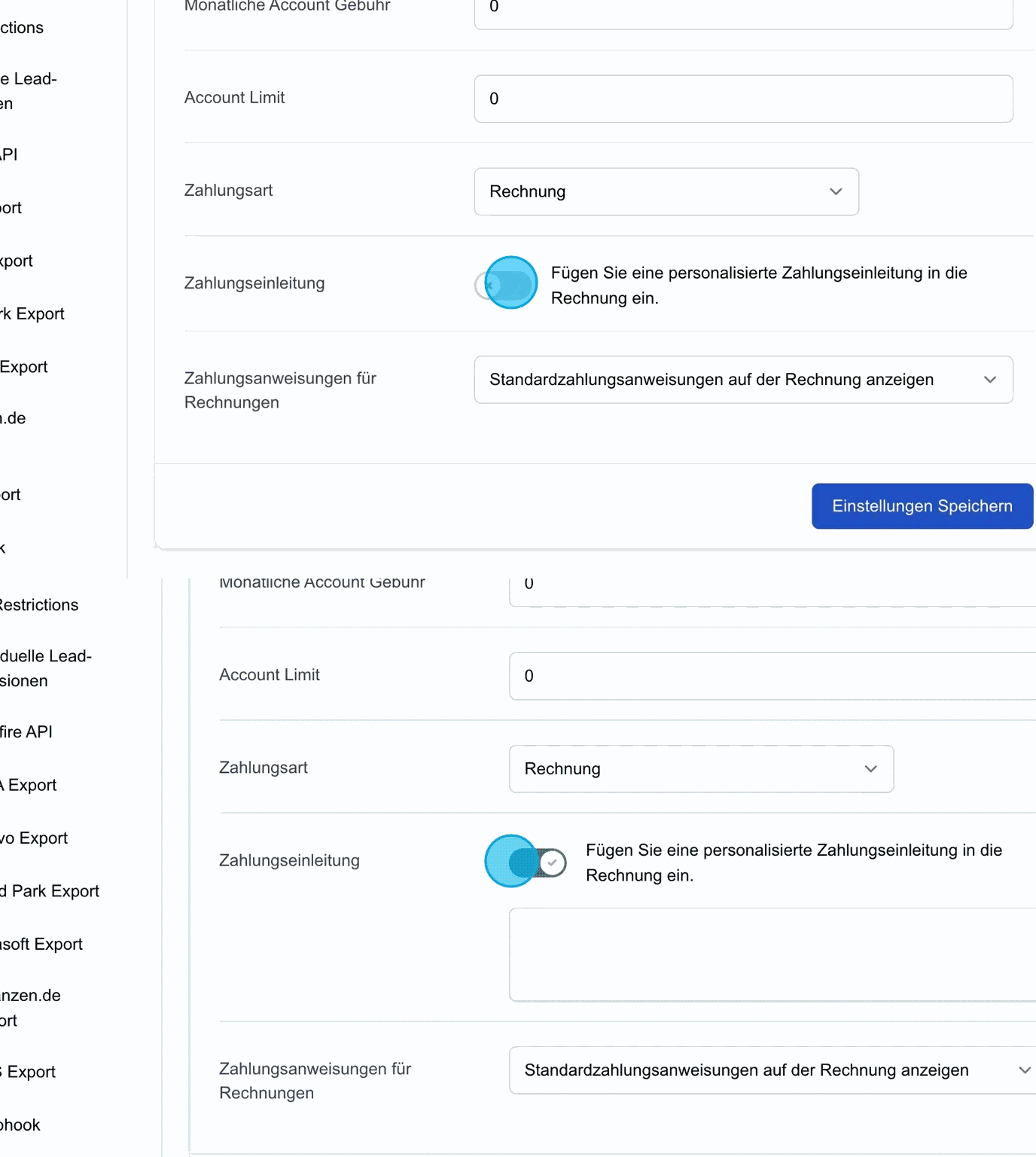
Payment instructions for invoices
In this section, payment instructions for invoices can be configured. By default, general payment instructions are displayed depending on the payment method:
-
Invoice: The amount will be debited from the account within the next seven days.
-
Transfer: The user is asked to transfer the amount within the next seven days.
-
Bank transfer: The user is requested to transfer the amount themselves.
-
Credit note: The same note as for the transfer is used.
Additional options:
-
Hide payment notes: No payment instructions are displayed on the invoice.
-
Custom instructions: Individual texts can be stored for debit and credit invoices, e.g. "Please transfer within 14 days" or "Payment due immediately".
These settings offer flexibility to adapt the payment instructions to the respective payment method and the user's needs.
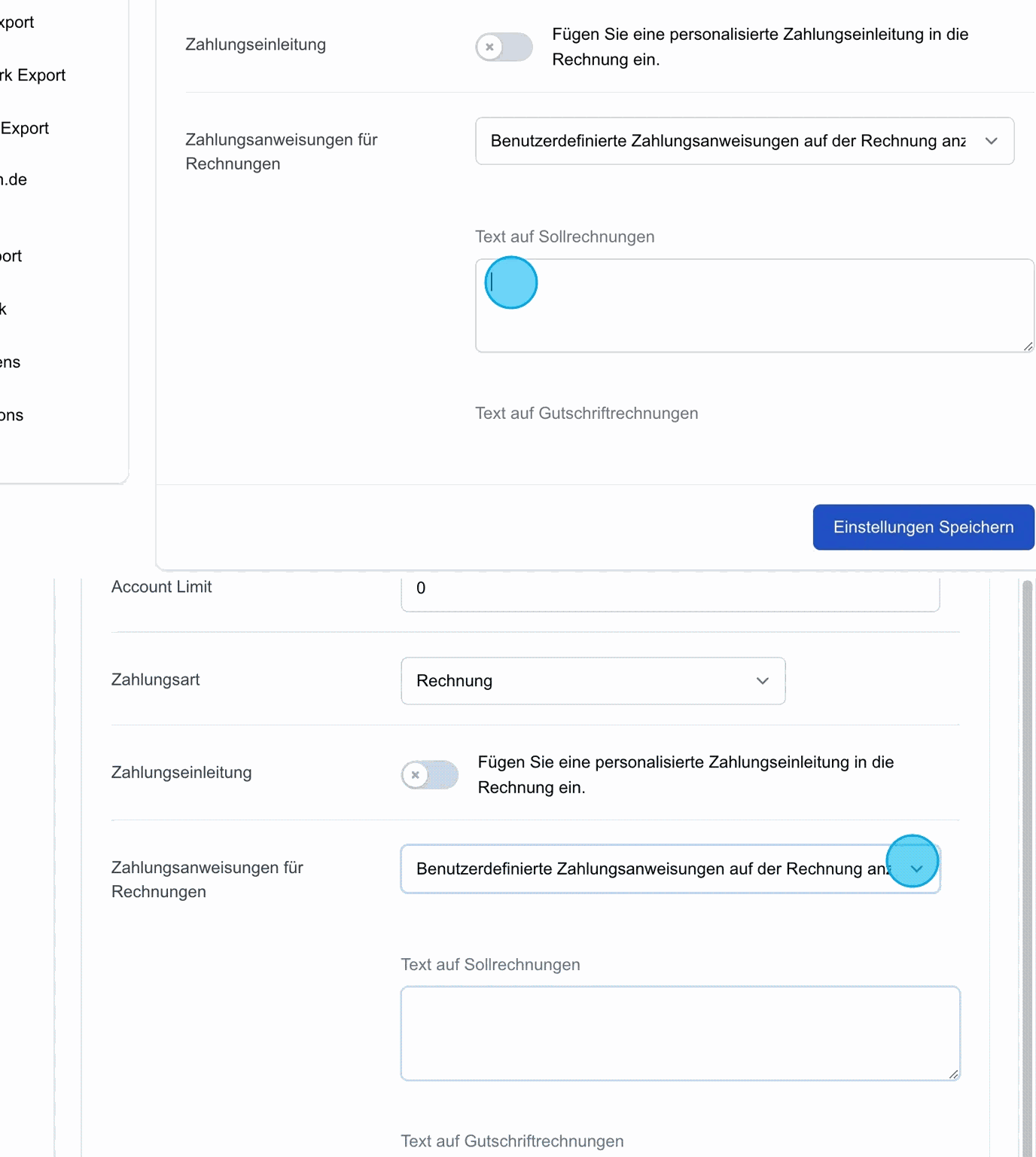
Save settings: Once the desired settings have been configured, they must be saved to ensure that the details are successfully stored in the system.