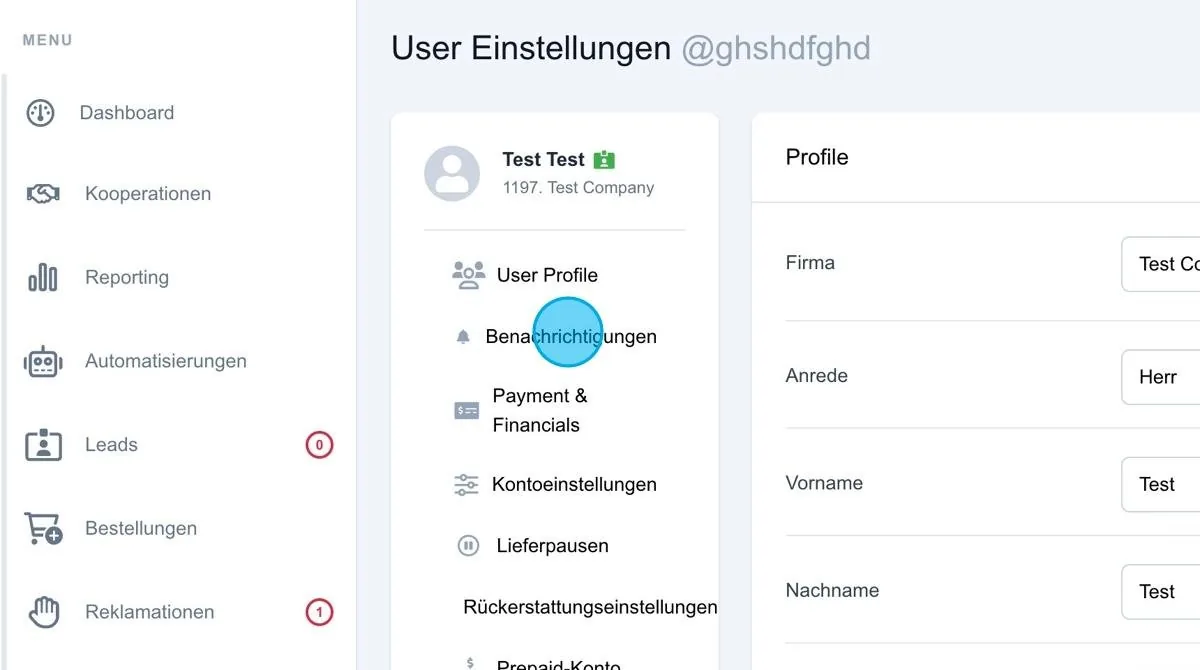
Notifications
The notification settings let you define how an individual user should be notified.
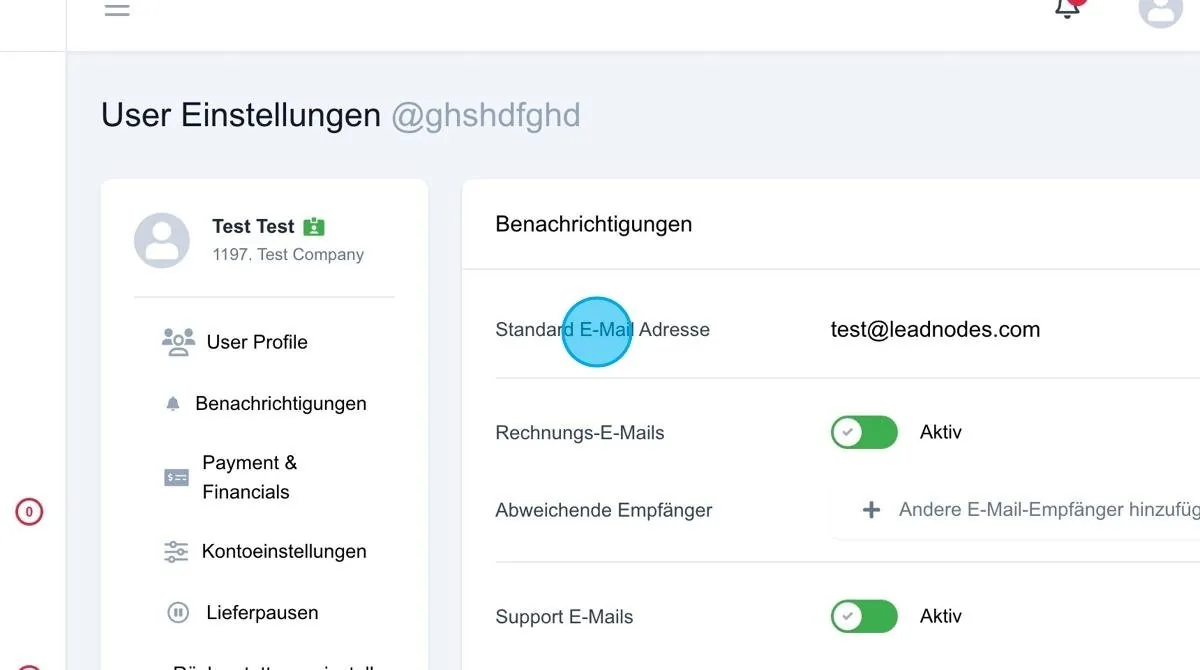
Default email address
If no alternative email address is specified, the default address from the user profile is used for all emails.
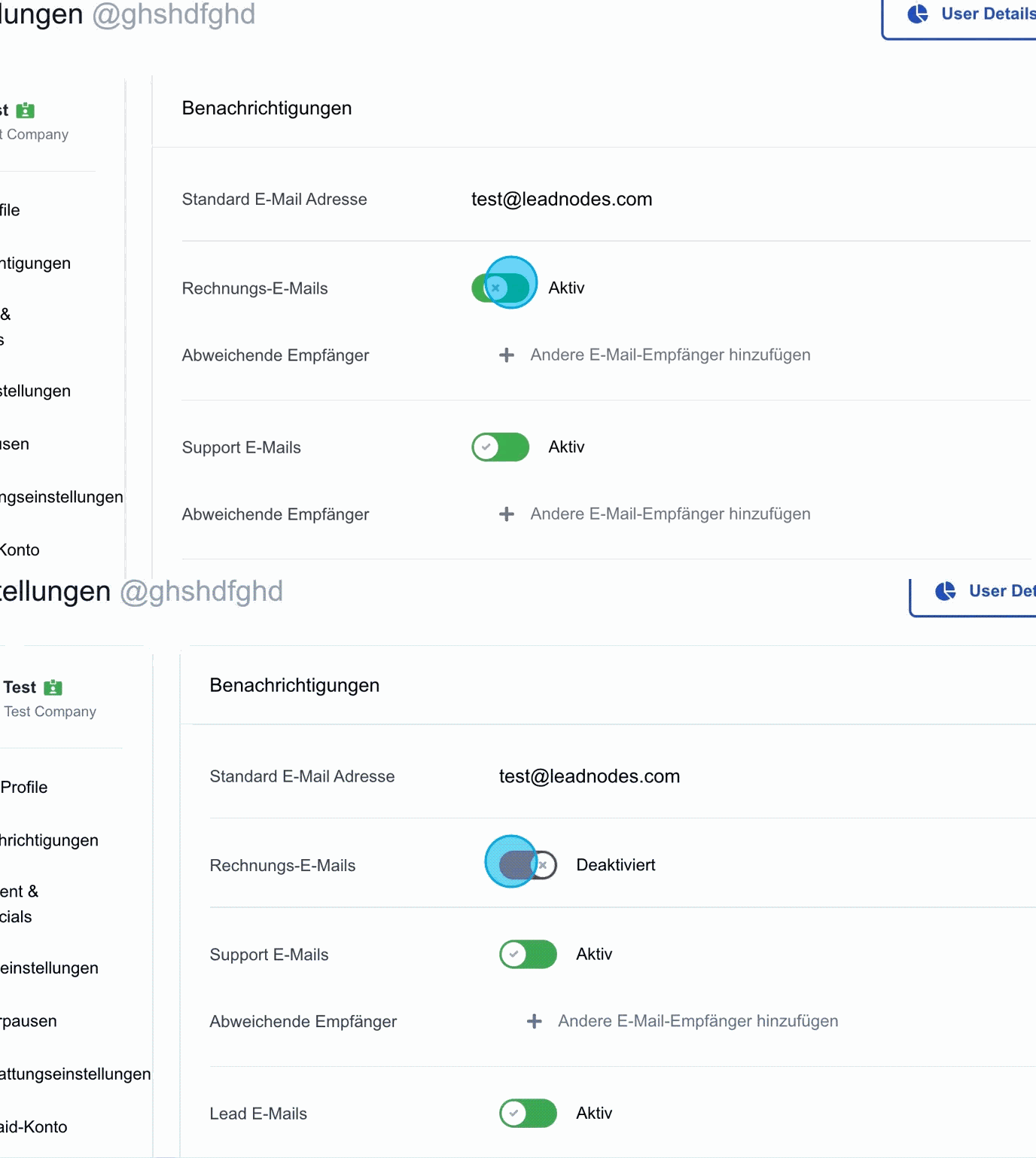
Invoice emails
In the corresponding field, you can configure whether invoice emails are enabled or disabled, so that invoices are either sent or not sent. If required, you can also enter an alternative email address so that invoices are sent to a different address than the one stored in the user profile.
Support emails
In the corresponding field, you can configure whether support emails are enabled or disabled, so that support messages are either sent or not sent. If required, you can also enter an alternative email address so that support emails are sent to a different address than the one stored in the user profile.
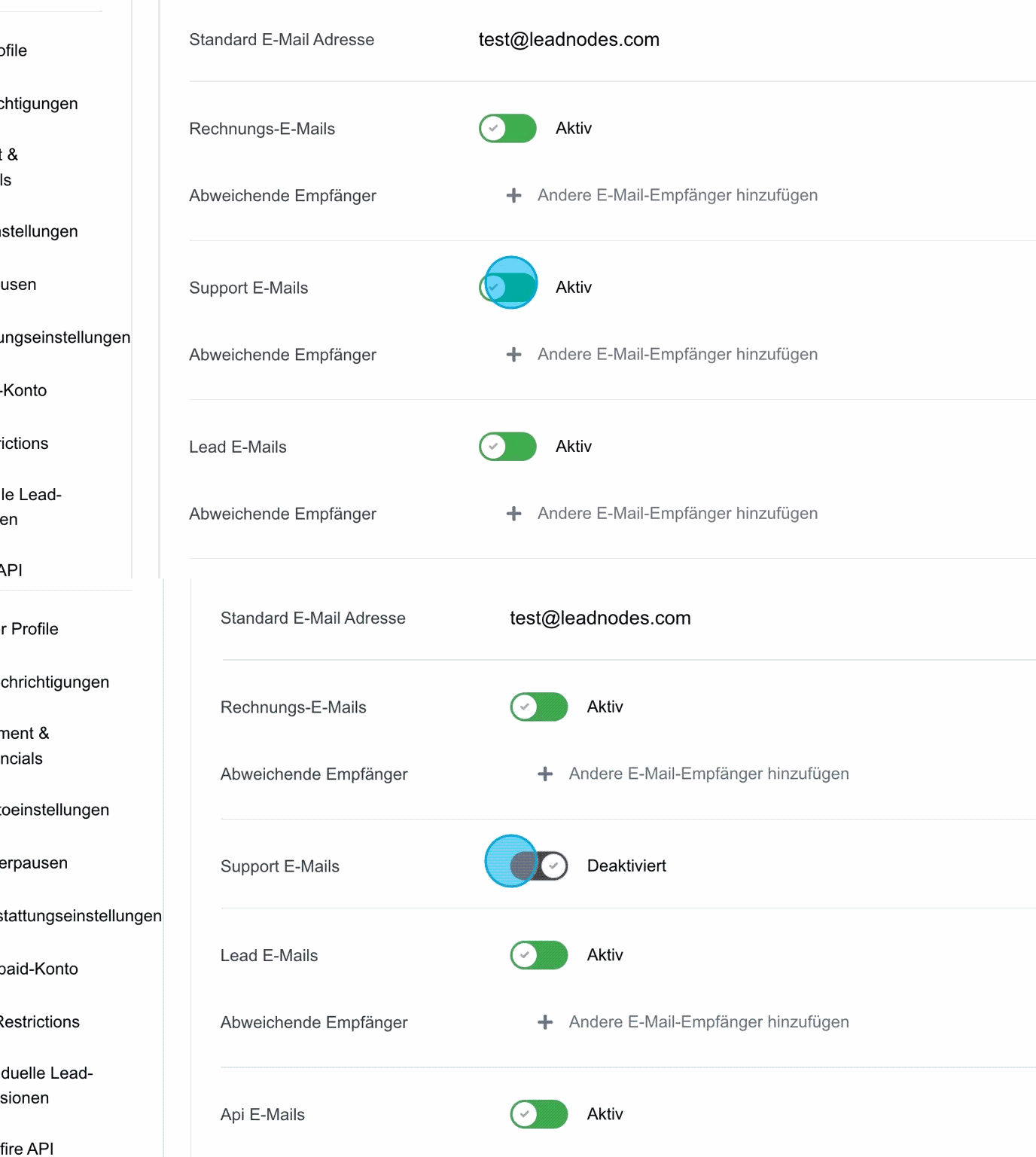
Lead emails
In the corresponding field, you can configure whether lead emails are enabled or disabled, so that notifications about new leads are either sent or not sent. If required, an alternative email address can be entered so that lead emails are sent to a different address than the one stored in the user profile.
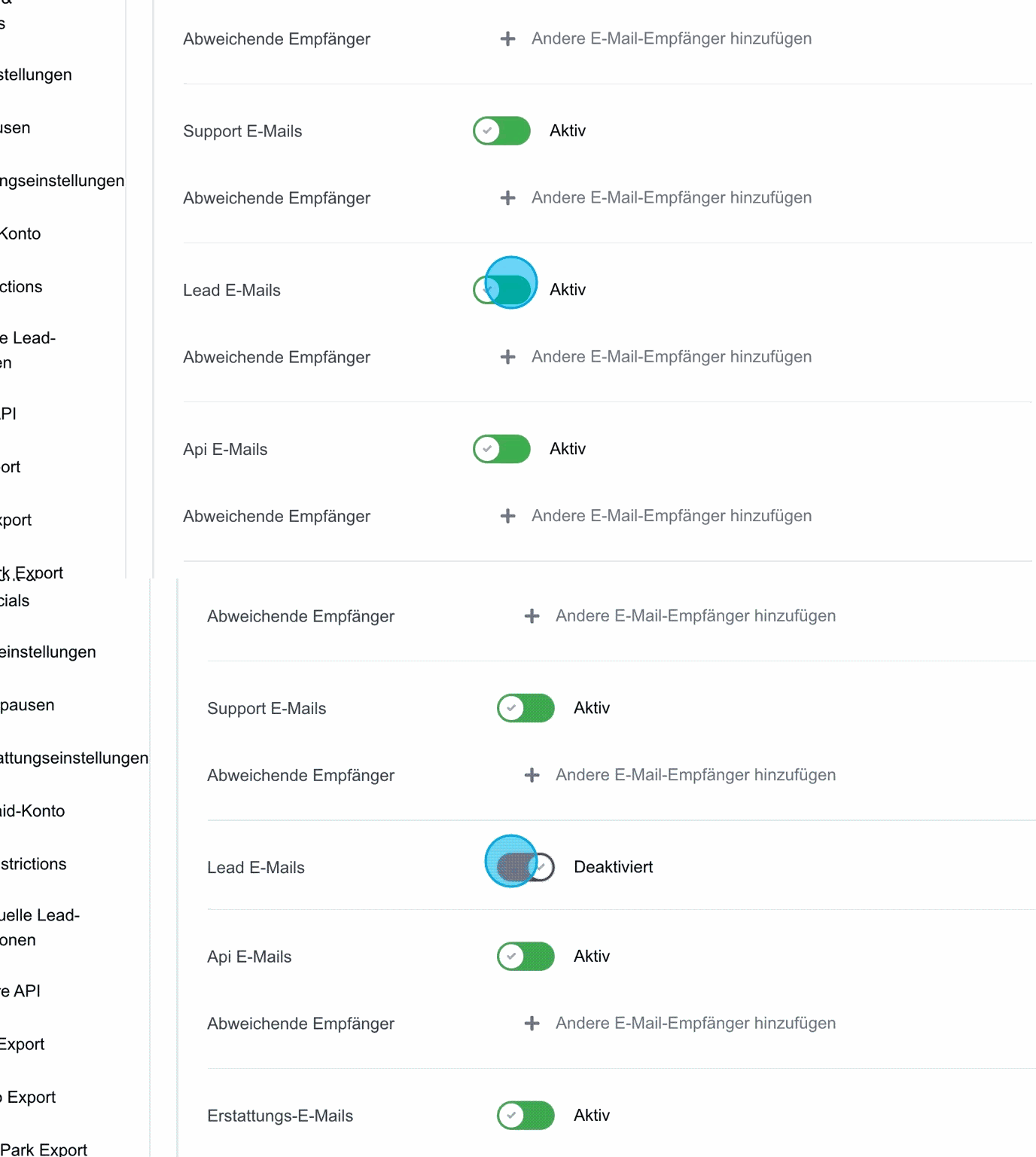
API emails
In the corresponding field, you can configure whether API emails are enabled or disabled, so that API notifications are either sent or not sent. If necessary, an alternative email address can be entered here so that API emails are sent to a different address than the one stored in the user profile.
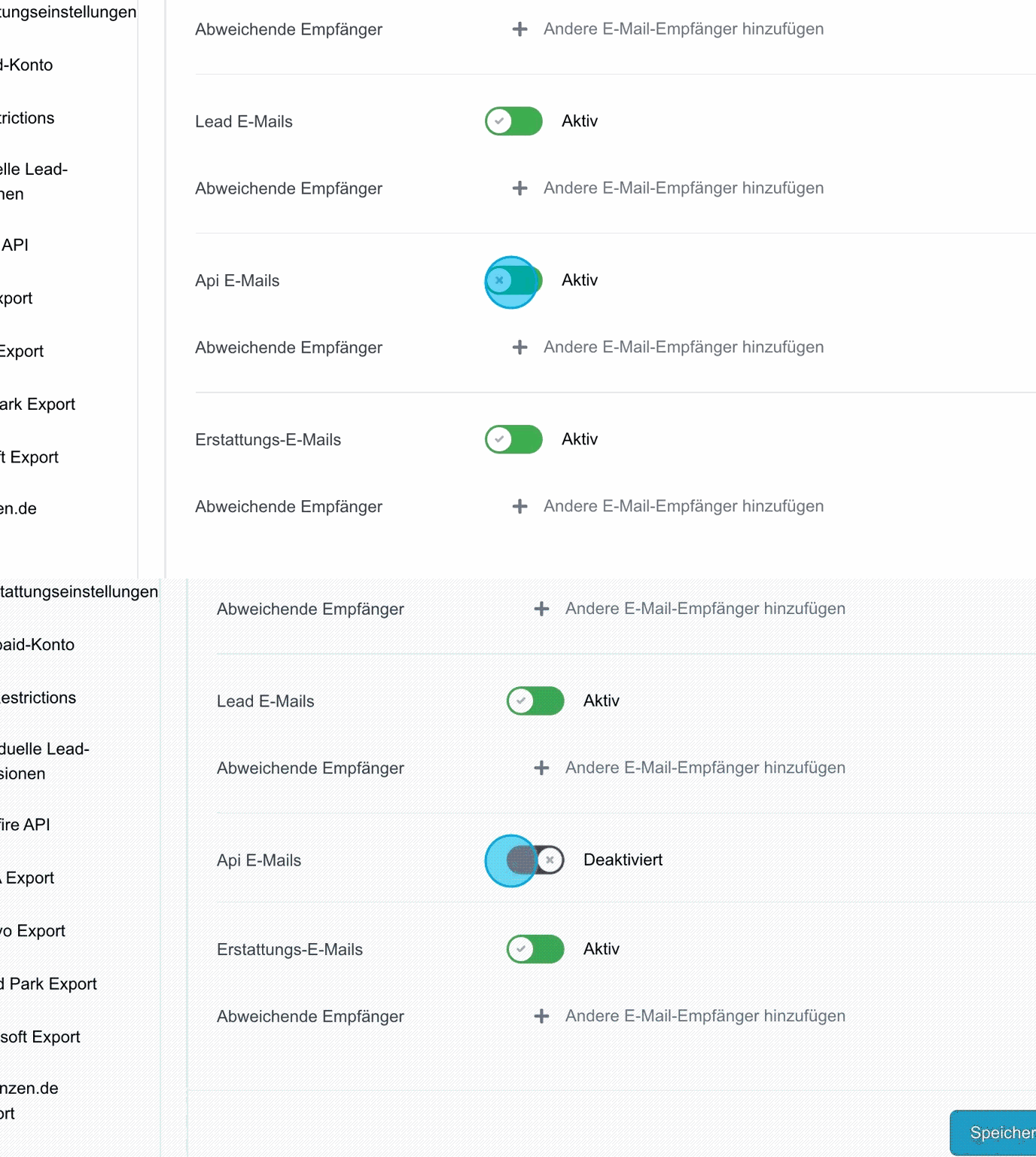
Refund emails
In the corresponding field, you can configure whether refund emails are enabled or disabled. This determines whether notifications about refunds are sent or not sent. If required, an alternative email address can be entered so that refund emails are sent to a different address than the one stored in the user profile.
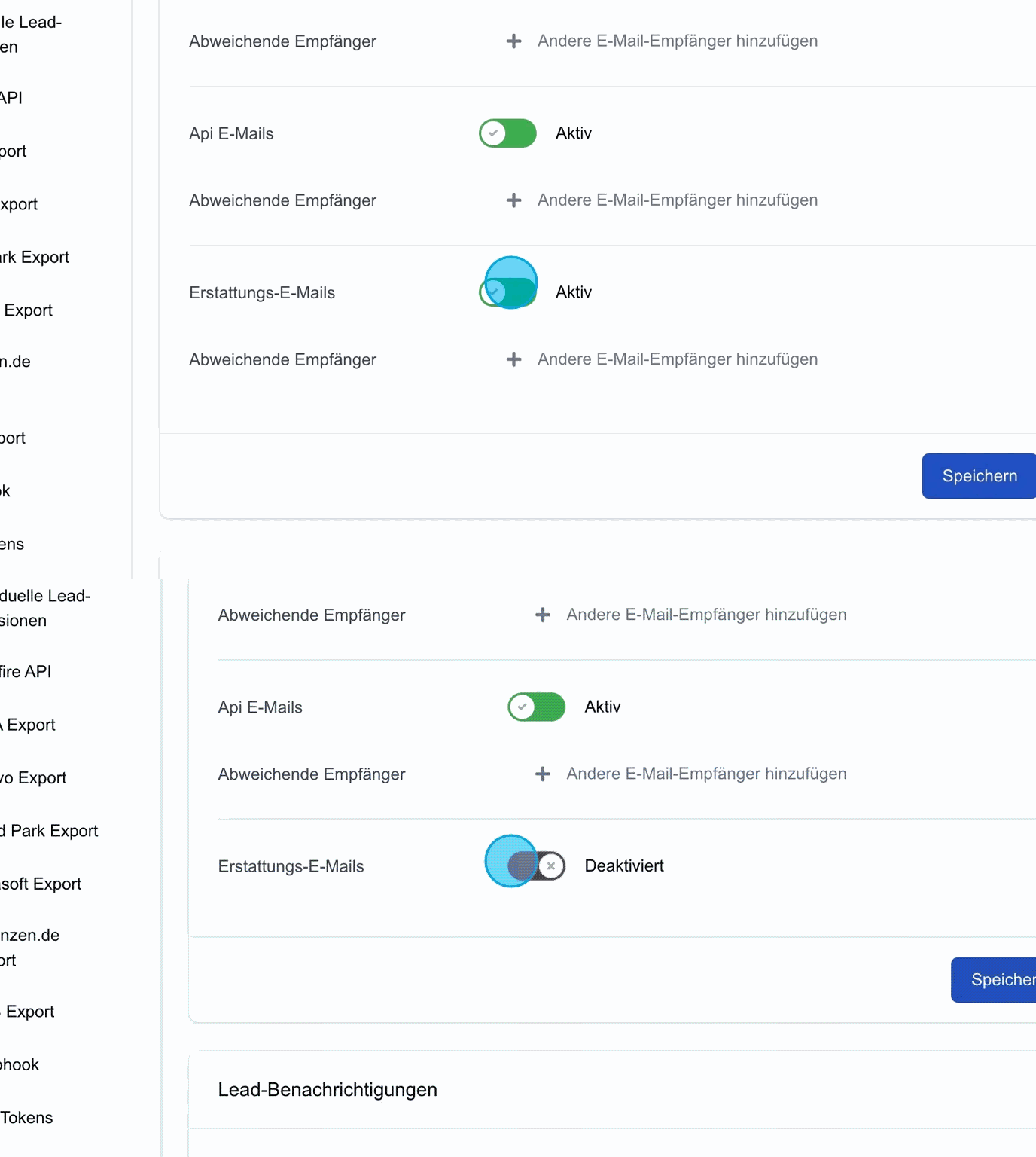
Save: Use “Save” to store the configured email notifications.
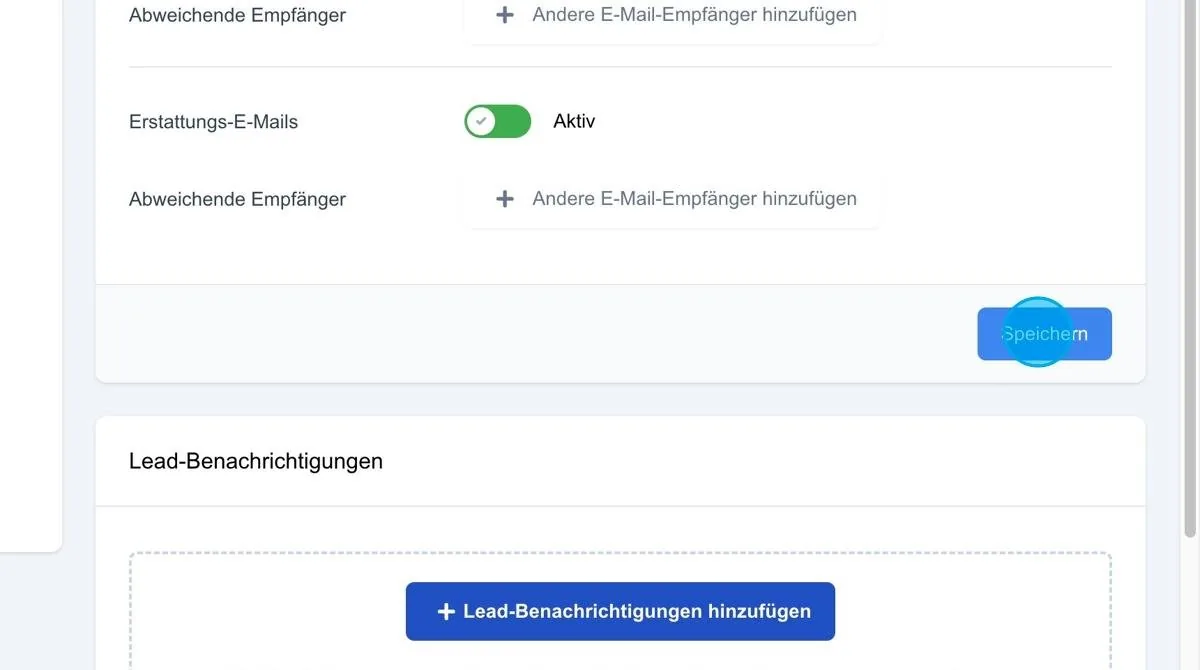
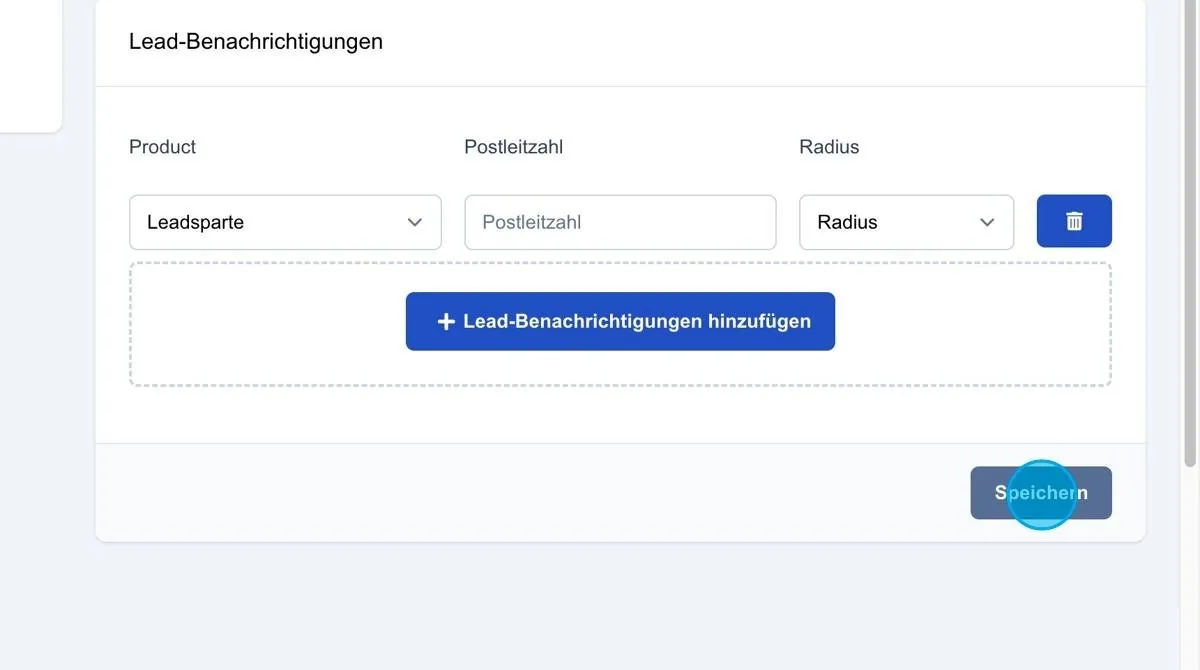
Lead notifications
In this section, you can specify that the user is notified as soon as a lead from a specific lead type is received.
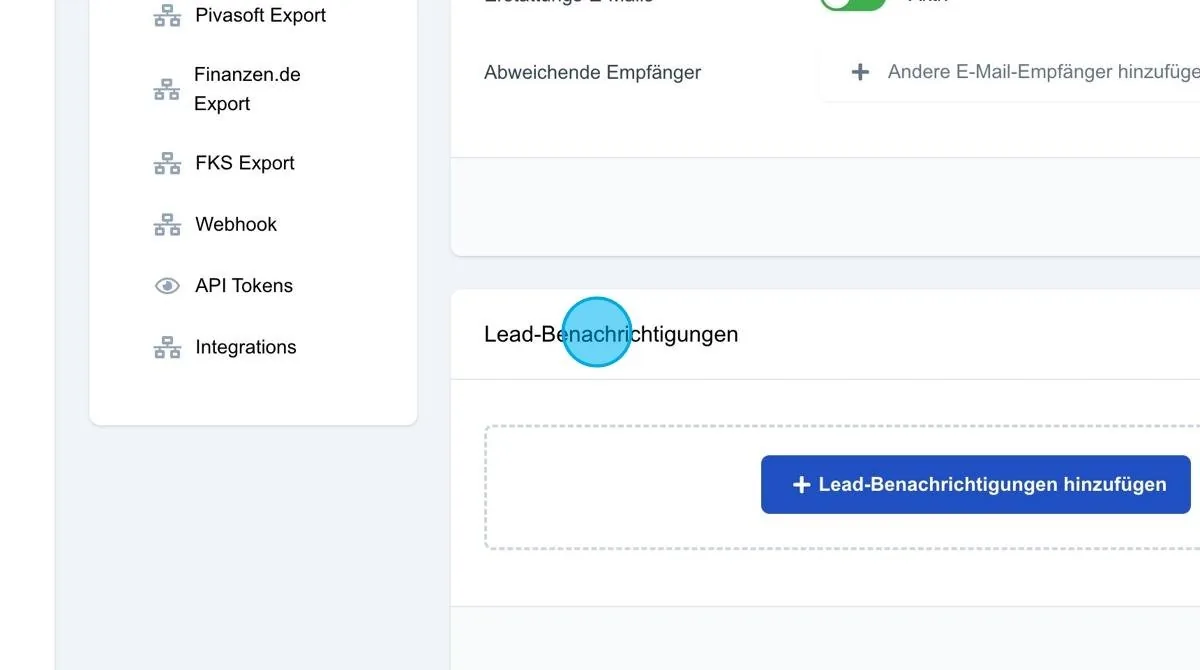
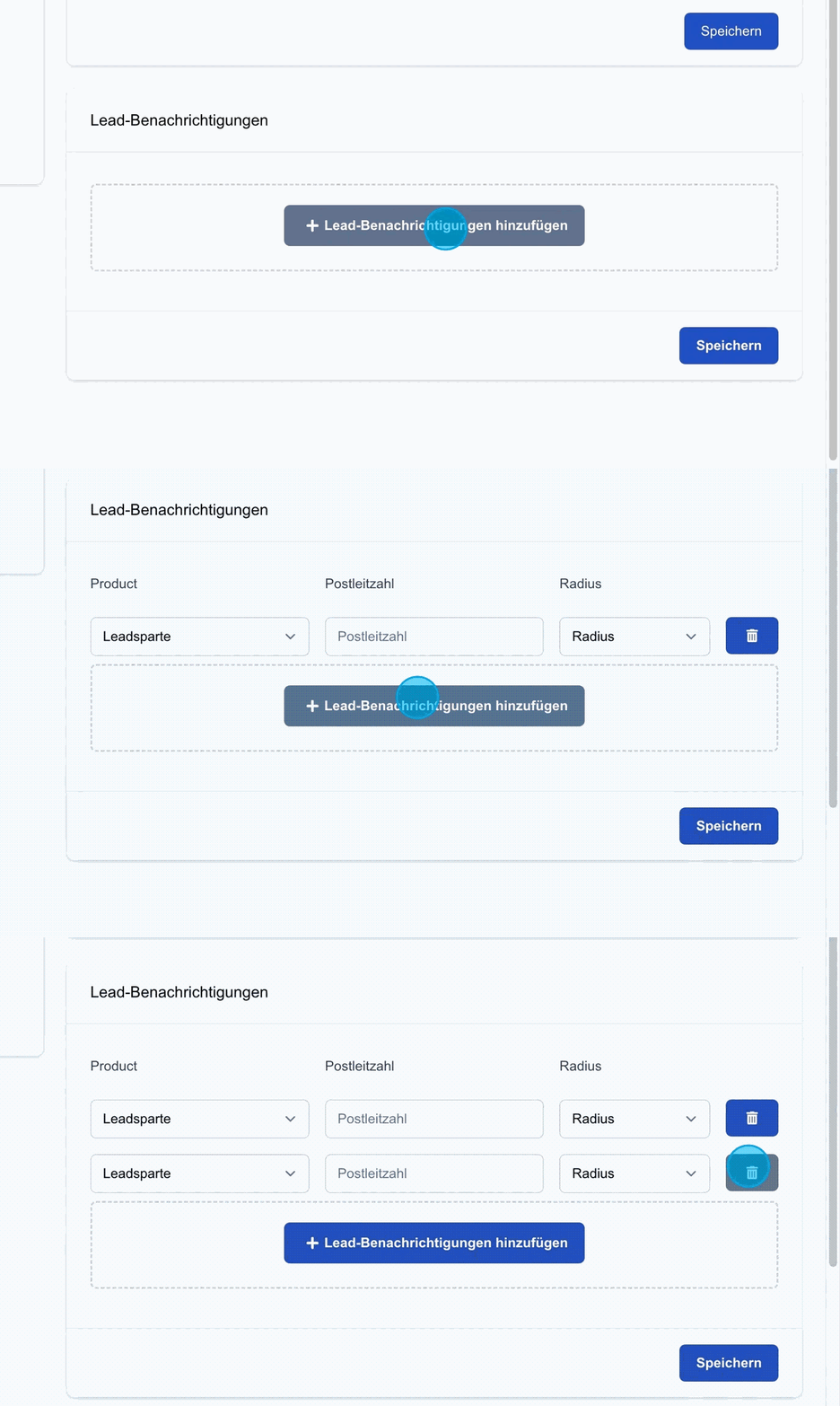
Add lead notifications
Use the “Add lead notifications” button to specify that the user is notified when a lead from a particular lead type or from a defined postcode area and radius is received. This notification is only sent if the lead is set to the corresponding lead type.
Marketplace notifications for users
Users can be notified about new marketplace leads.
Under Users → Notifications, a lead type and a radius (e.g. 25 km) can be defined.
Once a day, the platform checks whether matching leads are available in the marketplace and sends an email with a direct link to the marketplace.
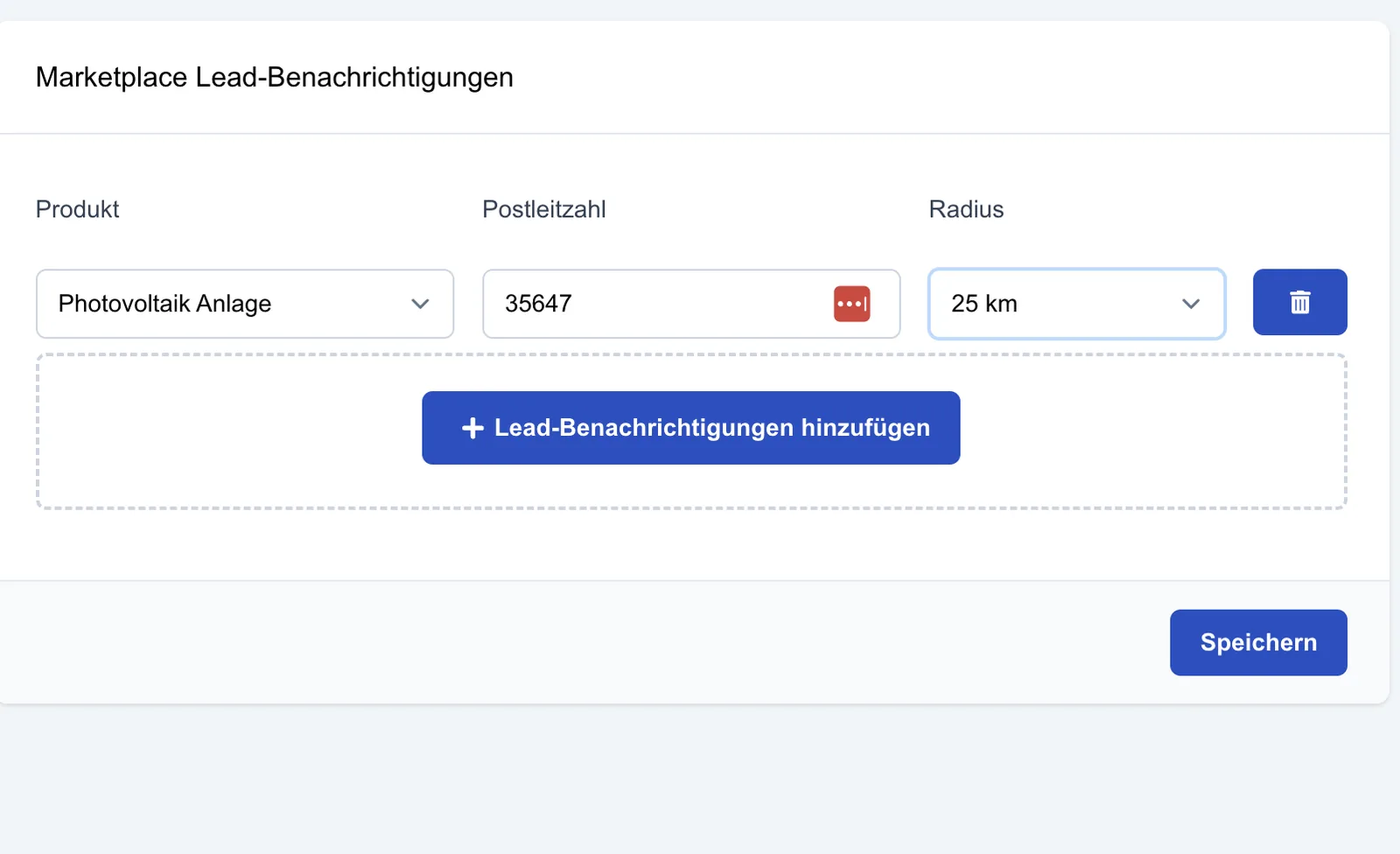
Save: Once the notification settings for leads from a specific lead type or a defined postcode area have been set, click the “Save” button to store them so that the user is informed accordingly.