
With two-factor authentication you confirm every login with a one-time code in addition to your password. Even if someone knows your password, they cannot log in to your account. You receive the code by email, by text message (SMS) or from an authenticator app on your smartphone.
Is two-factor authentication mandatory?
Yes, two-factor authentication is standard for all accounts.
- If it is not set up for your account yet, you see the notice "Protect your data." after logging in, with the number of days left and the link "Set it up now".
- Once the setup period has passed, you are taken straight to the page "Set up two-factor authentication" after logging in. You can carry on working as usual once it is set up.
- Mandatory two-factor authentication cannot be switched off in the account.

Where do I find the settings?
Open Account Settings in the user menu at the top right. In the User Profile section, below Account Credentials, you find the Two-Factor Authentication card.
The screenshots in this article show the settings in the German interface; the labels in the text are those of the English interface.
Before you change a two-factor method or generate new recovery codes, enter your current password there. This way, nobody who only briefly has access to your logged-in browser can change your two-factor settings.
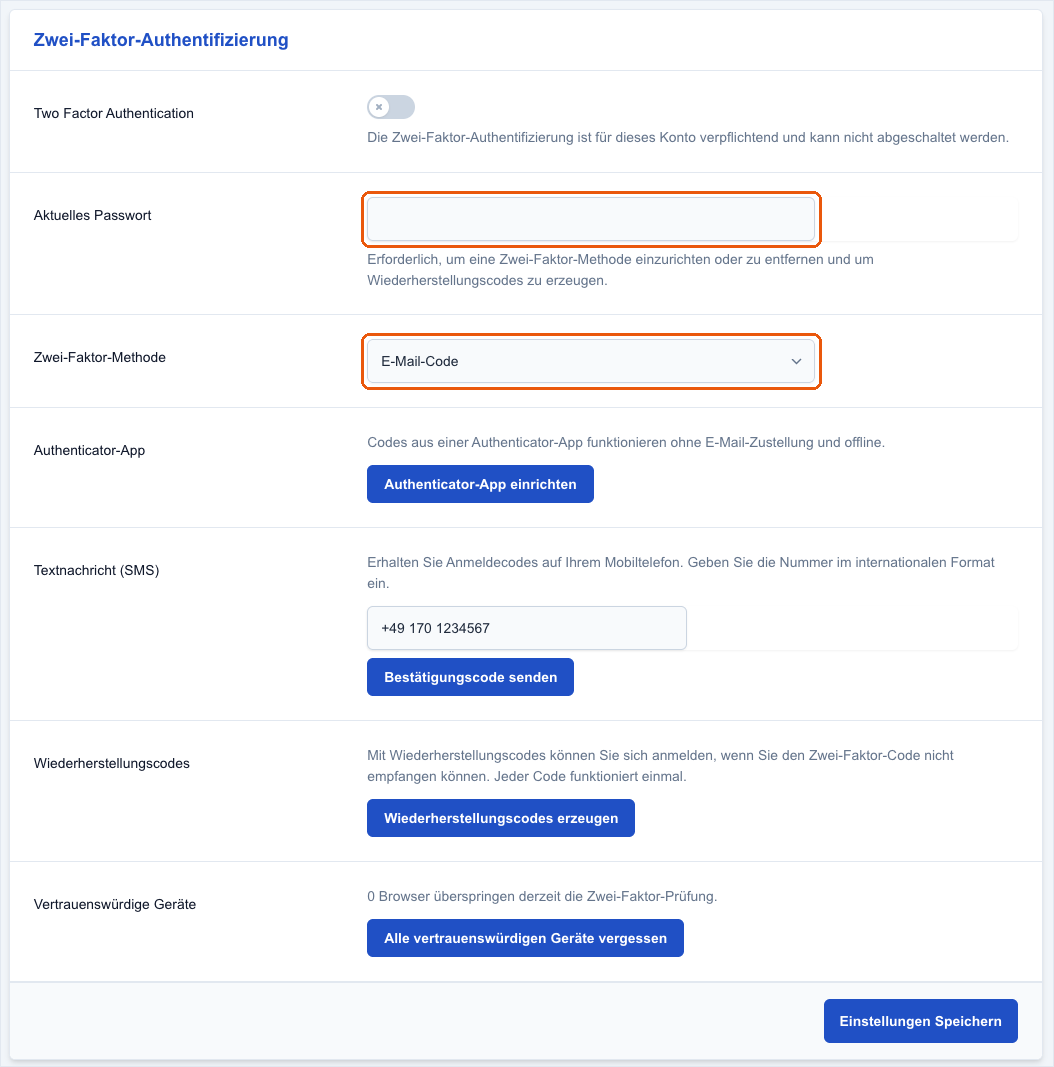
The three methods at a glance
| Method | How you get the code | A good fit if … |
|---|---|---|
| Email code | Code sent to your account's email address | you want to get started quickly. This method is available without any setup. |
| Text message (SMS) | Code sent by text message to your confirmed mobile number | you do not always have access to your mailbox when on the move. |
| Authenticator app | Code generated by an app on your smartphone | you want to be independent of email and text message delivery. The app also works offline. |
The code always has 6 digits. Codes by email and text message are valid for 10 minutes.
Switch on two-factor authentication with email codes
- Open the Two-Factor Authentication card (see above).
- Switch on the Two Factor Authentication toggle.
- Under Two-Factor Method, select Email code.
- Click Save Settings.
From your next login on, you receive a code by email after entering your password.
Set up an authenticator app
You need an authenticator app on your smartphone, for example Google Authenticator, Microsoft Authenticator or 1Password.
- Enter your current password.
- In the Authenticator App section, click Set up authenticator app.
- Scan the QR code shown with your app. If scanning does not work, enter the key shown manually in the app.
- Enter the 6-digit code the app shows and click Confirm code.
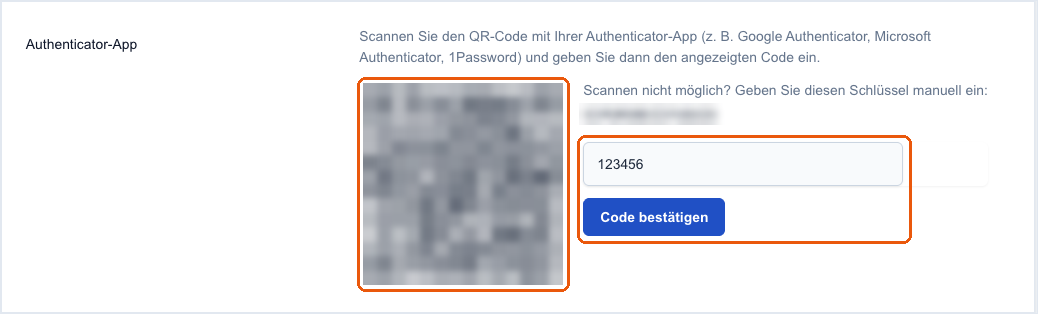
Once confirmed, the authenticator app automatically becomes your two-factor method and two-factor authentication is switched on. At the same time, your recovery codes are shown (see below).
Tip: If the code does not match, check that date and time on your smartphone are set automatically. The app's codes depend on the exact time.
Use Set up a new app to replace the app, for example on a new smartphone. Use Remove authenticator app to delete it. Codes are then sent by email again.
Set up text messages (SMS)
- Enter your current password.
- In the Text Message (SMS) section, enter your mobile number in international format, i.e. with the country code, for example
+44 7700 900123(United Kingdom),+1 415 555 0123(USA) or+49 170 1234567(Germany). - Click Send confirmation code.
- Enter the code from the text message and click Confirm code.

Once confirmed, your codes are sent by text message and two-factor authentication is switched on. You also receive your recovery codes here.
Please note:
- Only mobile numbers are accepted, no landline numbers.
- If a text message cannot be delivered, you receive the same code by email instead. This way you are not locked out if the mobile network has a problem.
- Use Change number to add a new number. The previous number keeps working until the new one is confirmed.
- Use Remove phone number to delete the number. If text messages were your method, codes are sent by email again.
How to log in with two-factor authentication
- Log in as usual with your username and password.
- On the next page, enter the 6-digit code you received by email or text message, or the one your authenticator app shows.
- Click Submit.
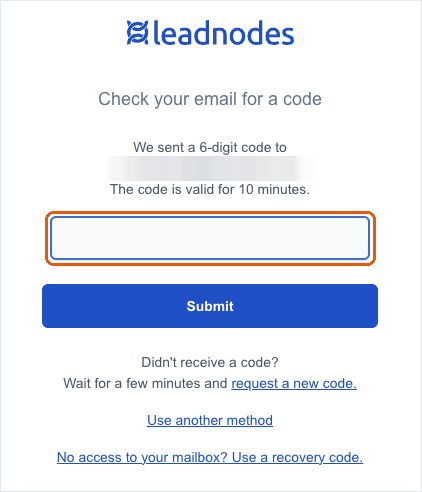
This confirmation also applies when you log in via a login link.
Didn't receive a code? Wait a few minutes and, for email codes, also check your spam folder. Use request a new code to get a new one.
Use another method: If you have set up several methods, you can use Use another method to switch to the email code, for example, for this one login. Your default method stays unchanged. The email code is always available as an alternative.
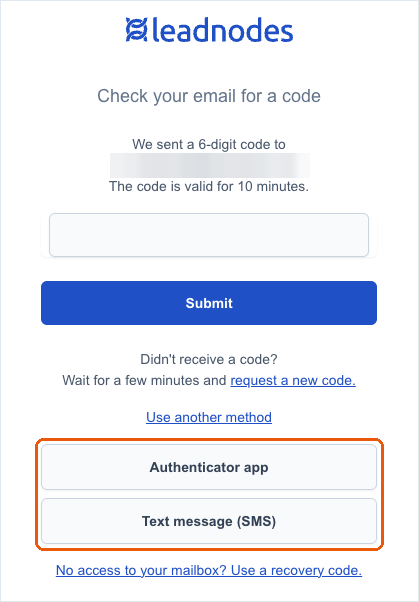
Code expired? If the code has expired, you are taken back to the login page and simply log in again.
Recovery codes
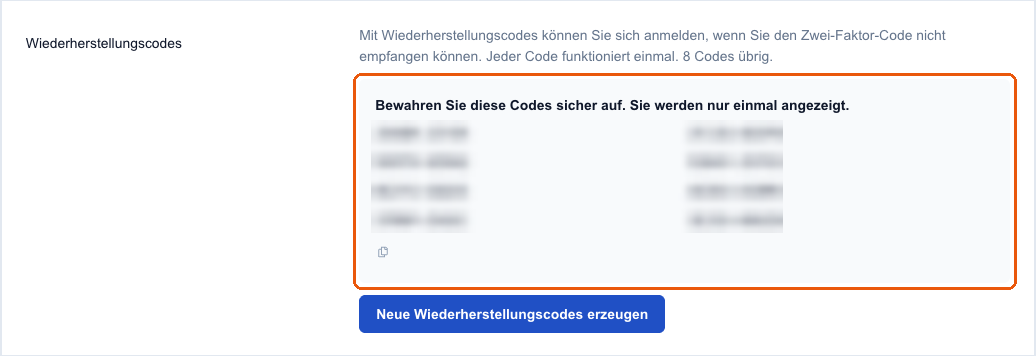
Recovery codes are your emergency access in case you cannot receive a code, for example because you lost your smartphone or have no access to your mailbox.
- You receive 8 codes in the format
XXXXX-XXXXX. Each code works exactly once. - The codes are shown only once. Store them somewhere safe straight away, for example in a password manager, or print them. The copy button copies all codes at once.
- The settings show how many codes are left.
- Use Generate new recovery codes to create new codes. The previous codes stop working immediately.
Log in with a recovery code: On the code page, click the link "No access to …? Use a recovery code.", enter one of your codes and click Use recovery code. Afterwards, check your two-factor method and set it up again if needed.
Keep me signed in and trusted devices
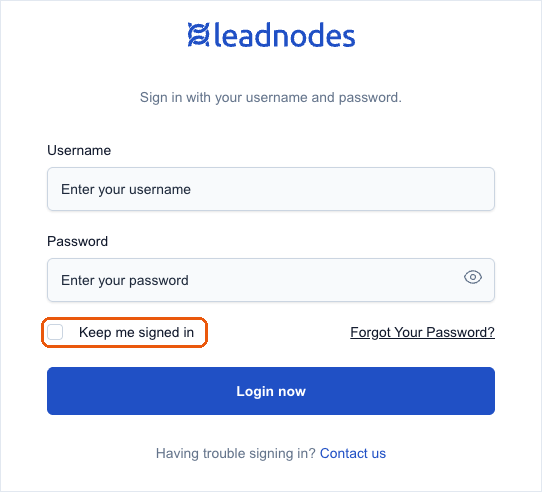
If you tick "Keep me signed in" when logging in, your browser is saved as a trusted device after you enter the code. You stay logged in on this browser for 30 days and are not asked for a code there again.
- A login with a recovery code does not save the browser as trusted.
- On the Two-Factor Authentication card, Trusted Devices shows how many browsers currently skip the code check.
- Forget all trusted devices removes the trust from all browsers. A code is requested there again at the next login.
- When two-factor authentication is switched off, all trusted devices are forgotten automatically.
Tip: Only use "Keep me signed in" on your own devices, not on shared computers. If you lose your smartphone or laptop, forget all trusted devices to be safe.
For administrators: supporting users
System administrators and co-admins also see the Two-Factor Authentication card in their users' profiles.
- There you see the user's two-factor method. Only the user chooses and sets up the method in their own account, because an authenticator app or mobile number belongs on their own device.
- Forget all trusted devices makes the code check apply again for the user on all browsers.
- Reset two-factor authentication: If a user no longer has access to their method and has no recovery codes, reset their two-factor authentication. This switches two-factor authentication off and removes the authenticator app, mobile number, recovery codes and trusted devices. The user can then log in with their password and set up two-factor authentication again.
Note: Before resetting, check that the request really comes from the user, for example by calling them back on a known phone number.
Frequently asked questions
I have a new smartphone. What do I need to do?
Log in with an email code (via Use another method) or with a recovery code. Then use Set up a new app in the settings to set up the authenticator app on the new smartphone.
I cannot get into my account at all.
Use a recovery code. If you have none left, ask the administrator of your system to reset your two-factor authentication.
I entered a wrong password or code too often.
To protect your account, input is blocked temporarily after several failed attempts. Wait a few minutes and try again. During setup, start the process again if needed.
How am I informed about unusual logins?
Under Account Credentials you can switch on New Login to Your Account ("Email me on new logins."). Find out more in the article User Profile.